Writing docs pages
On this page
- Create a docs page
- 1. Open Docs
- 2. Click New Doc
- 3. Publish it
- Group docs pages into sidebar sections
- 1. Create the folder in Blog
- 2. Move pages into it
- Put pages in order
- Write for the docs template
- Numbered steps
- Callouts
- Headings and code
- What readers get on every docs page
- The docs home
- Common questions
- Why is my folder missing from the docs sidebar?
- Why did a page jump to the top of its section?
- Where did my page go after I moved it into a folder?
- Related
Docs pages are the pages of your documentation section. Quillly serves them with a sidebar, search, an "On this page" list and previous and next links, all built from the docs pages you publish. This page shows how to create docs pages, group them into sidebar sections, put them in order, and use the formatting the docs template understands.
Create a docs page#
Create a page in the dashboard, or ask your AI: "Write a docs page that explains how to install our CLI." Your AI creates it as a docs page in your docs section.
Open Docs#
In the dashboard sidebar, open Content → Docs. If your site has no docs section yet, click Set up docs and choose where your docs are served. Content types explains the options.
Click New Doc#
The editor opens on a blank page. Write the title and the body. The editor covers the toolbar, the slash menu and saving.
Publish it#
A docs page appears on your site once it is published. Publishing explains the ways to do that and the checks that run first.
Group docs pages into sidebar sections#
The docs sidebar is built from your folders. Each folder that holds at least one published docs page becomes a section, titled with the folder's name, and lists its pages. Readers open and close a section with the plus and minus signs next to its name.
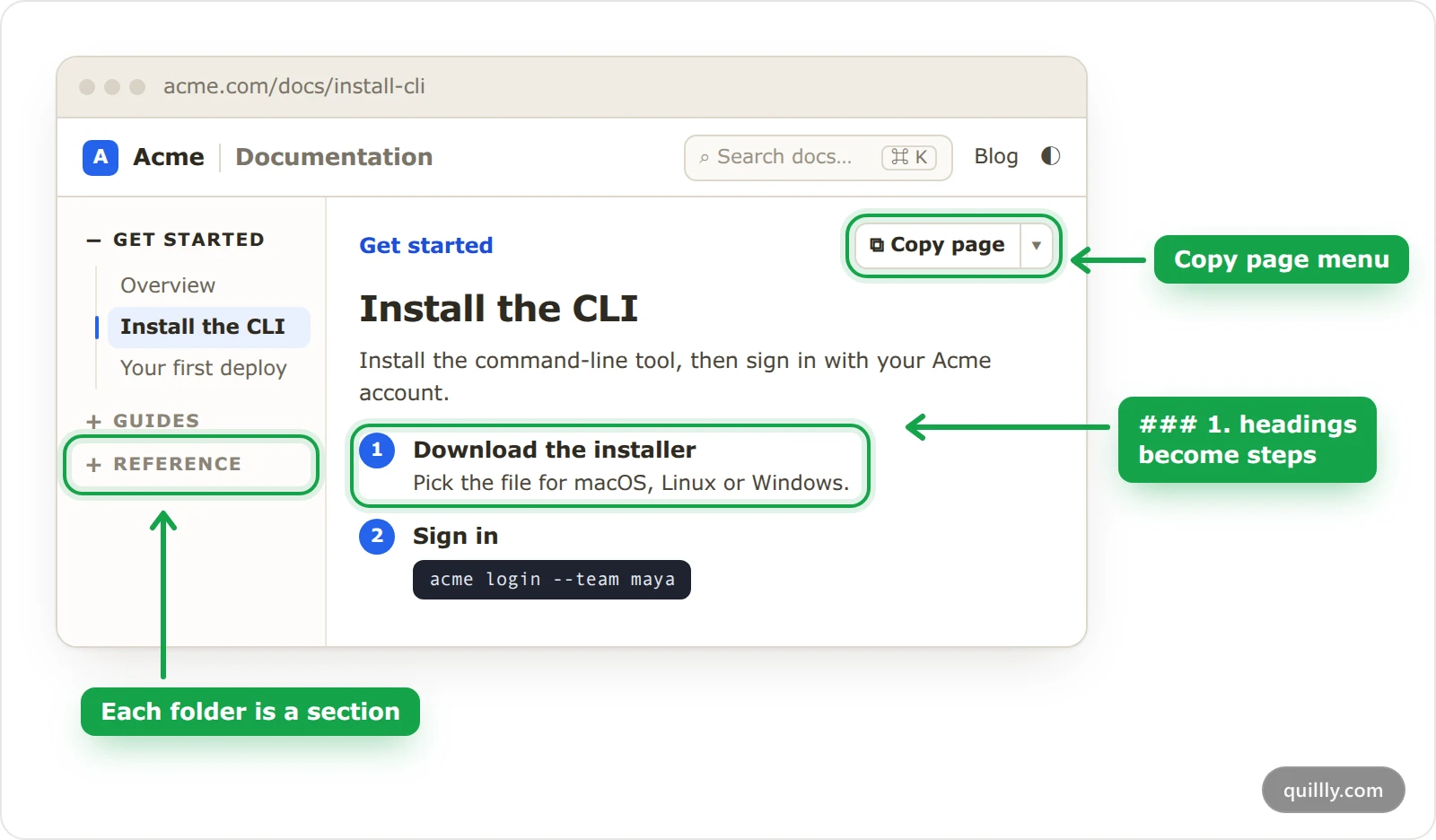
Docs pages outside any folder are listed at the top of the sidebar, above the sections.
A folder inside a folder becomes a section inside that section.
Folders are shared with your blog. A folder with no published docs pages, such as one that holds only blog posts, does not appear in the docs sidebar.
The sidebar shows only the folder's name, not its description or colour.
When your docs have 12 published pages or fewer, every section starts open. With more, only the section that holds the page being read starts open.
The sections are plain details elements, so they open and close even when a reader's browser runs no JavaScript.
Your AI can set up a section in one request: "Create a folder called Guides and move these three docs pages into it." It uses create_folder, then update_content with the folder for each page. In the dashboard, it takes two steps:
Create the folder in Blog#
Open Content → Blog and click New Folder. Name it the way the section should read, for example "Get started". The New Folder button appears only in the Blog list.
Move pages into it#
Open Content → Docs, right-click a page and choose Move to..., then the folder. Choose Root (unfiled) to take a page back out.
Note
The Docs list shows the docs pages that are outside folders. To see every page, including the ones inside folders, turn on Flat view (the list button next to Filter) or search for the page.
Put pages in order#
The same order drives the docs sidebar, the previous and next links, and the cards on the docs home:
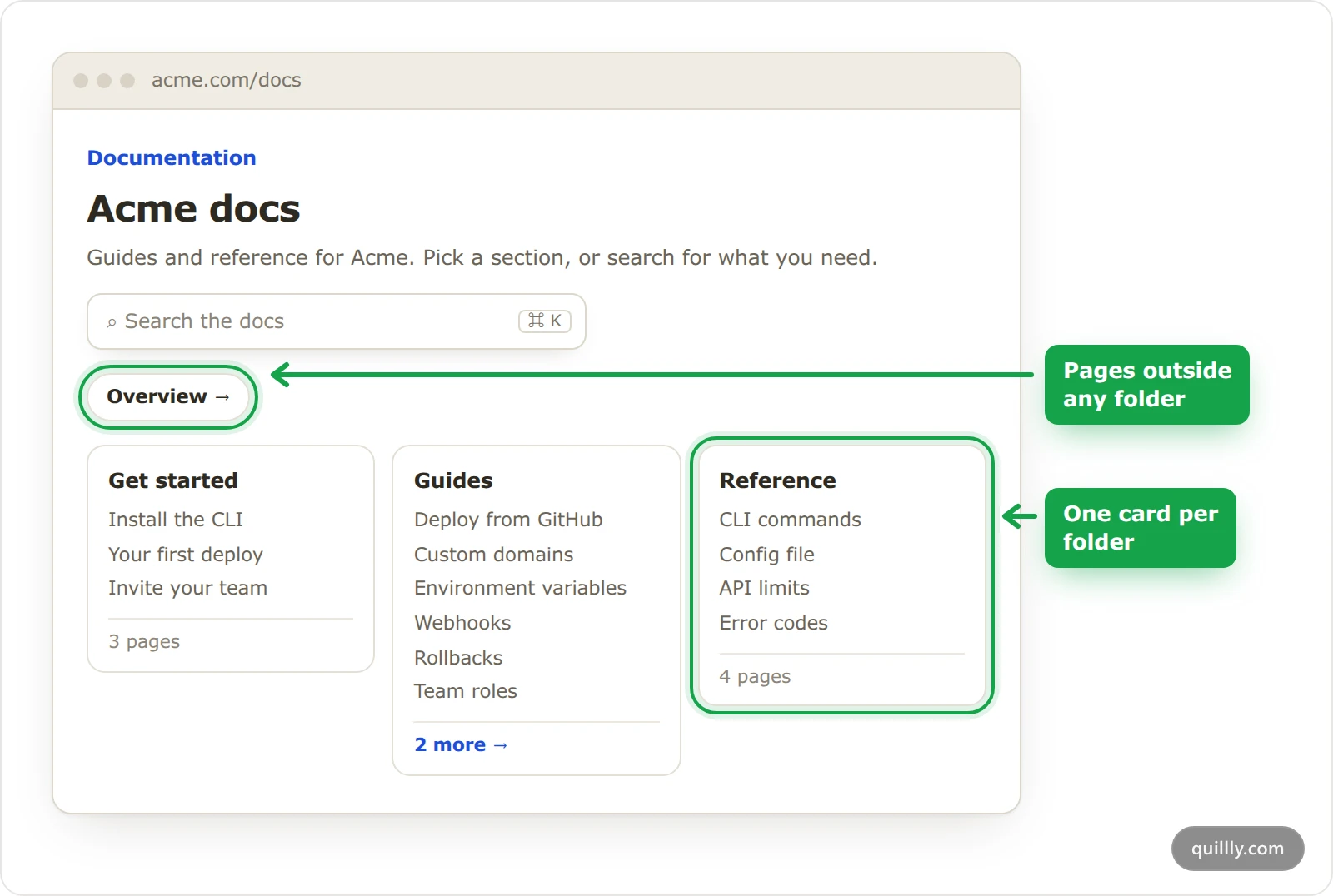
Pages outside any folder come first, then each section in turn.
Inside a section, numbered pages come first, lowest number first. Pages without a number follow, oldest first by the date they were created.
Sections are ordered by their own number, lowest first. Sections with the same number, which is 0 unless you set one, are ordered by name.
There is no ordering control in the dashboard yet. Ask your AI instead:
"Number the pages in the Guides section 10, 20, 30, in this order: Deploy from GitHub, Custom domains, Rollbacks." It sets
sort_orderon each page withupdate_content. Setting it tonullremoves a page's number."Put the Reference section after Guides." It sets
sort_orderon the folder withupdate_folder, or withcreate_folderfor a new one.
Tip
Number every page in a section, not just one. A numbered page always comes before the unnumbered ones, so numbering a single page moves it to the top. Steps of 10 leave room to add a page later without renumbering the rest.
Write for the docs template#
Docs pages use the same editor as blog posts. A few patterns turn into docs features when the page is served.
Numbered steps#
Write each step of a task as a Heading 3 that starts with its number, such as ### 1. Open Docs and ### 2. Click New Doc. Two or more in a row become a numbered stepper, like the ones on this page. The rules:
Use Heading 3, at the top level of the page, not inside a quote or a list.
Number them in sequence, 1, 2, 3, without gaps.
1.and1)both work.A step runs until the next heading, so put everything that belongs to it, text, code and pictures, under it.
In the editor, choose Heading 3 from the slash menu and type the number at the start of the heading. When your AI writes the page, it writes the steps in the same way.
Callouts#
Start a quote with a marker in square brackets, and the quote becomes a coloured callout with a title and an icon:
> [!NOTE]
> Deleting a folder moves its pages up one level. It never deletes them.
The markers are [!NOTE], [!TIP], [!IMPORTANT], [!WARNING] and [!CAUTION], as in GitHub's alert syntax. [!INFO] shows as a Note and [!DANGER] as a Caution. The editor draws a quote with a marker as a callout while you write. A quote that opens with a label, such as Note: or Warning: in bold, becomes a callout on the published page too. A quote with neither stays a plain quote.
Headings and code#
Every Heading 2 and Heading 3 goes into the On this page list at the side, which appears when a page has two or more of them. Each heading also gets its own link.
Code blocks show their language and a Copy button. Tables get a Copy button too.
Search reads each section's heading and the start of its text, so name sections with the words readers look for.
What readers get on every docs page#
Search. The Search docs… box in the header opens with ⌘ K on a Mac, Ctrl K elsewhere, or the / key. It matches titles at once, then the full text of every page once that has loaded. A page matches only when every word you typed appears on it, and a result opens the section that matched. Up to 10 results show.
Copy page. The button above the title copies the page as Markdown, ready to paste into an AI chat. Its menu adds View as Markdown, Open in ChatGPT and Open in Claude.
The section name above the title, or Documentation for a page outside any folder.
Last updated, the date of the page's last change, and a line for AI agents that links the page's Markdown version and the docs llms.txt file.
Previous and Next links at the bottom, each with the name of its section.
A Story link next to Copy page when the page has a published Web Story.
A Built with Quillly card under the sidebar.
The docs home#
Once your docs have two or more sections, or six or more pages, the address of your docs section shows a home page instead of the first page. It carries your site's name, a search box, the pages outside any folder as buttons, and one card per section. Each card lists the section's first six pages, then a link to the rest. With fewer pages, the same address opens the first page in reading order.
Common questions#
Why is my folder missing from the docs sidebar?#
It holds no published docs pages. Blog posts and drafts do not count. Publish a docs page in it, or move one there.
Why did a page jump to the top of its section?#
It has a number and the pages around it do not, and numbered pages always come first. Number the rest of the section too, or ask your AI to clear that page's number.
Where did my page go after I moved it into a folder?#
It is still there. The Docs list shows only the pages outside folders, so turn on Flat view or search for the page.
Related#
The editor: headings, quotes, code blocks and the rest of the toolbar.
Publishing: what happens when a page goes live.
Internal links: links between your docs pages that survive a rename.
Markdown syntax: pictures, calls to action, callouts and citations in Markdown.
Brand: a look and fonts of their own for your docs.
MCP tools: the tools your AI uses, including
create_folderandupdate_content.