Organizations and seats
On this page
- Create an organization
- 1. Open Organization
- 2. Name it and create it
- The organization profile
- Seats
- When all seats are taken
- When there are fewer seats than people
- Add or release seats
- 1. Set the number
- 2. Click Review change
- 3. Confirm
- Invite teammates
- 1. Enter an email and a role
- 2. They accept the invitation
- 3. Check the pending list
- Share websites
- Leave or remove people
- Common questions
- Do teammates need their own plan?
- Can I belong to two organizations?
- What happens to a teammate's pages when they leave?
- Related
An organization lets several people work on the same Quillly websites, each with a role that decides what they can do. This page covers creating an organization, its public profile, seats, how to invite teammates, and sharing websites with the team.
Before you start
A Content + Analytics plan. Every one of them includes organizations; the Analytics plans and Directory Submission don't.
One owner. The person who creates the organization becomes its Owner, and the team works on the owner's plan.
One team per person. You can belong to one organization at a time.
Create an organization#
Open Organization#
In the sidebar, under Account, click Organization.
Name it and create it#
The Create your organization card says how many seats your plan includes. Type an Organization name of 2 to 80 characters and click Create organization. You are now the owner: add a seat for each teammate on the Seats card, then invite them.
Choose the name with care: the dashboard has no way to rename the organization later.
If your plan has no organizations, such as an Analytics plan, the page shows Organizations come with Content + Analytics and a View plans button instead of the form.
Note
During the free trial you can create the organization and set up its profile, but seats wait until you subscribe, so you cannot invite anyone yet.
The organization profile#
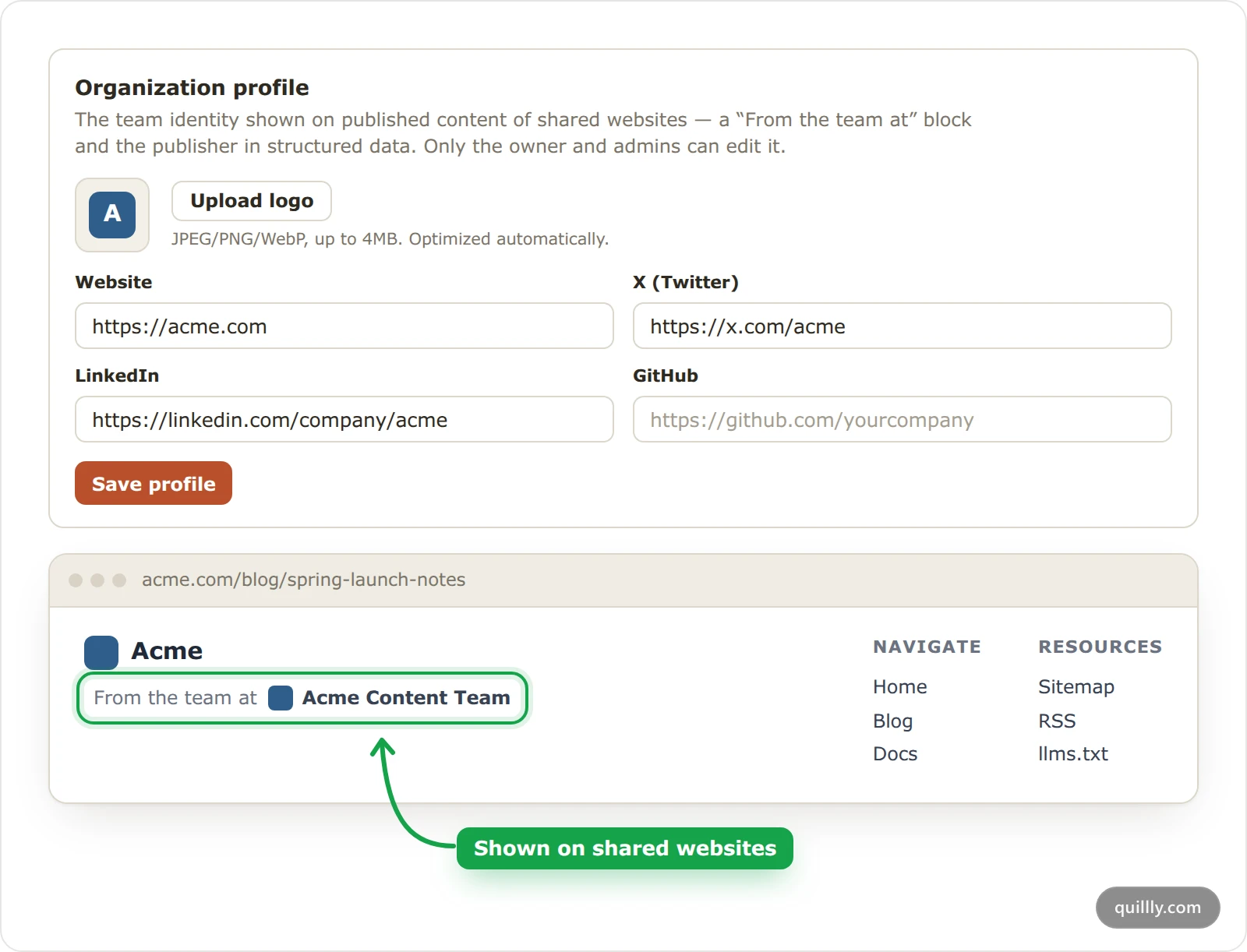
The profile is your team's public identity. Owners and admins edit it in the Organization profile card:
Upload logo takes a JPEG, PNG or WebP image of up to 4MB, and Quillly resizes it for you.
The link fields are Website, X (Twitter), LinkedIn, GitHub, YouTube and Instagram. Click Save profile when you are done.
On every website shared with the organization, Quillly then shows From the team at with your logo and name in the footer of blog posts, docs, changelog and news pages. The name links to your Website link. Blog posts and news stories also name the organization as their publisher in the page's structured data, which search engines read.
It needs a logo or a link. A profile with only a name shows nothing.
Only shared websites show it. Websites you keep to yourself have no publisher block.
Seats#
A seat is one person on the team, the owner included.
What each plan includes: every Content + Analytics plan on sale includes one seat, yours. Each extra seat is a full licence of your plan and costs what your plan costs, so the whole team is on one plan and one billing period. The pricing shows the price per teammate.
Analytics plans have no seats at all.
Pending invites hold a seat until someone accepts, you revoke them, or they expire. An expired invite holds no seat. The Seats card shows pending invites in a lighter shade.
Not during the free trial. Extra seats wait until you subscribe.
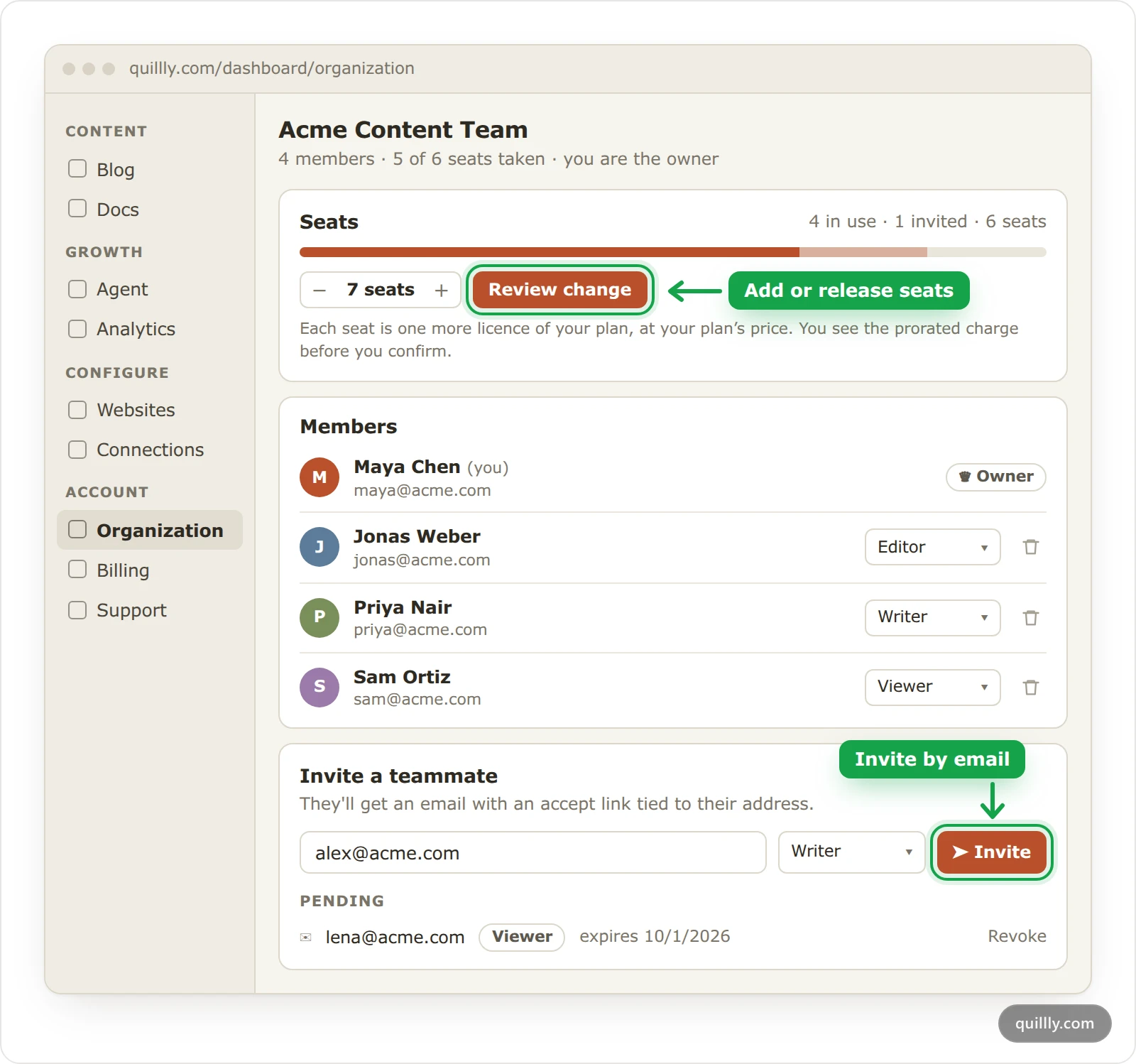
The Seats card on Organization shows the seats in use, the pending invites and the seats you pay for. Only the owner changes the number, as Add or release seats below shows.
When all seats are taken#
Members and pending invites together cannot pass your number of seats. When every seat is taken, Invite is greyed out, and the card tells the owner to add a seat or revoke an invite first. Teammates who can invite are told to ask the owner for a seat or to revoke a pending invite. If the count changed since the page loaded, the invite is refused with the same way out, such as "Add a seat on the Seats card, or free one by removing a member or revoking a pending invite." If seats run out between the invite and the answer, the person accepting sees "This team is out of seats right now — ask the owner to add a seat, then try again."
When there are fewer seats than people#
This happens when the owner removes seats, or when the owner's plan ends.
Quillly pauses members until the rest fit: the newest first, admins last, and never the owner.
A paused member shows Seat paused in the list. They keep their role and everything they wrote, but cannot work on the team's websites.
Each paused member gets an email, and the owner gets one listing who was paused.
When a seat frees up, because the owner adds seats or someone leaves, is removed or deletes their account, paused members come back on their own, longest-waiting first, and each gets an email.
If the owner's plan ends, every member except the owner is paused until the owner subscribes again.
Add or release seats#
Only the owner changes the number of seats, on the Seats card of Organization. It uses the same preview as a plan change on Billing.
Set the number#
Click + or − until the card shows the number of seats you want. The card goes up to 50 seats; for a larger team, open a support ticket. During the free trial, both buttons stay greyed out until you subscribe.
Click Review change#
The Change seats dialog shows the seats before and after, the new price, and any amount charged today, prorated for the rest of your billing period. If fewer seats would be left than people using them, it says how many members would be paused.
Confirm#
Click Confirm. When members would be paused, the button says so, such as Confirm and release 1 seat. The change waits for the payment, so a declined card changes nothing. The page reloads, and the card shows the new number as soon as the payment goes through.
Invite teammates#
The owner and admins invite from the Invite a teammate card, and so does anyone the owner gives Invite teammates on the Organization menu.
Enter an email and a role#
Type the person's email address and pick Admin, Editor, Writer or Viewer. Only the owner and admins can pick Admin. Then click Invite. Team roles and access explains what each role can do.
They accept the invitation#
They get an email with an Accept invitation button. They sign in, or sign up, with the address you typed, because the invite works only for that address. They need no plan of their own, and the link expires after 7 days.
Check the pending list#
Invites waiting for an answer appear under Pending, with their role and expiry date. Revoke cancels one.
An expired invite shows expired and its date in amber, and holds no seat. Resend sends a new link that is valid for 7 days. It is greyed out while every seat is taken, because the new invite takes a seat again.
Inviting the same address again replaces its pending invite with a new link and a new 7-day expiry, which helps when the first email never arrived. The new invite takes the old one's seat, not a second one.
When someone accepts, the person who invited them gets an email. An invite cannot be accepted by someone who already belongs to another organization: they must leave it first.
Note
Accepting checks the owner's plan, not your teammate's. If the team's plan no longer includes teammates, the invite page says so and asks them to check with the owner before they open the invite again.
Share websites#
Every website belongs to the person who added it, and that person decides whether the team can work on it.
Switch it on. In the Shared websites card, each of your websites has a switch. On shares it with the team; off stops sharing.
Anyone can share their own. Every member can share websites they own. Websites others shared show Shared with you.
Roles apply. Everyone on the team can then open the website with their role's access, and it appears in their list of websites. The team's owner works as an admin on websites teammates share.
The owner's call. Only the website's owner can share it, unshare it or delete it, and a website can be shared with one organization.
When you switch a website off, the team loses access at once. Pages teammates wrote stay on the website.
Leave or remove people#
Leave organization, at the top of the page, is there for everyone except the owner. The owner gets an email when someone leaves.
Remove a member with the bin icon next to their name. The owner and admins can remove members, and so can anyone the owner gives Remove people and set menu access. Only the owner can remove an admin. The person removed gets an email.
Change a role with the menu next to each member. Only the owner can, and the member gets an email with their new role.
The owner stays. The owner cannot leave or be removed, and cannot make someone else the owner. The organization ends only when the owner deletes their Quillly account.
Note
Websites leave with their owner. When someone leaves or is removed, every website they shared with the team is unshared at once. Pages teammates wrote there stay on the website.
Common questions#
Do teammates need their own plan?#
No. Once they join, the menus and agent tools they get come from the owner's plan, and accepting the invite checks the owner's plan, not theirs. They never see the owner's billing, and research they run on a website they don't own spends the owner's credits.
Can I belong to two organizations?#
No. You belong to one organization at a time, as its owner or as a member. To join a different team, leave the first one with Leave organization at the top of the page. An owner cannot leave their own organization, so an owner cannot join another team.
What happens to a teammate's pages when they leave?#
They stay on the website, and the teammate is still shown as their author, so nothing readers see changes. The websites that teammate shared leave the team with them. Deleting a Quillly account keeps pages on other people's websites too, but deletes every website the person added, with all its pages.
Related#
Team roles and access: what each role can open and change.
Billing: change plan, seats and credits: plan changes, yearly billing and the payments portal.
Account settings, emails and support: your author profile, and what deleting an account removes.
API keys, OAuth and tool access: each teammate connects their own AI with their own key.
MCP tool reference: the lowest role that can use each tool.
Publishing: statuses, scheduling and review: how a writer's pages reach an editor.