Keyword research and credits
On this page
- What each keyword research lookup costs
- Find keyword ideas
- 1. Open Research
- 2. Enter seed terms
- 3. Click Research
- 4. Check who ranks
- 5. Save the keywords you want
- How Est. clicks is worked out
- Competitor gap and link prospects
- Keyword research from your AI
- Where research credits come from
- Buy more credits
- 1. Open Billing
- 2. Click Add credits
- 3. Pick an amount
- 4. Pay
- See what you spent
- Common questions
- Why was a lookup refused when I still have credits?
- Do cached results cost anything?
- Why does the competitor gap list keywords I already rank for?
- Related
The Research page finds keywords worth writing about, the topics a competitor ranks for that you don't, and pages that could link to you. Each keyword research lookup costs research credits, and repeats are free. This page shows what each lookup costs, where your credits come from and how to buy more.
Before you start, you need:
A Content + Analytics plan (Pro or an Autopilot plan) or the free trial. Analytics plans include no research.
To own the website, or to have Contribute on Research in its organization, as writers, editors and admins do by default. Competitor gap and Link prospects need Manage, which admins have by default.
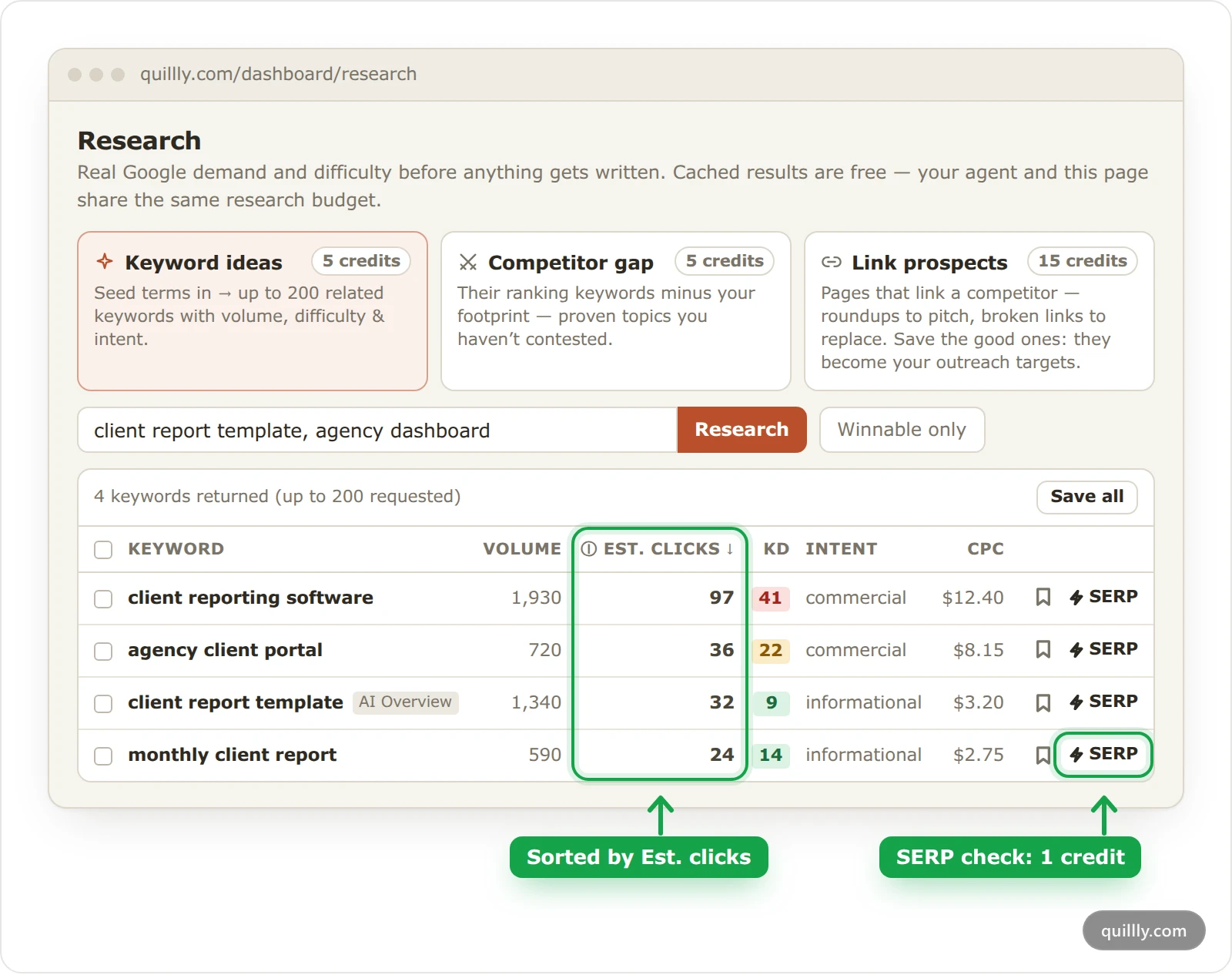
What each keyword research lookup costs#
Lookup | What you get | Credits |
|---|---|---|
Keyword ideas | Up to 200 related keywords from up to five seed terms, with volume, estimated clicks, difficulty (KD), intent and cost per click | 5 |
Competitor gap | Keywords a competitor ranks for that your pages don't, with the competitor's position and page | 5 |
Link prospects | Pages that link to a competitor, and the competitor's dead pages that still have links | 15 |
SERP check | Today's Google top 10 for one keyword, with each site's authority | 1 |
Keyword lookup, from your AI | Volume, expected clicks, difficulty and intent for the keywords your AI names | 1 |
Web search, by the in-app agent | A short answer with its sources | 5 |
Repeats are free. A lookup fetched recently comes from the cache at 0 credits: keyword ideas and keyword lookups for 30 days, SERP checks, competitor gaps and link prospects for 14 days, and web searches for an hour. The Research page and your AI share one cache, and the page marks a cached result Served from cache — free.
Failed lookups are refunded. If the data provider doesn't answer, the credits go back.
The data is Google's, for the United States in English. Volumes, difficulty and search results don't follow your site's country.
Search checks in Site pages spend the same credits. Site pages lists their cost.
Find keyword ideas#
Open Research#
Click Research under Growth in the sidebar. The page works on the website you have selected.
Enter seed terms#
Keep Keyword ideas selected and type up to five seed terms, separated by commas, such as
client report template, agency dashboard. Turn on Winnable only to keep only keywords with a difficulty under 30.Click Research#
Quillly returns up to 200 keywords, sorted by Est. clicks: the clicks a page could still earn from each one, highest first. Click a column name to sort by it instead. KD is green under 15 (winnable now), amber from 15 to 34 (contested) and red from 35 (locked). A
?means there isn't enough data, which is not the same as easy.Check who ranks#
Click SERP on a row. For 1 credit you see the top 10 results, each site's authority on a 0–1000 scale, how many results come from forums and communities, the format that wins, such as guide or listicle, and whether an AI Overview sits above the results. Green authority, under 150, marks a place a newer site can take.
Save the keywords you want#
Click the bookmark on a row, or tick several rows and click Save 3 to focus list (the number follows your selection). Save all saves every row. Saving is free, and saved keywords join the Focus list, which your AI and Autopilot read before they write. Search performance and the Focus list covers the list itself.
How Est. clicks is worked out#
Est. clicks estimates the monthly clicks a page on page one could still get from a keyword. Volume alone misleads: when Google answers a search on the results page, fewer people click through, however well a page ranks.
The estimate takes the monthly volume times 5%, the click rate Quillly assumes for a page-one result below the top three. Then, for each feature on the results page that answers the search first, it keeps only part of that:
On the results page | Clicks kept |
|---|---|
AI Overview | 60% |
Map pack | 60% |
Answer box | 70% |
Featured snippet | 80% |
Knowledge panel | 85% |
Shopping results | 85% |
Top stories | 90% |
Videos | 90% |
A navigational search, from someone looking for one particular site, keeps a quarter. Features that don't answer the search, such as People also ask, take nothing. For example, 1,340 searches with an AI Overview and a featured snippet: 1,340 × 5% × 60% × 80% = 32 clicks.
AI Overview next to a keyword marks one Google answers on the results page. Its tooltip reads: "Worth writing only with what the overview cannot give: a comparison, a decision, steps or real examples."
The info icon next to Est. clicks repeats the formula, and hovering over a number lists what lowered it.
No extra credits. The read of the results page comes with the keyword lookup.
Limits. A dash means the volume is unknown. Competitor gap rows carry no read of the results page, so their estimate is volume × 5% with nothing taken off.
Keywords you save from here keep the estimate in the Est. clicks column of the Focus list.
Competitor gap and link prospects#
Click Competitor gap or Link prospects, type a competitor's domain, such as competitor.com, and click Find gap or Find prospects.
Competitor gap takes up to 300 of the competitor's most-searched keywords and removes those your pages already rank for in Search Console or Bing. The line above the table counts the keywords fetched and how many of them you already contest. Their rank is green when the competitor sits in the top 10, and links to the page that ranks.
Link prospects returns two lists. Pages that link to competitor.com are roundups and comparisons, with titles containing "best", "top 10", "tools", "alternatives" or "vs", that could list you too. Their broken pages that still hold links are dead pages on the competitor's site that other sites still link to: write a replacement, then ask those sites to link to yours.
Click the bookmark on a prospect to save it under Outreach targets in the Focus list. Pitch pages where a link helps readers: Google treats paid or swapped links as link spam.
Keyword research from your AI#
Your AI runs the same lookups through MCP, from the same credits and the same cache:
research_keywordsreturns volume, difficulty and intent for 1 to 10 keywords for 1 credit, plus free Bing volumes when Bing is connected. Its Google rows come sorted byexpected_clicks, withai_overview, theserp_featuresandclick_notes, and it tells your AI to choose byexpected_clicks, not volume.check_serpcosts 1 credit,competitor_gap5 andfind_link_prospects15.check_serpalso returnsclick_share, the part of a normal page-one click rate its results page leaves: 1 when nothing answers first, 0.6 with an AI Overview.save_keywordsandsave_link_prospectssave rows for free. Pass a row'sserp_featurestosave_keywordsso the Focus list keeps itsexpected_clicks.
Every tool answer reports the balance it spends from. MCP tool reference lists each tool's arguments.
Where research credits come from#
Your plan adds a monthly allowance on the 1st of each month, in UTC. Unused credits don't carry over.
Plan | Research credits |
|---|---|
Pro | 100 a month |
Autopilot Starter | 300 a month |
Autopilot Pro | 1,000 a month |
Autopilot Scale | 3,000 a month |
Free trial | 20 for the whole trial |
Analytics plans | None |
A lookup spends the monthly allowance first, then your wallet: credits you bought, which never expire. Plans, trial and limits compares the plans.
A daily cap per website. One website can spend at most 150 credits a day. Past that, its lookups are refused until midnight UTC, even with credits left.
Who pays. A lookup spends the credits of the account that runs it. In an organization, a teammate's lookups on a website they don't own spend the organization owner's credits. Scheduled Autopilot runs spend the website owner's credits.
Buy more credits#
Open Billing#
Click Billing under Account, or the Credits balance at the bottom of the sidebar.
Click Add credits#
In the SEO research credits card, click Add credits. The + next to Credits in the sidebar opens the same window.
Pick an amount#
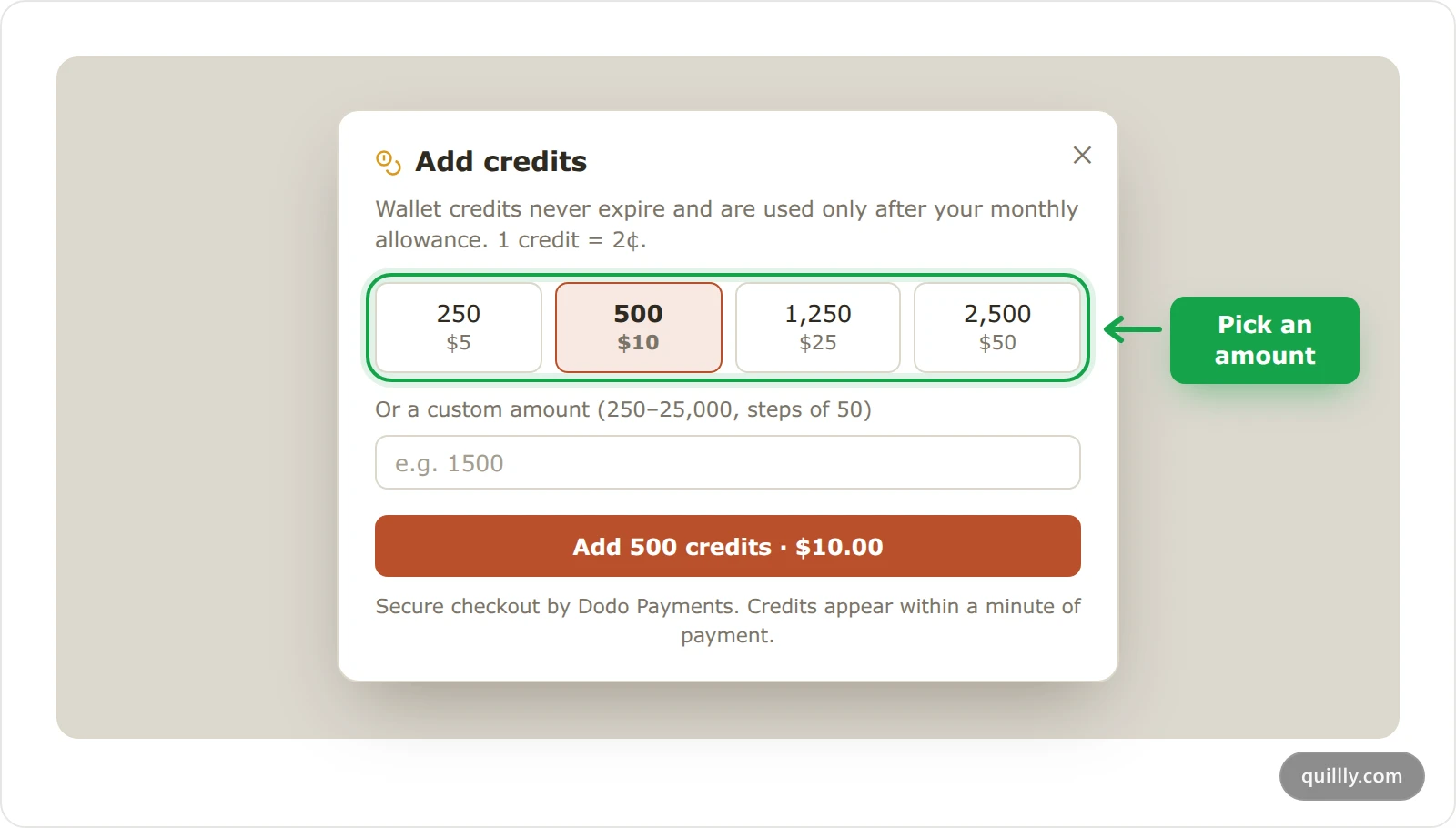
Choose 250, 500, 1,250 or 2,500 credits, or type any amount from 250 to 25,000 in steps of 50. Each credit costs 2 cents, so 500 credits cost $10.
Pay#
Click the button, such as Add 500 credits · $10.00, and pay on the Dodo Payments checkout page. The credits reach your wallet within a minute.
Note
Only a paid Content + Analytics plan can buy credits. During the trial, the checkout does not open: subscribe first.
See what you spent#
The SEO research credits card at the top of Billing shows the Monthly allowance left and its reset date, the Wallet, and every spend with its time, lookup, source, such as via AI agent (MCP), and credits. Cached lookups appear as cached · free. The Credits figure in the sidebar is what's left of your monthly allowance plus your wallet.
Common questions#
Why was a lookup refused when I still have credits?#
The website has most likely reached its daily cap of 150 credits. The cap resets at midnight UTC, and your other websites keep working.
Do cached results cost anything?#
No. A cached answer costs 0 credits and still appears in your spending list, marked cached · free.
Why does the competitor gap list keywords I already rank for?#
The gap removes only the keywords in your own search data. Connect Search Console or Bing so Quillly knows what your pages rank for.
Related#
Plans, trial and limits: what each plan includes.
Search performance and the Focus list: the keywords you saved, and how they rank.
Your first session: how your AI uses research in a session.
Pages to prune: the posts that earned no search impressions in 90 days.