Brand: site theme, logo and navigation
On this page
- Open the Brand page
- Set the site theme
- 1. Choose Site
- 2. Start from a theme
- 3. Tune it
- 4. Save
- Give a section its own look
- Identity: logo, name and fonts
- Header navigation
- Change your brand with your AI
- The Quillly mention
- Common questions
- Why doesn't my new theme show on my site?
- Why does my docs section look different from my blog?
- Can I use my own CSS?
- Related
The Brand page decides how every page Quillly serves for you looks: the site theme, your logo and name, the fonts, and the links in the header. This page walks through its three tabs, explains which changes wait for Save changes and which apply the moment you click, and shows how to give one section, such as your docs, a look of its own.
Open the Brand page#
In the dashboard sidebar, open Configure → Brand. The page has three tabs: Theme, Identity and Navigation. A live preview on the right follows what you select. Above it, Light and Dark switch the preview's mode, Desktop and Mobile switch its width, and Open live opens the real page.
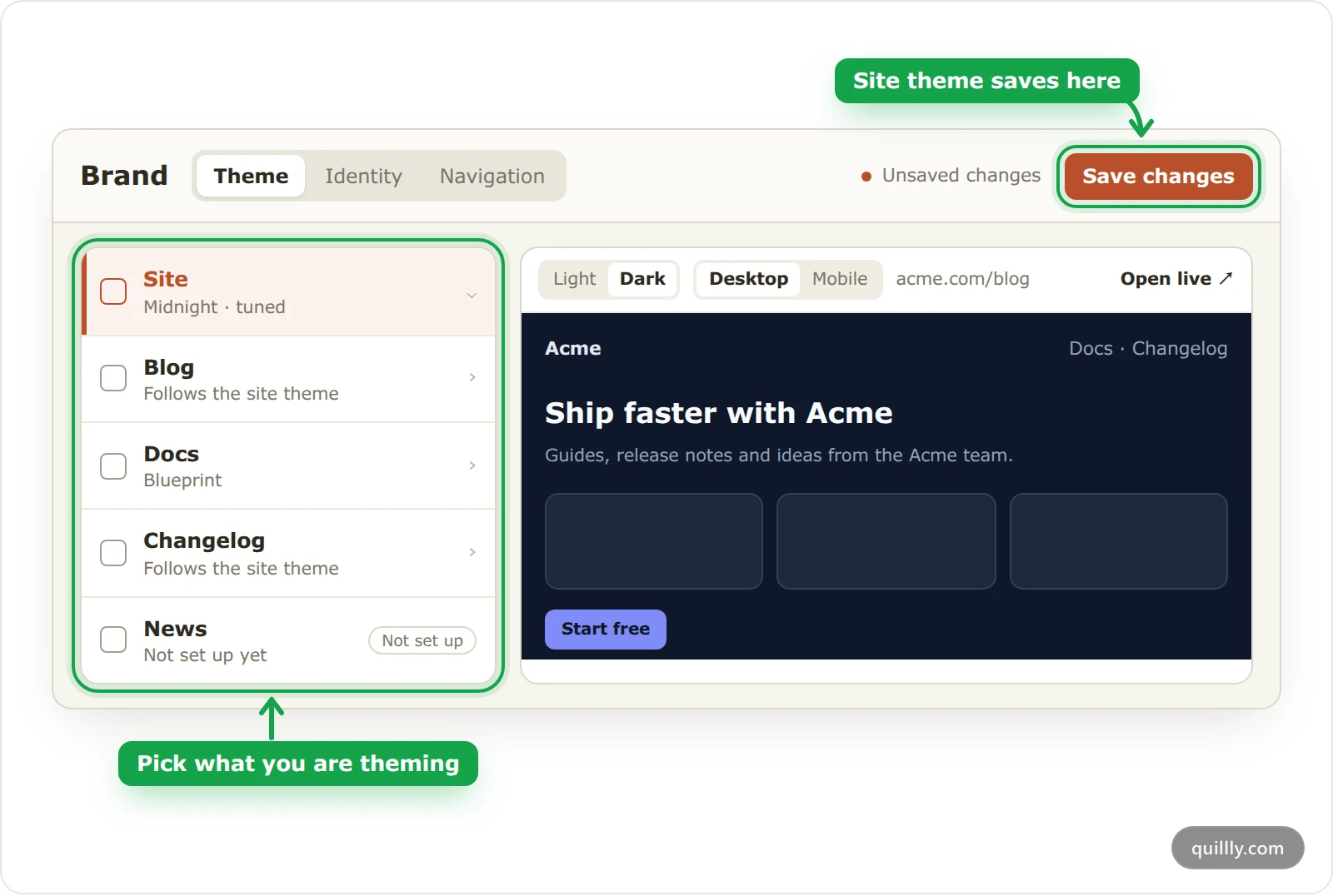
Changes on the three tabs are saved together with Save changes at the top right. Until then the header says Unsaved changes. Two things are the exception and save at once: section looks, described below, and a new logo. If your role in the organization can only view the Brand page, the button is replaced by View only.
Set the site theme#
The site theme is what every served page starts from: the blog, docs, changelog and news all use it unless a section has its own look.
Choose Site#
On the Theme tab, the rail on the left lists Site, Blog, Docs, Changelog and News, each with the look it wears now. Choose Site.
Start from a theme#
Under Start from a theme, pick one of the ten themes: Quillly, Ink, Midnight, Forest, Plum, Editorial, Journal, Breeze, Slate or Terminal. The preview switches to it straight away.
Tune it#
Under Tune, set what you want to change. Anything you leave alone keeps the theme's default.
Visitors see: whether a first-time reader gets the light or the dark version. Readers can still switch with the toggle on your pages.
Corners: None, Small, Default or Large rounding on cards, buttons and pictures.
Colours: the six essentials are Background, Text, Primary, Border, Primary text and Muted text. Surfaces and Semantic colors hold the rest, such as card, error and success colours. The Light and Dark switch above the preview decides which of the two palettes you are editing. Keep text readable against its background: WCAG's contrast minimum asks for 4.5:1 on body text.
Save#
Click Save changes. Your served pages refresh with the new theme.
Give a section its own look#
A section look changes one part of your site and leaves the rest on the site theme. Your docs can use a documentation theme while the blog keeps yours, for example.
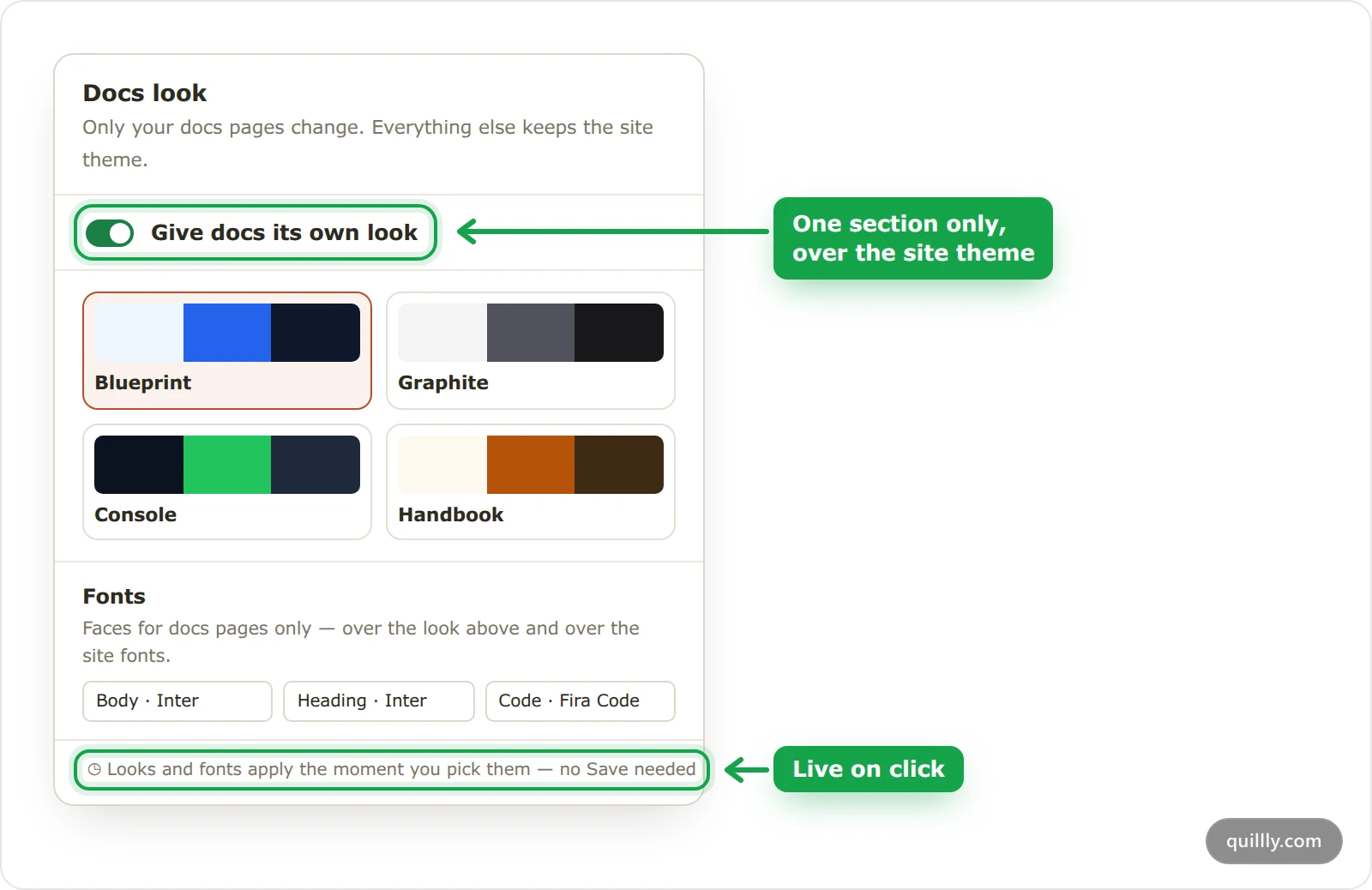
Choose the section in the rail and turn on the switch, such as Give docs its own look. Then pick a look:
Section | Looks to pick from |
|---|---|
Blog and Changelog | The same ten themes as the site |
Docs | Blueprint, Graphite, Console and Handbook |
News | Broadsheet, Financial, Wire and Midnight Desk |
Below the looks, Fonts sets faces for that section only: Body and Heading, plus Code on docs. Looks and fonts apply the moment you pick them, with no need for Save changes. Turning the switch off puts the section back on your main theme. A section you have not created yet still shows in the rail with Not set up, and you can choose its look before you create it under Content.
Identity: logo, name and fonts#
The Identity tab holds:
Logo: click the box and choose a PNG, JPEG, WebP or SVG file of up to 2 MB. It is saved as soon as it uploads. It appears in the header of your served pages, and Web Stories use it as their publisher logo.
Brand name: shown in your page headers and page titles, such as "Acme docs" on your docs home. Without one, your domain is used.
Fonts: Body font, Heading font and Heading weight for the whole site. Every family on Google Fonts is available, and each is loaded only on the pages that use it.
Blog layout: Grid, List or Magazine for your blog's index page, and a Featured images switch for the pictures on post cards.
RSS feed: one switch for the RSS feeds of your blog, changelog and news section. Sitemaps are always generated.
Header navigation#
The Navigation tab sets the links in the header of your served pages, which also appear in the phone menu and the footer.
Site holds the menu every section uses. Add up to five links with Add link, each with a label, an address and a style: link for a plain link or button for a highlighted one, such as "Start free".
A section can have its own menu. Choose it, then turn off Follows site navigation. Its menu starts as a copy of the site menu, ready to edit.
With no links at all, the header lists your sections, Blog, Docs, Changelog and News, plus a link to your website, and leaves out the section the reader is on.
Menus are saved with Save changes.
Note
Theme and look changes show on your pages right away. A new logo, name or menu can take a few minutes to appear, until the cached pages refresh.
Change your brand with your AI#
Your AI can make the same changes with update_website_settings: theme colours, the site fonts and each section's fonts, the logo, the name, the site menu and the section menus. To choose fonts it searches the Google Fonts catalog with list_fonts, which also suggests pairings. For example: "Set the headings on our docs pages in Space Grotesk, and add a Pricing link to the site menu."
The Quillly mention#
Every served page ends with a small Published with Quillly link in the footer, and docs pages also show a Built with Quillly card under the sidebar. The Brand page has no setting to hide them.
Common questions#
Why doesn't my new theme show on my site?#
The site theme is published only when you click Save changes. Check that the header no longer says Unsaved changes, then reload your page.
Why does my docs section look different from my blog?#
Docs has its own look turned on. Choose Docs in the rail and turn off Give docs its own look to give it the same look as the rest of your site.
Can I use my own CSS?#
No. The Brand page sets colours, corners, fonts and layout, and there is no place for custom CSS.
Related#
Writing docs pages: the docs template the Docs looks restyle.
News stories and sources: the news pages the News looks restyle.
Tracking scripts: add analytics to the same served pages.