Team roles and access
On this page
- The five team roles
- The four access levels
- Default access by menu
- What each level changes
- Rules the levels do not change
- Writers and review
- Change a role's access
- 1. Open Menu access
- 2. Pick the role
- 3. Choose a level
- Which agent tools each level allows
- Switch one tool on or off for a role
- Common questions
- Can a writer publish if I set Content to Manage?
- Why can an editor not change the website settings?
- Do these settings cover a teammate's own websites?
- Related
Every person in an organization has a role, and each role has an access level for every menu, a form of role-based access control. This page lists the team roles, the four access levels and each menu's default, shows how the owner or an admin changes them, and explains which agent tools each level allows.
The five team roles#
Role | What it is for |
|---|---|
Owner | Created the organization and pays for it. Can do everything, and no setting on this page limits the owner. |
Admin | Runs the team and the websites: invites and removes members, sets access, changes website settings, brand and search engine connections, and does everything an editor does. |
Editor | Full control of content on shared websites: creates pages, edits anyone's, publishes and deletes. By default, no website settings and no team management. |
Writer | Creates pages and edits their own, then sets them to Review for an editor to publish. |
Viewer | Reads content, analytics and SEO reports on shared websites, and changes nothing there. |
Only the owner changes roles, removes an admin and changes the team's plan and seats. Teams that started before these roles had one Member role, which now works as Editor.
The four access levels#
For each menu, a role has one of four levels. Each level includes the ones before it.
No access: the menu is hidden, and its pages are blocked even from a link.
View: read it.
Contribute: add to it, the day-to-day work.
Manage: also remove things and change how the menu is set up.
Default access by menu#
Menu | Viewer | Writer | Editor | Admin |
|---|---|---|---|---|
Content (Blog, Docs, Changelog, News, Site pages) | View | Contribute | Manage | Manage |
Analytics | View | View | View | Manage |
Agent | View | Contribute | Contribute | Manage |
Research | View | Contribute | Contribute | Manage |
Focus list | View | Contribute | Contribute | Manage |
Agent Notes | View | Contribute | Contribute | Manage |
Earning, when your dashboard has it | View | Contribute | Contribute | Manage |
Websites | View | View | View | Manage |
Domain Rating | View | View | Contribute | Manage |
Brand | View | View | View | Manage |
Connections | View | View | View | Manage |
Organization | View | View | View | Manage |
Billing | No access | No access | No access | No access |
Support | Contribute | Contribute | Contribute | Manage |
The owner has Manage on every menu. Billing is marked Owner only and cannot be granted to anyone, so only the owner changes the plan or seats. The one exception is a teammate who pays for a subscription of their own: Billing opens for them to manage it. A menu the owner's plan does not include is hidden for the whole team.
Tip
Give each person the lowest role that covers their work, the least privilege rule, then raise one menu at a time when they need more.
What each level changes#
Agent, Research, Focus list, Agent Notes and Earning. The level decides what the person can do, in the dashboard and through their AI:
Agent: View watches every session and its transcript, Contribute chats with the agent, Manage edits the schedule and turns Autopilot on or off.
Research: View shows past research, Contribute runs keyword and SERP lookups, Manage adds competitor and backlink scans. A teammate's lookups on a website they don't own spend the organization owner's credits.
Focus list: View shows the targets, Contribute adds them, Manage removes them.
Agent Notes: View reads notes, Contribute leaves notes and changes your own, Manage resolves and deletes anyone's.
Earning: View shows the affiliate connection, Contribute searches products and builds affiliate links, Manage connects and disconnects the account.
Analytics. View and Contribute both show traffic, rankings and indexing. Manage adds goals, funnels and conversions, in the dashboard and through the AI, and lets the AI ask a search engine to check a fix again. Choosing cookies or cookieless analytics stays with the owner and admins.
Content. The level decides whether the content menus show and which content tools a teammate's AI gets. In the dashboard, editing and publishing follow the role, as the next section explains.
Websites, Brand, Domain Rating and Organization. Each level means what its label in Menu access says, and Quillly checks it whenever someone saves a change on a shared website:
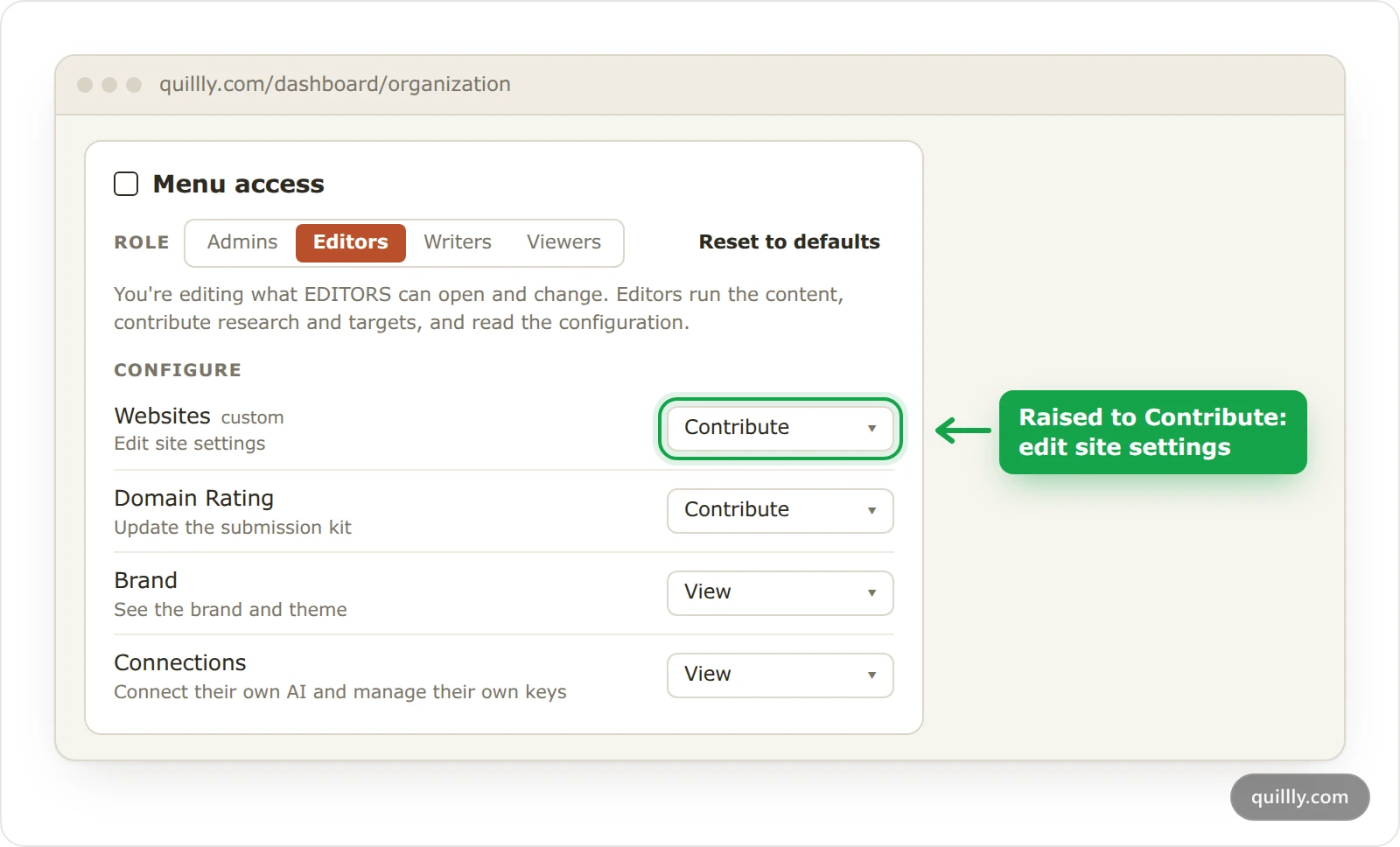
Websites: Edit site settings (Contribute) changes a site's settings and sections, such as the weekly limit on new posts from AI agents, and connects or disconnects Search Console, Bing and Yandex. Add and remove sites (Manage) also moves content from one site to another and edits the tracking script. Only the person who owns a website can delete it.
Brand: Edit copy and images (Contribute) changes the brand name, logo, menus and brand voice. Change theming and CSS (Manage) changes the theme, fonts and layout.
Domain Rating: View shows the domain rating, the submission kit and your orders. Contribute also updates the kit. Manage marks directories submitted, places and re-syncs orders, and makes the DR guarantee choice.
Organization: Invite teammates (Contribute) invites editors, writers and viewers. Remove people and set menu access (Manage) also removes members and changes Menu access and Agent tools. Only the owner changes a role or removes an admin, and only the owner and admins invite an admin, change what admins can do or edit the organization profile.
Connections and Support. Each person manages their own keys and their own support tickets.
Rules the levels do not change#
Publishing: only owners, admins and editors publish, schedule, unpublish or archive a page. Raising writers to Manage on Content does not change that.
Editing: writers edit only pages they created. Viewers cannot create pages, even at Contribute.
Deleting pages: owners, admins and editors delete any page. Writers delete their own pages while those are unpublished.
Websites: only the person who owns a website can delete it or share it with the team.
Your whole dashboard: while you are in an organization, your role decides which menus you see, including on websites you own.
Writers and review#
Writers do the writing, and an editor, admin or owner takes it live. Exactly:
Writers can create pages on shared websites, edit their own pages at any status, set their own pages to Draft or Review, and delete their own pages that are not published. When a writer's AI asks to publish a new page, Quillly saves it as Review instead.
Writers cannot publish, schedule, unpublish or archive any page, their own included. They cannot edit or delete a teammate's page, delete their own page once it is live, or publish a Web Story.
Their AI can hand a page over too.
bulk_update_contentis on for writers, so their AI can move their own pages into folders and set them to Draft or Review. It checks each page against the writer's own rights, so it refuses a teammate's page and any publish.
When a page moves to Review, the website's owner and the team's owner, admins and editors get a notice under Notifications that links to the page. Whoever moved it gets none. Publishing: statuses, scheduling and review shows how to take it live.
Warning
Once an editor publishes a writer's page, the writer can still edit it, and those edits go live without another review.
Change a role's access#
The owner and admins change access on the Organization page, and so does anyone the owner gives Remove people and set menu access. Only the owner and admins change what admins can do.
Open Menu access#
On Organization, scroll to the Menu access card.
Pick the role#
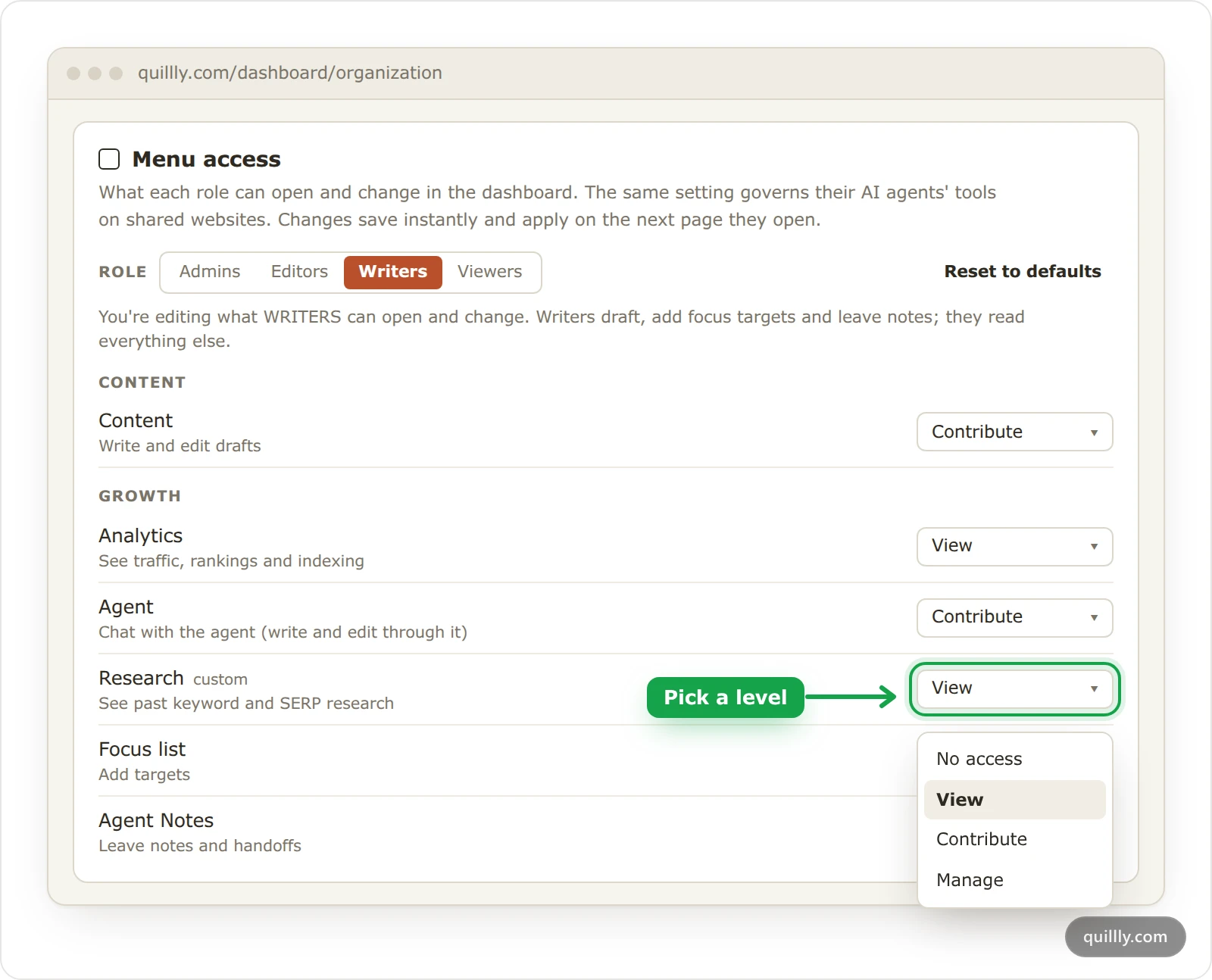
Click Admins, Editors, Writers or Viewers. The line under the buttons sums up what that role can do.
Choose a level#
Open the menu next to a row and pick No access, View, Contribute or Manage. The change saves at once and applies on the next page the teammate opens, and on their AI's next tool call. A changed row shows custom, and Reset to defaults puts the whole role back.
Which agent tools each level allows#
These rules apply when a teammate's AI, connected over MCP, works on a website someone else shared with the organization. On websites they own, their own plan decides, and the owner is never limited.
Menu | View | Contribute | Manage |
|---|---|---|---|
Content | Every content and SEO read, such as |
|
|
Analytics |
| Nothing more |
|
Research | None |
|
|
Focus list |
|
| Nothing more |
Agent Notes |
|
| Nothing more |
Websites | None |
| Nothing more |
Domain Rating |
|
|
|
Earning |
|
| Nothing more |
A level includes the tools of the levels before it. update_website_settings also checks Brand inside each call, as the dashboard does: the theme and fonts need Change theming and CSS, and the name, logo and menus need Edit copy and images. The two feedback tools, report_feedback and submit_product_feedback, follow the role instead: they are on for admins, editors and writers, and off for viewers. The MCP tool reference lists every tool with the lowest role that can use it.
Switch one tool on or off for a role#
The Agent tools card, under Menu access, lists every tool with a switch for the chosen role. A switch you change there beats the menu level for that one tool, and the others keep following the level.
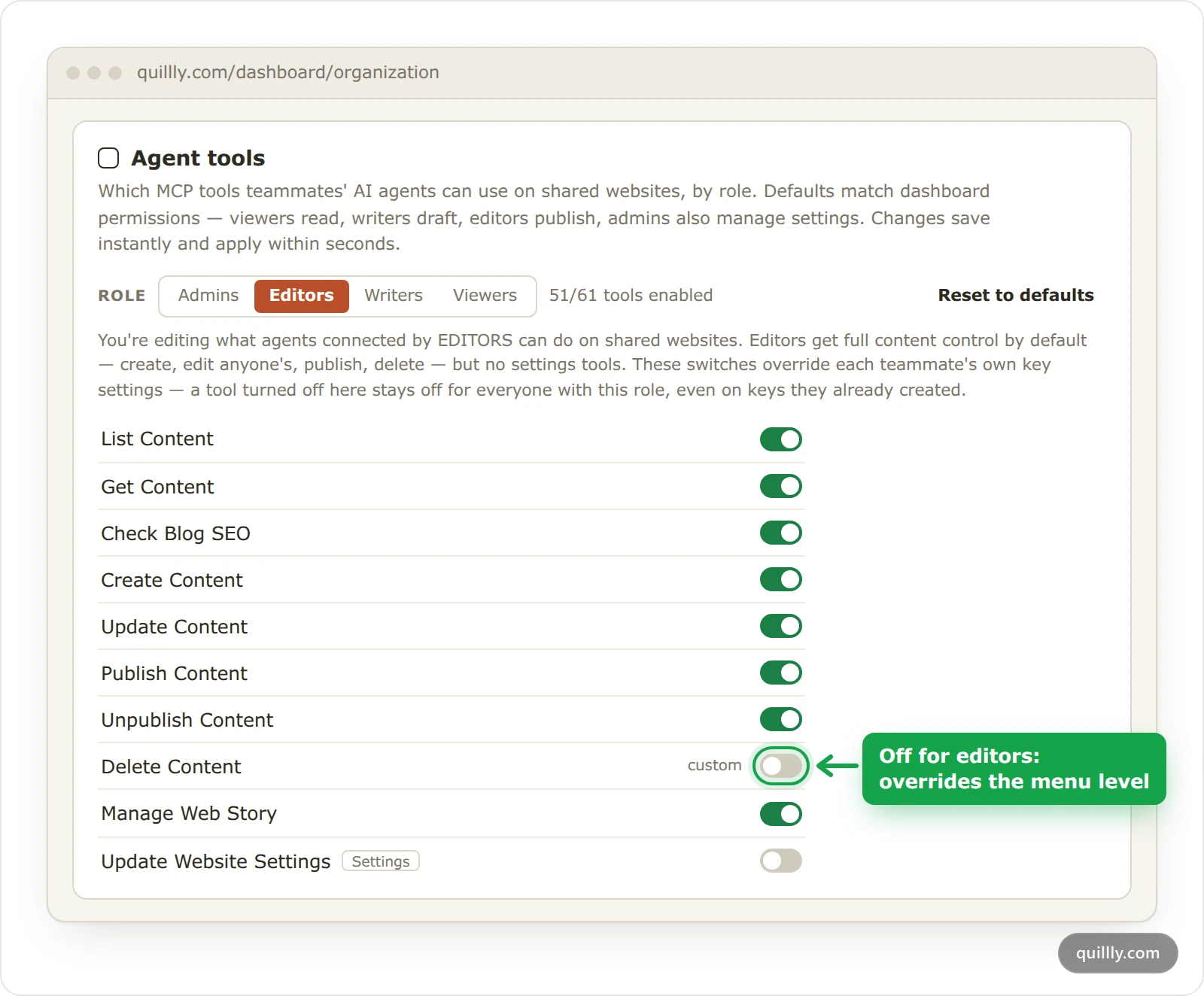
The card counts the tools that are on, marks changed switches custom, and Reset to defaults undoes them.
A tool switched off here stays off for the role, even on keys teammates already created.
Note
Switches choose tools, not rights. Even with a tool on, a writer changes only their own pages, and a viewer changes nothing.
Common questions#
Can a writer publish if I set Content to Manage?#
No. Publishing needs the editor role or higher. Manage gives a writer's AI the publishing tools, but those tools refuse a writer, and a page a writer's AI asks to publish is saved as Review. To let someone publish, make them an editor.
Why can an editor not change the website settings?#
By default, editors have View on Websites and Brand. Under Menu access, raise Websites to Contribute for site settings and search engine connections, and Brand to Contribute or Manage for the brand. Their AI's update_website_settings needs the same levels: Contribute on Websites, and the matching Brand level for the theme, fonts, name, logo or menus.
Do these settings cover a teammate's own websites?#
Their AI's tools on their own websites follow their own plan, not your settings. The menus they see follow their role everywhere while they are in the organization, including on websites they own.
Related#
Organizations and seats: create the team, invite people and share websites.
Publishing: statuses, scheduling and review: statuses and the review step.
MCP tool reference: every tool, its plan and its lowest role.
API keys, OAuth and tool access: a key's own tool switches.
Billing: change plan, seats and credits: the owner-only Billing page.
Account settings, emails and support: each person's profile, emails and support tickets.