Search performance and the Focus list
On this page
- The Search Performance card
- Explore every keyword
- One page's numbers
- Google updates and drop alerts
- Google's updates on the chart
- What counts as a drop
- Who is told, and how
- What to do
- When it clears
- The Focus list
- Ask your AI
- Common questions
- Why do the numbers differ from Search Console?
- Why is the card empty?
- Why did I get no drop alert when my impressions fell?
- Related
Quillly shows your search performance from the engines you connected: clicks, impressions, positions and the keywords behind them, for the whole site and for each page. This page shows where to read those numbers, what Google's update bands and the drop alert mean, how to export your keywords and how to track the ones you want to rank for in the Focus list.
Before you start, you need at least one engine connected to your website. Google Search Console and Bing Webmaster report numbers for the whole site and for each page, while Yandex reports them for the whole site only. Connect Search Console, Bing and Yandex shows how.
The Search Performance card#
Open Analytics in the sidebar. The Search Performance card sits under the main chart and follows the date range at the top of the page, rounded up to 7, 28 or 90 days. Engines report with about a two-day lag, so the newest days fill in later.
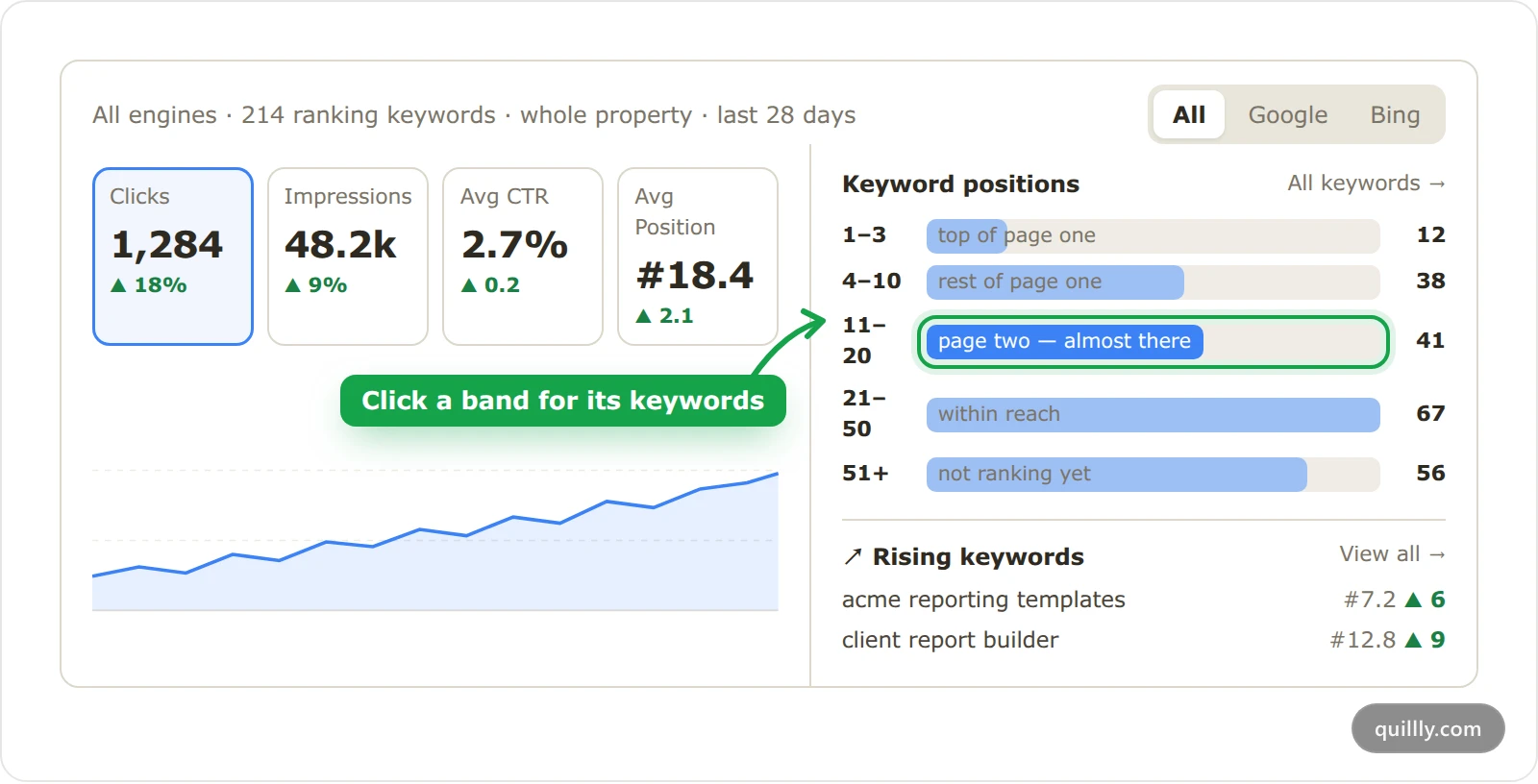
The first line names the engine and where the numbers come from, such as All engines · 214 ranking keywords · whole property · last 28 days. Whole property means the engine's own numbers for your site. Your blog posts means Quillly is showing the numbers it stored for your pages, because the engine's live numbers weren't available.
With two or more engines connected, tabs let you pick All or one engine. The card then shows:
Clicks, Impressions, Avg CTR and Avg Position, each with its change from the previous period. Click one to chart it. The position chart is upside down, because a lower position is better. Google explains how it averages positions.
Keyword positions, which counts your keywords in five bands: 1–3, 4–10, 11–20, 21–50 and 51+. Keywords at 11 to 20 are on page two, where a small improvement can reach page one.
Rising keywords, the keywords that moved up into a better band this period.
Keywords, the top ten, with Top and Trending views.
Top pages, your posts that earn search traffic. Click one to open its numbers.
With the Yandex tab selected, Yandex site quality adds Yandex's Site Quality Index and how many of your pages are in its search or excluded from it.
Explore every keyword#
Click All keywords →, a band, or View all → under Rising keywords. The Keywords panel lists every keyword the engine reports, with a tab for all of them and one per band. Sort them by Position, Gains or Clicks.
Each row shows how often the keyword was shown, its position, its clicks and how many of your pages rank for it. Click a keyword for its history: its position, clicks and impressions over the period, and Ranks with, the pages of yours that rank for it.
Export CSV, at the bottom of the panel, downloads the list you're looking at. The file has the columns Keyword, Position, Clicks, Impressions, Change and Your pages, and a name such as keywords-all-28d.csv. Change is the number of positions gained since the previous period.
One page's numbers#
Each content list has a Rank column with the page's average position across its keywords. A target icon marks a page whose best keyword ranks 8 to 20, which the tooltip calls Striking distance: small changes could bring it to page one.
Click the rank, or the page's Indexing label, to open Search performance for that page. It shows the last 28 days: a chart or the Avg position, Clicks (28d) and Impressions figures, then every keyword the page ranks for. Tags such as Striking distance and Low CTR — rewrite title/meta point at what to fix.
Refresh data pulls the page's latest numbers from every connected engine now, instead of waiting for the next sync, and sends the page to IndexNow again. You can use it once every 45 seconds. Pages in Site pages open the same panel without that button.
Google updates and drop alerts#
The Search Performance card helps you tell a Google update from a problem on your own site. It marks the ranking updates Google announces, and it raises an alert when your impressions fall by half.
Google's updates on the chart#
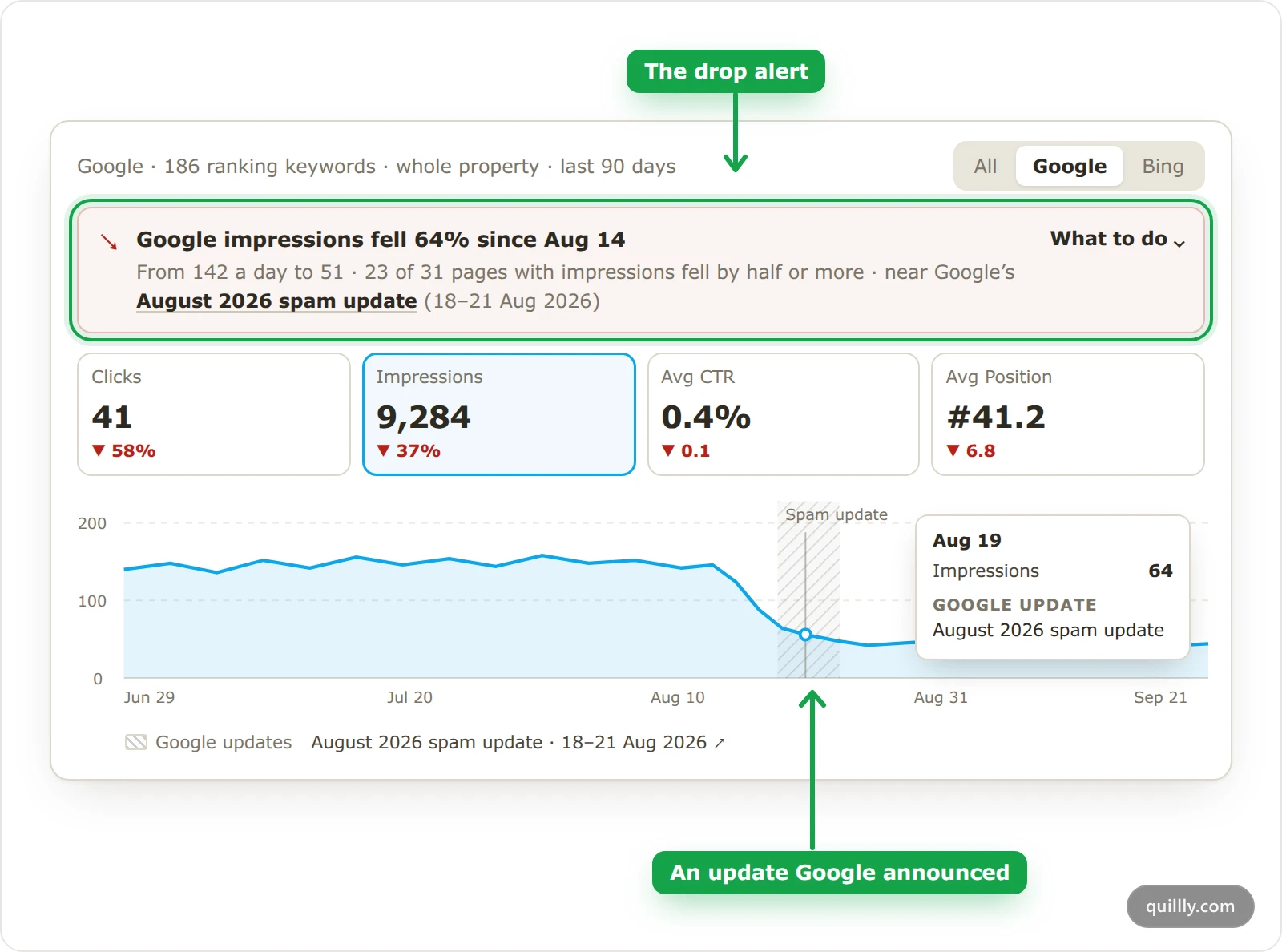
Bands. On the All and Google tabs, a hatched band covers the days of each update Google announced, labelled with its kind, such as Spam update or Core update. An update that lasted one day is a dashed line.
Where they come from. Quillly reads Google's own Search Status Dashboard once a day. Crawling, indexing and serving incidents appear only when they lasted a day or more, labelled Search incident. Discover updates are left out, because they don't change web search.
The tooltip. Hover over a day inside a band: Google update names it, and adds rolling out while Google hasn't finished it.
The legend. Under the chart, Google updates lists each band with its dates, such as August 2026 spam update · 18–21 Aug 2026. Click one to open Google's page about it.
Bing and Yandex publish no such list, so their tabs show no bands.
What counts as a drop#
Once a day, Quillly compares each connected engine's impressions for your whole site over the last 7 days with the 28 days before.
A drop is the last 7 days averaging half or less of the 28 days before, on a site that averaged at least 10 impressions a day. Below 10 a day, normal swings are bigger than any fall.
The start date is the day your impressions broke, not the first day of the week compared.
How broad it is. Quillly takes the pages that had at least 10 impressions in those 28 days and counts how many at least halved since the fall began. When that is 60% or more of them, with at least 5 such pages, the fall is site-wide. Otherwise it is concentrated on a few pages, and the advice changes. With fewer than 5 such pages, the alert says nothing about breadth.
Near an update. For Google, the alert names an announced ranking update when the fall began between 5 days before the update started and 10 days after it ended. It says the fall is near that update, never that the update caused it.
Who is told, and how#
A notice under the bell goes to the website's owner and, on a website shared with a team, to the team's owner and admins. It opens the Search Performance card on that website.
An email goes to the website's owner, under the Search alerts switch in their email preferences.
A banner at the top of the card, one per engine that fell, gives the daily impressions before and now, the breadth and the update it sits near. Click What to do for the advice.
Your AI hears it first:
get_content_strategyopens its session plan with the fall. Unless the fall is concentrated on a few pages, the plan also says to publish no new post that session unless you ask for one.
What to do#
The advice follows the cause:
The fall | The advice |
|---|---|
Near a Google spam, core or helpful content update | Fewer, better pages: merge or remove the posts that never earned impressions, rewrite titles that follow a template, and add what only you know to the pages you keep. More links, re-submissions and faster publishing don't help. See the pages to prune opens Pages to prune. |
On Google, with no such update | Check Search Console's Manual actions and Security issues, then Page indexing. When the fall sits on a few pages, compare their rankings and last edits. Otherwise look for a change on your side: robots.txt, a noindex, redirects or canonical tags. |
On Bing or Yandex | Check Bing Webmaster Tools or Yandex Webmaster for crawl errors and blocked URLs, then look for a change on your side. |
When it clears#
The alert closes when a week's impressions get back to 80% of the level before the fall, or after 45 days, when the lower level counts as the site's new normal. A further fall after that raises a new alert. Each engine has at most one open alert, and never two within 14 days.
Note
Drop alerts need a plan that includes Analytics and at least one connected search engine. Engines report a few days late, so an alert arrives some days after the fall begins.
The Focus list#
The Focus list holds the keywords your website is working to rank for. Open it from Focus list in the sidebar. The Keyword targets tab lists them, and Outreach targets lists the link prospects saved from Research.
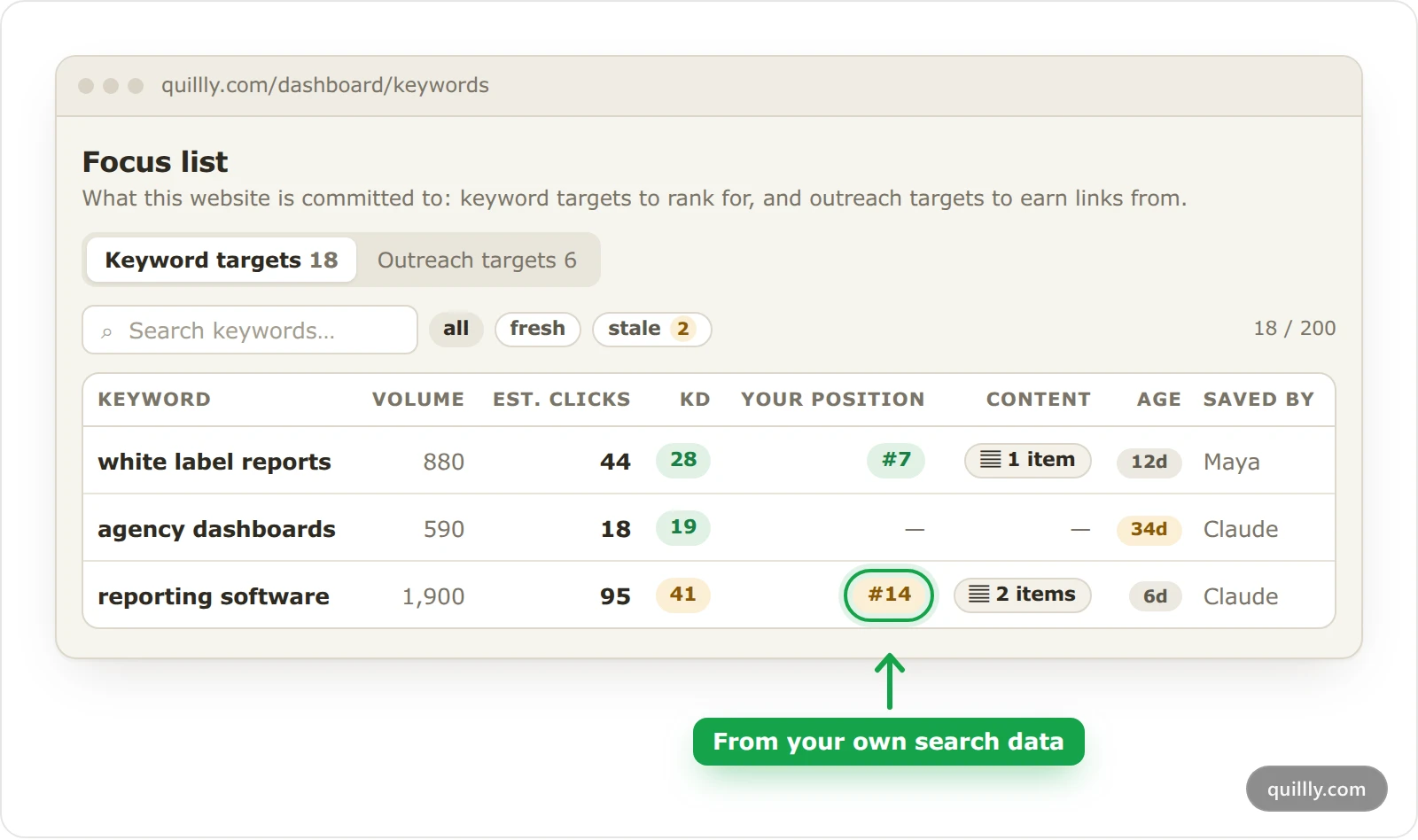
Column | What it shows |
|---|---|
Volume | Monthly searches for the keyword. |
Est. clicks | The monthly clicks a page-one result could still get. |
KD | Keyword difficulty, from 0 to 100. |
Your position | Your best position for the keyword, from your own search data. A dash means your site doesn't rank for it yet. |
Content | How many of your pages target the keyword. Click it for the list. |
Age | How old the volume and difficulty figures are. |
Saved by | The person or AI that added the keyword. |
Est. clicks is the estimate the Research table sorts by: the monthly clicks a page-one result could still get once AI Overviews, featured snippets and answer boxes take theirs. AI Overview on the results page under a keyword marks one Google answers itself. A keyword saved without a read of its results page, such as one saved before the estimate existed, has nothing taken off, so its estimate can read high. Keyword research and credits shows how it is worked out.
Keywords reach the list when you save them in Research, or when your AI saves them with save_keywords. The list holds up to 200 keywords per website, and your AI reads it at the start of every session.
Volume and difficulty go stale after 30 days, and the stale filter shows those rows. The refresh icon on a row fetches fresh figures for 1 credit, or for free when the figures are already cached. By default, only the owner and admins can remove keywords.
Ask your AI#
Your AI reads the same numbers through MCP:
get_search_performancereturns the site's totals, daily numbers, top keywords with their movement, the position bands and rising keywords. It takes anengine(all,google,bingoryandex), a window of 7, 28 or 90days, and alimitof up to 250 keywords. It also returnsgoogle_updates, Google's announced updates in that window, and, while a drop alert is open,site_dropswith the advice inwhat_to_do.get_saved_keywordsandsave_keywordsread and add to the Focus list. Each saved keyword carriesexpected_clicks, the number behind Est. clicks.
For example: "Which keywords on acme.com rank 11 to 20, and which page should we improve for each?"
Common questions#
Why do the numbers differ from Search Console?#
The All tab adds every connected engine together, and the card follows your Analytics date range. Pick the Google tab and compare it with the same days in Search Console's Performance report. If the first line says your blog posts, the numbers cover only the pages Quillly tracks.
Why is the card empty?#
Either no engine is connected, or your pages haven't earned impressions yet. The card says which, and Connect in settings opens your website's settings when nothing is connected.
Why did I get no drop alert when my impressions fell?#
An alert needs the last 7 days to average half or less of the 28 days before, on a site that averaged at least 10 impressions a day. The email also needs Search alerts switched on, and it goes to the website's owner only.
Related#
Connect Search Console, Bing and Yandex: the connections behind these numbers.
Indexing: how your pages reach search engines: a page must be indexed before it can rank.
Site pages: track and score the pages you already have: search numbers for pages you didn't write in Quillly.
Pages to prune: the posts to merge, unpublish or keep after a drop.