Internal links and broken links
On this page
- Add a link to one of your pages
- 1. Choose where the link goes
- 2. Open the link picker
- 3. Pick the page
- Smart links follow a renamed page
- What readers see for each linked page
- Audit your internal links
- Broken links
- Common questions
- Do I need to fix links after I rename a page?
- Why does a link show as plain text on my page?
- Why does a published page show as an orphan?
- Related
Internal links connect your pages, so readers and search engines can move from one to the next. This page shows how to add internal links that keep working when a page is renamed, how to audit them, and how Quillly handles broken links before and after publishing.
Add a link to one of your pages#
Choose where the link goes#
Select the words that should become the link, or put the cursor where a new link should start.
Open the link picker#
Type
/linkand choose Link to blog. With words selected, you can also click Link in the toolbar above them and type part of a page's title.Pick the page#
Type a few letters of the title. Each result shows the page's status, its address and, for docs pages and changelog entries, a Docs or Changelog badge. Press Enter or click a result. With nothing selected, the page's title becomes the link text.
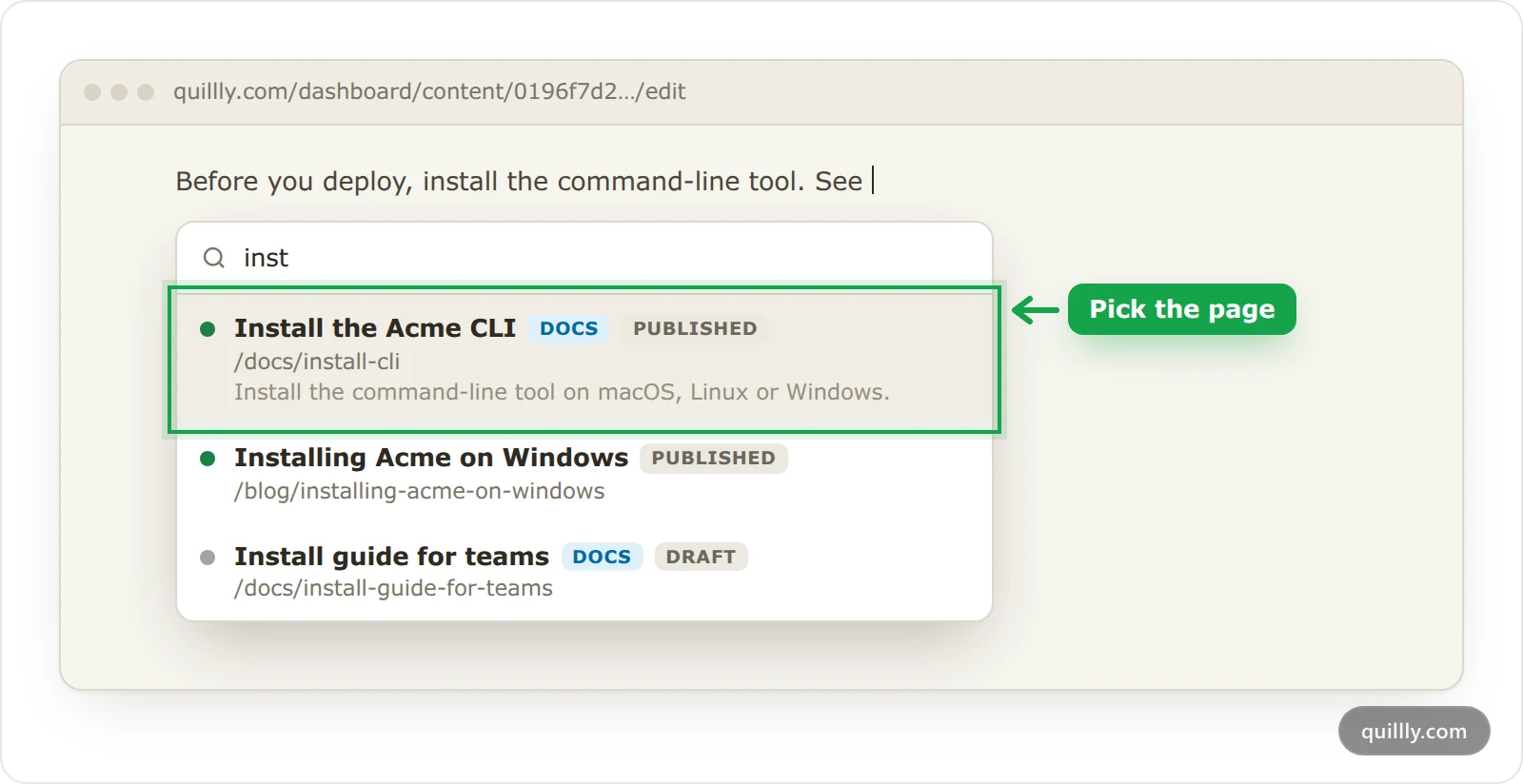
Link to blog lists blog posts, docs pages, changelog entries and news stories, despite its name. A link to a changelog entry opens the changelog at that entry.
Smart links follow a renamed page#
A link made this way is a smart link: it points at the page itself, not at its address. Hover it in the editor to see the page's title and status, Change blog to point it elsewhere, and a button that removes the link but keeps the text.
When you change a page's slug, every smart link to it shows the new address. You do not edit anything. The old address also keeps working: it sends visitors and search engines to the new one with a permanent redirect, as Redirects and moving to a new domain explains.
Quillly makes smart links from addresses too:
Paste or type the address of one of your blog posts, and the editor turns it into a smart link. Hovering an ordinary link to your own post offers Upgrade to a smart link.
When your AI writes a link with a blog post's address, Quillly converts it when the page is saved.
Note
Addresses of docs pages, changelog entries and news stories typed as links stay ordinary links. They keep working after a rename through the redirect, but the link audit does not count them. Use the link picker for these pages.
If you give a page a slug another page used before, Quillly asks first: This slug was previously used. Reuse anyway sends visitors of the old address to your new page, and the previous page stays at its current address. Smart links are not affected either way.
What readers see for each linked page#
The linked page is | On your published page, the link |
|---|---|
Published | Works as a normal link. |
Scheduled | Works, with |
Draft, Review or Archived | Shows as plain text until the page is published. |
Deleted | Counts as a broken link. |
Audit your internal links#
Each content list has an Internal Links column. The number is how many of your pages link to this one:
An amber dot marks an orphan: a published page no other page links to. Search engines find orphans slowly, so link to it from a related page.
A green dot marks a pillar: five or more pages link to it.
A red number counts links from this page to pages that are unpublished or deleted.
Click the number to open Internal links for that page. Links to lists the pages it links to, Linked from lists the pages that link to it, and Unresolvable lists links that show as plain text right now. Sort each list by title, status or the time a scheduled page goes live.
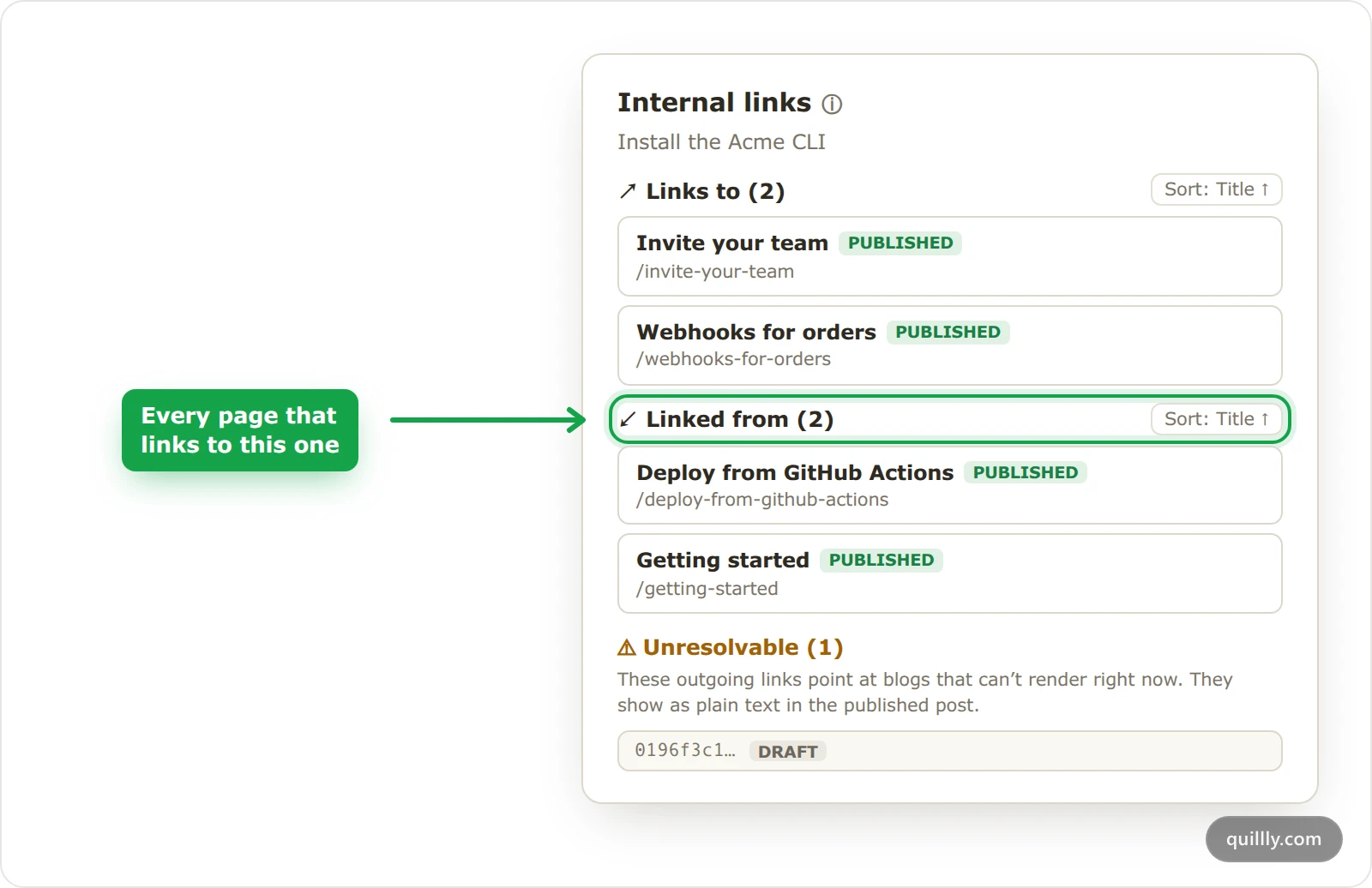
Your AI can find new links for you. Ask it to run suggest_internal_links on a page: it proposes anchor text and targets among your published blog posts and docs pages.
Broken links#
Quillly checks every link in a page before the page goes live, whether you publish from the dashboard or your AI:
A link to another site is broken when the site answers 404 Not Found or 410 Gone, when its domain does not exist, or when the connection is refused.
An internal link is broken when the page it points at was deleted.
A broken link stops the page from going live, and the message names each one. Your AI cannot skip this check, even when it overrides the SEO score. Slow sites, logins and bot walls count as working, so a busy site never blocks you by mistake.
While you write, the editor checks links to other sites a few seconds after you stop typing and marks dead ones as Broken link. Quillly also re-checks the links on your pages about every two weeks, and emails you when it finds dead ones. A dead link on a live page shows as plain text, and the SEO score cannot pass 69 until you fix it.
Taking a page down breaks the links that point at it. When you unpublish or archive a page that other live pages link to, Quillly lists those pages first, as Publishing describes.
Common questions#
Do I need to fix links after I rename a page?#
Not for smart links: they update on their own. Ordinary links to the old address still work through the redirect, and you can swap them for smart links when you next edit the page.
Why does a link show as plain text on my page?#
The page it points at is not published yet, or it was archived. Publish that page and the link appears. The page's Internal links panel lists these under Unresolvable.
Why does a published page show as an orphan?#
No smart link from another published page points at it. Add one from a related page with the link picker, and the dot clears.
Related#
The editor: the toolbar, the slash menu and the rest of the editor.
Publishing: the checks that run before a page goes live.
Redirects and moving to a new domain: what happens to old addresses.