Connect Search Console, Bing and Yandex
On this page
- What Search Console, Bing and Yandex add
- Connect an engine
- 1. Open your website's settings
- 2. Sign in to the engine
- 3. Verify the site in that engine
- 4. Check the sitemaps
- Verification tags on your own domain
- When a connection needs reconnecting
- Disconnect an engine
- Common questions
- Do I need all three engines?
- Which account should I sign in with?
- Does connecting an engine change my site?
- Related
Connect Google Search Console, Bing Webmaster Tools and Yandex Webmaster to a website in Quillly, so your sitemaps reach them on every publish and their indexing and search data comes back to your dashboard. At the end, each engine's section in website settings reads Verified.
Before you start, you need:
A website whose domain you've proved you own. Its settings page opens only after that step, described in Prove you own your domain.
The owner or admin role on the website. Other roles can't connect or disconnect engines.
An account with each engine, with access to your domain: Google Search Console, Bing Webmaster Tools or Yandex Webmaster.
What Search Console, Bing and Yandex add#
Publishing already notifies most engines without any connection, through IndexNow. Google is the exception: it doesn't take IndexNow, so without Search Console, Quillly tells Google nothing and Google finds new pages only when it crawls your site.
Engine | Without a connection | With a connection |
|---|---|---|
Google Search Console | Nothing is sent to Google. | Your sitemaps and RSS feeds on every publish, each page's indexing status and the reason when it isn't indexed, and clicks, impressions, positions and keywords for the site and each page. |
Bing Webmaster | IndexNow tells Bing about each new or changed page. | Sitemap submission, each page's indexing status, and clicks, impressions and keywords for the site and each page. |
Yandex Webmaster | IndexNow tells Yandex about each new or changed page. | Sitemap submission, whether each page is in Yandex's index, the site's top queries, its Site Quality Index and Yandex's page-indexing problems. Yandex has no keywords per page. |
Each connection belongs to one website. If you run several websites, connect the engines on each one. Indexing explains the statuses the engines report, and Search performance shows where their clicks and keywords appear.
Connect an engine#
Open your website's settings#
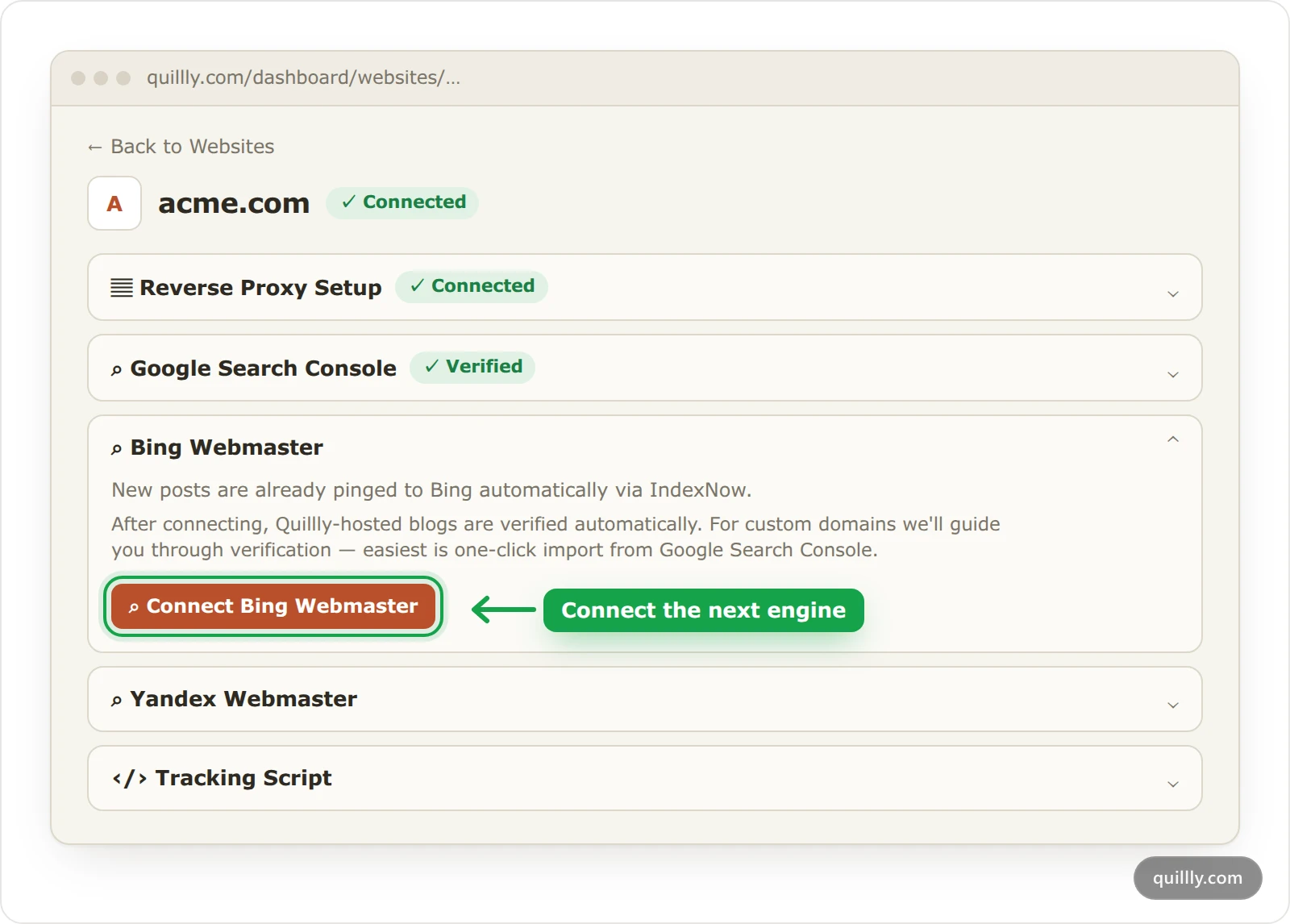
In the sidebar, open Websites and click your website's card. The settings page lists a section for each engine: Google Search Console, Bing Webmaster and Yandex Webmaster.
Sign in to the engine#
Open the engine's section and click Connect Google Search Console, Connect Bing Webmaster or Connect Yandex Webmaster. Sign in with the account that has your domain and allow access. You come back to the settings page with a message such as Bing Webmaster connected successfully.
Verify the site in that engine#
The engine has to agree that the site is yours before it shares data:
On a Quillly subdomain, Quillly verifies the site for you. If that fails, click Verify with Google in the Search Console section, or Try again for Bing and Yandex.
On your own domain, if the engine already has the site verified, the section shows Verified. If not, pick a method in the section, place the token and click Verify Ownership. Search Console first offers Add Property when your domain isn't in the account yet.
Yandex checks tokens in the background. After you click Verify Ownership, the section can read Yandex is checking your token for a few minutes, longer for DNS records.
Check the sitemaps#
The section lists each sitemap your website serves, with Submit Sitemap or Submit Sitemaps below. You rarely need the button: Quillly submits your sitemaps to every connected engine each time you publish or take down a page, and once right after you connect an engine to a website that already has published pages.
Verification tags on your own domain#
A verification tag is a line of HTML the engine gives you to prove the site is yours. On your own domain it goes in the <head> of your homepage, which your own site serves, not Quillly. The file and DNS methods work the same way: the file sits at the root of your domain and the record at your domain's DNS host.
Warning
Don't paste a verification tag into Tracking Script in website settings. Quillly places that code in the body of the pages it serves, where verification tags don't work.
Leave the tag, file or record in place after verifying. Google checks it again over time, and the other engines can too, so removing it can undo the verification. Prove you own your domain lists every method for Search Console and Bing.
When a connection needs reconnecting#
An engine can stop accepting Quillly's access, for example after someone removes Quillly from the account's connected apps. Quillly renews its access on its own, checking every 10 minutes, so a reconnect notice means the engine refused it.
You'll see it in three places:
The engine's section shows a red Reconnect needed badge and the message Bing sign-in has expired — syncing is paused, or the same for Google or Yandex.
The website's card on Websites shows the engine as, for example, Bing · reconnect.
The owner gets an email titled Action needed: reconnect Bing Webmaster Tools for acme.com. It repeats every three days until the connection works again.
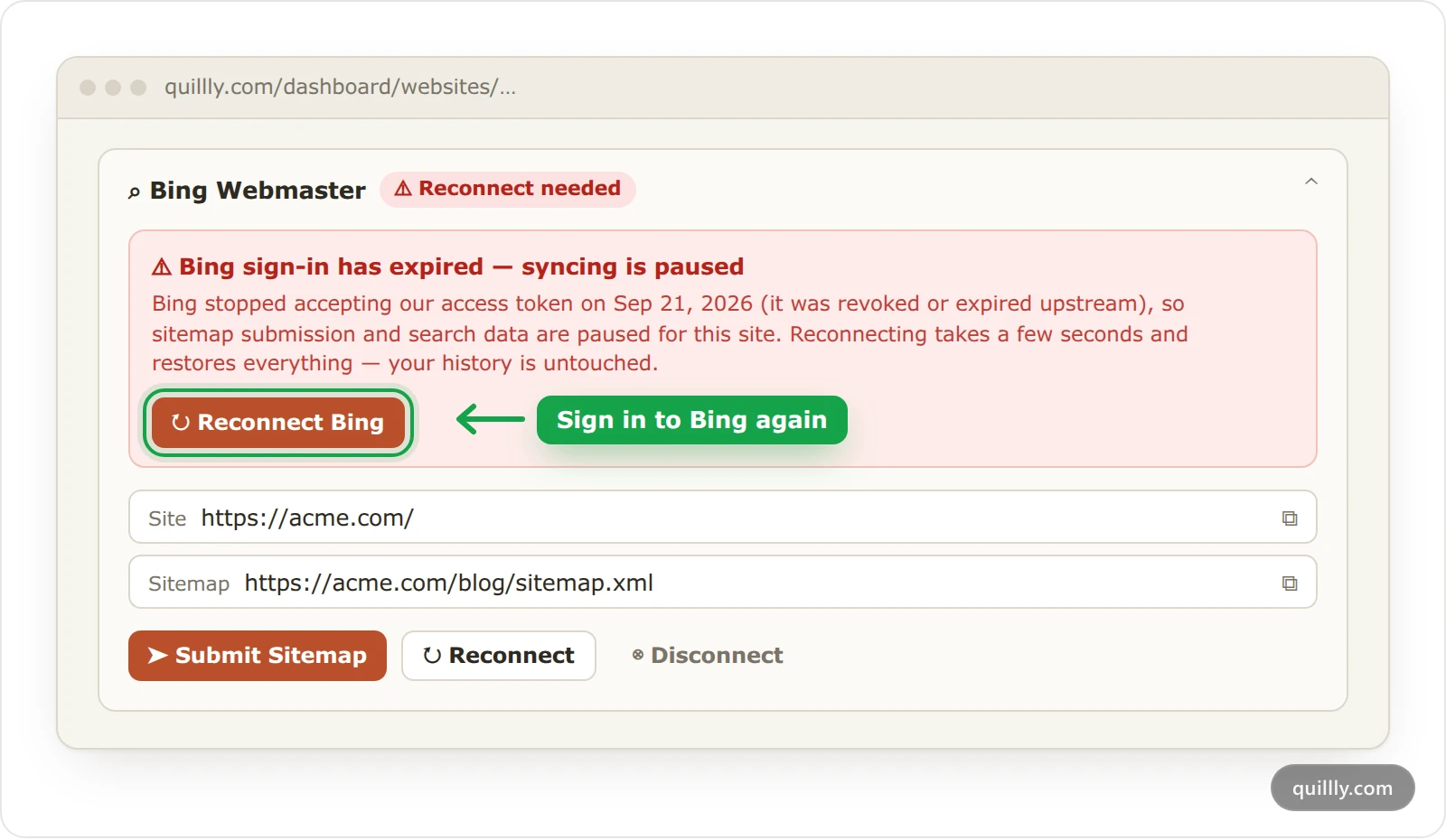
While the connection is broken, sitemap submission and search data for that engine are paused. IndexNow keeps notifying Bing and Yandex, because it needs no connection. Click Reconnect Bing, or the matching button, and sign in again: the history Quillly already collected stays.
Disconnect an engine#
Bing and Yandex sections have a Disconnect button, which removes Quillly's access to that engine for this website. Quillly then stops submitting sitemaps and pulling data from it. The Search Console section has no Disconnect button.
Common questions#
Do I need all three engines?#
No. Search Console matters most, because Google gets nothing from Quillly without it. Bing and Yandex already hear about new pages through IndexNow, so connect them when you want their search data and sitemap submission too.
Which account should I sign in with?#
Use the account that already has your domain in Search Console, Bing Webmaster Tools or Yandex Webmaster. Signing in with another account works, but the site then needs verifying there first, with one of the methods in the section.
Does connecting an engine change my site?#
On your own domain, no: Quillly reads data from the engine and submits your sitemaps, and never touches your homepage or DNS. On a Quillly subdomain, it adds each engine's verification tag to the pages it serves, which is how it verifies the site for you.
Related#
Prove you own your domain: every verification method, step by step.
Content types and URLs: the sitemaps, feeds and llms.txt files each section serves.
Add a website: a Quillly subdomain or your own domain.
Indexing: how your pages reach search engines: what publishing sends to each engine.