Redirects and moving to a new domain
On this page
- When you change a slug
- What Quillly doesn't redirect
- Move a website to a new domain
- 1. Open the old website's settings
- 2. Choose the new website
- 3. Choose what to move
- 4. Forward the old URLs
- Undo a move
- Move from another blog platform
- Common questions
- How long do slug redirects last?
- Why does an old URL return 404 after I renamed a post?
- Does moving a blog to a new path redirect the old URLs?
- Related
Quillly keeps old links working when a URL changes. A changed slug redirects on its own, and a whole website moves to a new domain through the Redirect section of its website settings. This page covers both, and what Quillly doesn't redirect for you.
Before you start, to move a website you need:
The new website added in Quillly, on a Quillly subdomain or your own domain. See Add a website.
Access to the old site's server or host, if the old website is on your own domain, to add a redirect rule there.
When you change a slug#
When you change a published item's slug, Quillly remembers the old one. A request for the old URL then gets a permanent redirect, with status 308, to the item under its current slug. You don't set anything up.
It works in every content type: blog posts, docs pages, changelog entries and news stories. The
.mdversion of a renamed page redirects too.One hop, however many renames. Rename a post from
trail-shoestotrail-shoe-guide, then tochoosing-trail-shoes, and both old slugs point straight at the current one.Redirects don't expire. Each item keeps its 20 most recent old slugs. A 21st rename retires the oldest, and that URL starts to return 404.
Live content wins. If another item, or the same one, takes an old slug back, that URL serves the item living there, and the redirect stops.
Each content type keeps its own history. An old docs slug redirects only under your docs path, never under your blog.
Links follow the item. Internal links in your other posts point at the item itself, so they show its new URL without any edits.
An old slug stops redirecting when its item is unpublished or deleted, because there is nothing live to send the reader to. It returns 404 instead.
Renaming or removing a news category works the same way: the category's old address redirects to the one that took its stories, and each news section keeps up to 50 of those.
What Quillly doesn't redirect#
A section's path. If you move your blog from
/blogto/articlesin the section's settings, the old path lives on your server, so Quillly can't answer it. Add a redirect from the old path to the new one on your server.A website's domain. A website's domain can't be changed. To move, add the new domain as another website and redirect the old one to it, as the next section shows.
Pages outside Quillly. Site pages are your own pages, so their URLs are yours to redirect.
Move a website to a new domain#
Open the old website's settings#
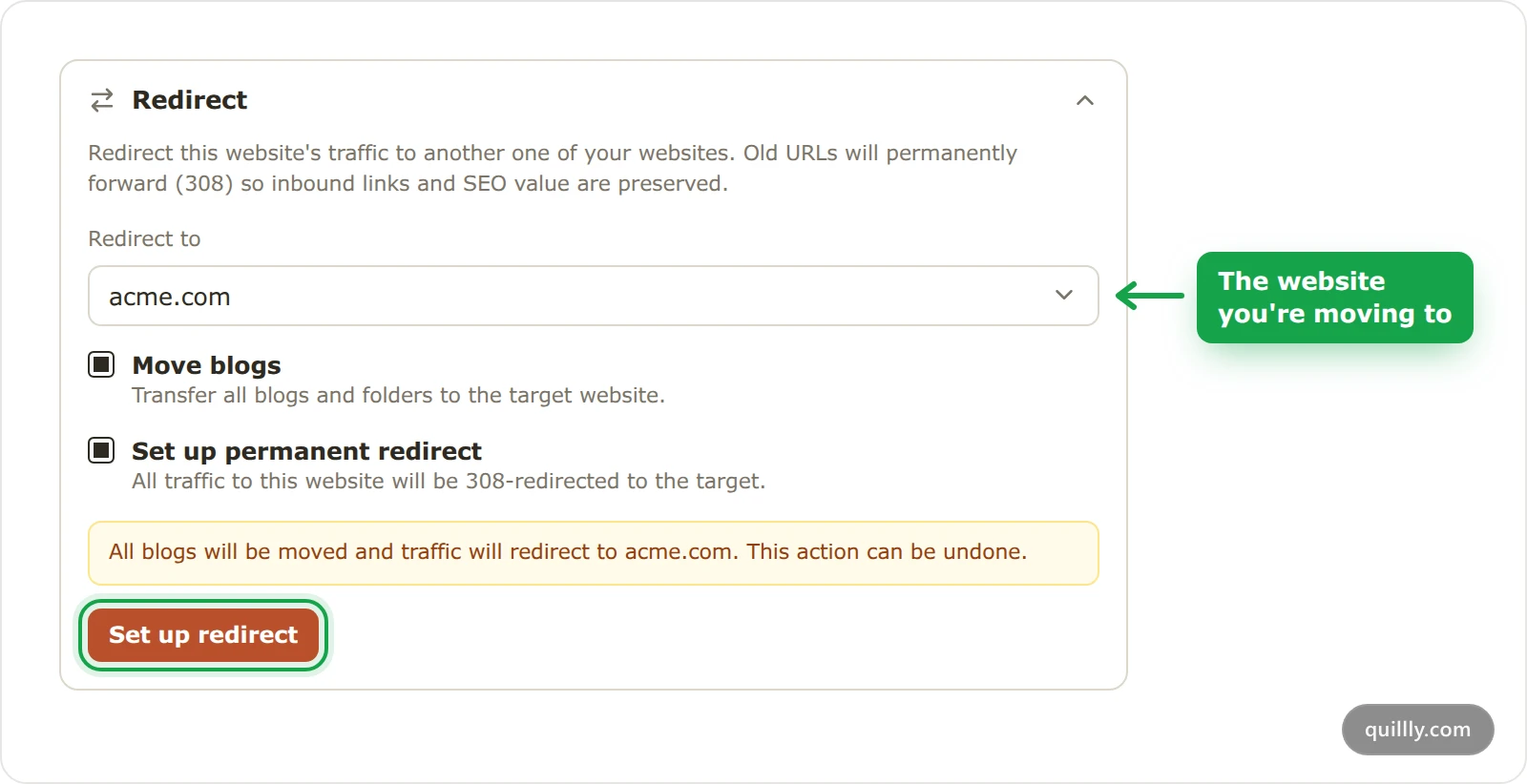
Open Websites, click the website you're moving away from, and open its Redirect section.
Choose the new website#
Under Redirect to, pick the website you're moving to. If it isn't there yet, pick Add new website, and Quillly brings you back here when it's added.
Choose what to move#
Move blogs moves every item on the website to the new one, including docs pages and changelog entries, with their folders.
Set up permanent redirect marks the old website as moved, so its old URLs forward to the new one.
Tick one or both, then click Set up redirect. A message confirms what happened, such as Done — 12 blogs moved, redirect active.
Forward the old URLs#
What happens to the old URLs depends on where the old website lives:
TableOld website
What forwards the old URLs
A Quillly subdomain, such as
acme.quillly.comQuillly. Every old post URL gets a 308 redirect to the same post on the new website, with nothing to set up.
Your own domain
Your server. The website settings page shows a rule for Nginx, Apache, Next.js, Vercel / Netlify or PHP / Shared Hosting. Add it in place of the old reverse proxy rule, then click Test redirect.
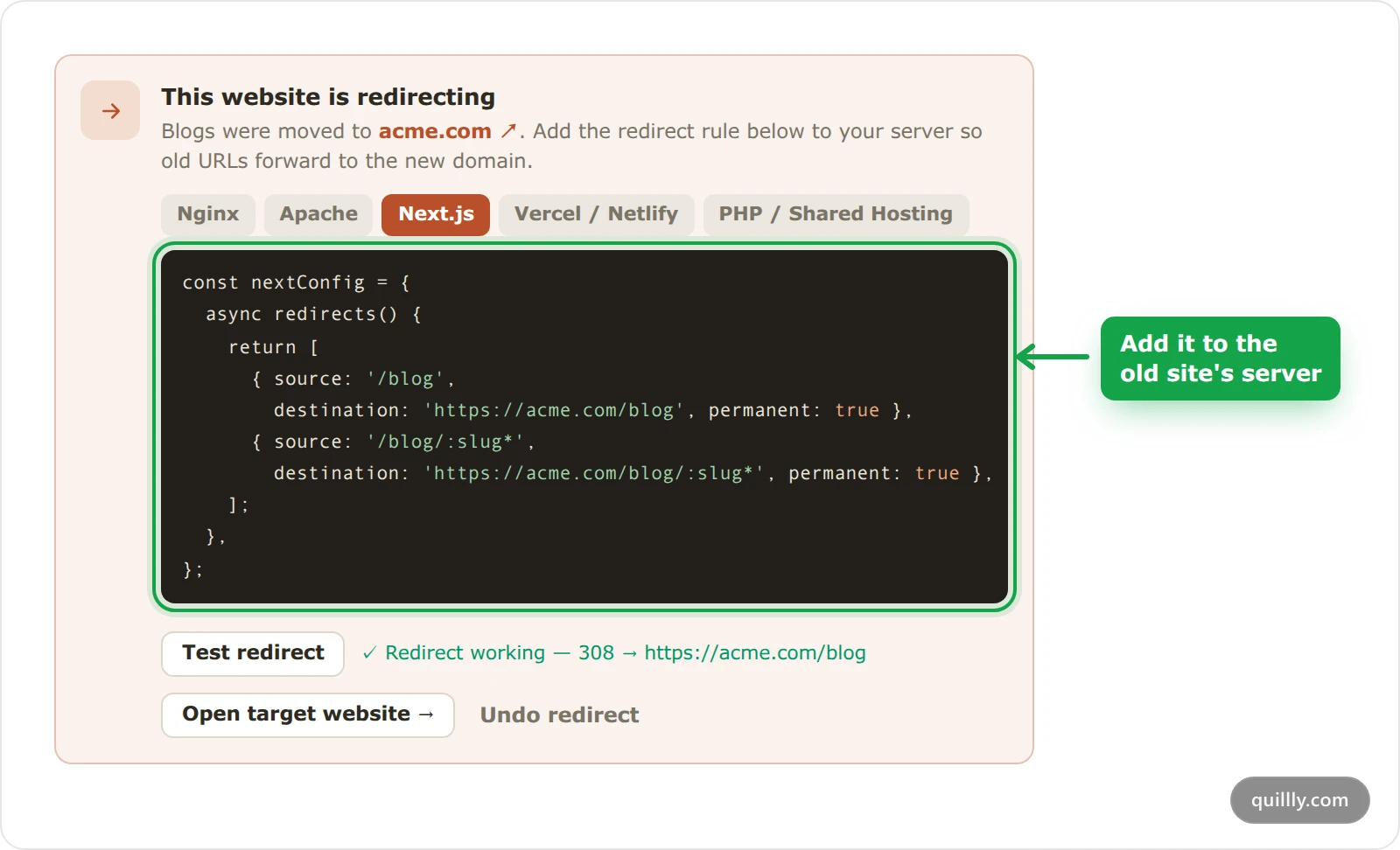
Test redirect checks only the section's own address, such as
acme-shoes.com/blog. Open one of your old post URLs in a browser too, and check that it lands on the same post on the new domain.Note
The rule replaces the reverse proxy rule on the old domain. Once the posts have moved, the old website has nothing left for the proxy to serve.
Undo a move#
While a website redirects, its settings page shows This website is redirecting. Click Undo redirect, then Undo redirect again to confirm. Quillly removes the redirect and, if you moved the posts, moves them back.
Warning
If you moved the posts, undo moves back every item that is on the new website at that moment, including posts it had before the move and posts you wrote there since. Before you undo, make sure the new website holds nothing you want to keep there.
Move from another blog platform#
To bring posts over from WordPress, Ghost, Blogger, Medium or a spreadsheet, import them into your Blog. The importers keep each post's slug where the export has one, so an old URL such as oldblog.com/2024/05/choosing-trail-shoes/ maps onto acme.com/blog/choosing-trail-shoes. Then add redirects on the old platform, or on the server that runs its domain, from each old URL to the new one. Google's guides to site moves and redirects explain how search engines follow them.
Common questions#
How long do slug redirects last?#
They don't expire. Each item keeps redirecting its 20 most recent old slugs for as long as the item stays published.
Why does an old URL return 404 after I renamed a post?#
The post may be unpublished or deleted, another item may have taken the old slug, or the post may have been renamed more than 20 times since that slug. Check that the post is published, then check which item now uses the slug.
Does moving a blog to a new path redirect the old URLs?#
No. The old path is on your server, so add a redirect there from the old path to the new one.
Related#
Add a website: add the new domain before you move to it.
Serve on your own domain: the reverse proxy rule that the redirect rule replaces.
Import existing posts: bring posts in from another platform.
Content types and URLs: where each content type lives.