Track goals and conversions
On this page
- Track goals from JavaScript
- Track goals from HTML
- Rules for goal names and metadata
- Read the Goal tab
- Mark a goal as a conversion
- 1. Open the goal's settings
- 2. Add a label
- 3. Turn on the conversion switch
- Identify users and customers
- Ask your AI about goals
- Common questions
- Do I have to create a goal before I send it?
- Can a goal count only once per visitor?
- Why doesn't my goal show up?
- Related
Track goals to count the actions that matter on your site, such as a signup, a trial or a purchase. By the end, your goals show in the Goal tab with a conversion rate, and people who complete a conversion goal show as Customers.
Before you start, you need:
The analytics tag on your pages. See Install analytics on your website.
A place to add code: a line of JavaScript in your app, or an attribute on a button in your HTML or site builder.
Track goals from JavaScript#
Call qa('goal', …) when the action happens, for example after a signup form succeeds. Pass the goal's name, and optionally an object of metadata.
qa('goal', 'signup', { plan: 'pro' });The qa function comes from the first line of the tag, so it exists on every page that has the tag. Calls made before the script finishes loading wait in its queue, and none are lost. qa('event', …) does the same thing, if you prefer that word.
Track goals from HTML#
Add data-qa-goal to a button or link, and each click sends the goal. A click on anything inside the element counts too.
<button data-qa-goal="signup" data-qa-plan="pro">Sign up</button>These are standard HTML data attributes, so they don't change how the element looks or works. Every other data-qa-* attribute on the element becomes metadata. data-qa-plan="pro" sends plan: "pro", and dashes turn into underscores, so data-qa-billing-cycle sends billing_cycle. Attribute values always arrive as text.
Rules for goal names and metadata#
These rules apply however you track goals, and the Analytics JavaScript API shows what happens to a call that breaks one.
Names use lowercase letters, digits,
-and_, up to 64 characters. Capital letters are lowercased, and a name with any other character is dropped.Reserved names start with
qy_. Quillly uses them for its own goals and drops them when your tag sends them.Metadata holds up to 10 keys of letters, digits and
_, each up to 32 characters. Values are text up to 255 characters, numbers ortrueandfalse.Up to 500 names per site. After that, new names are dropped, while names you already send keep counting.
Browser only. Goals come from the tag in the browser, and each one counts as an event toward your monthly allowance.
Read the Goal tab#
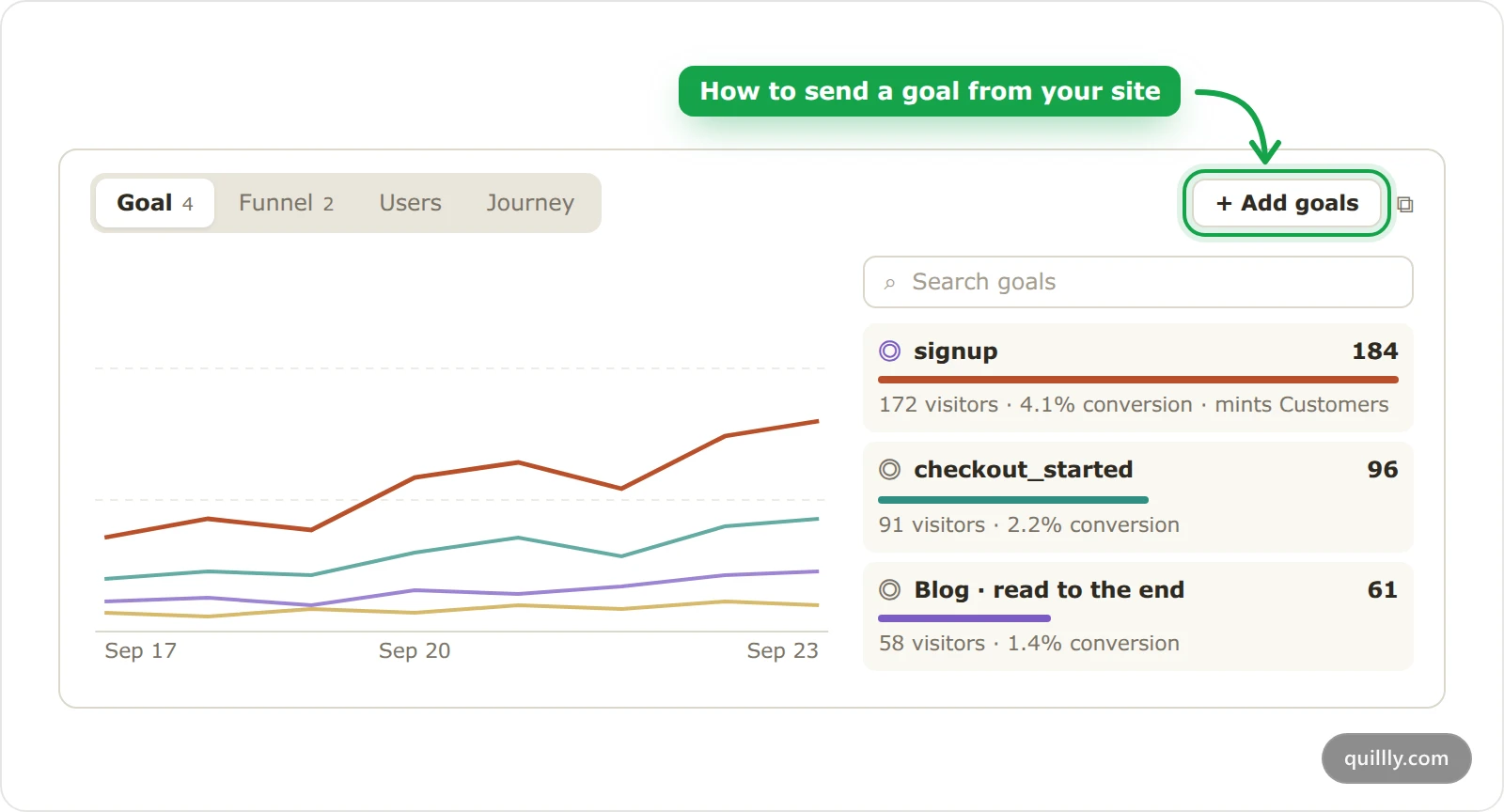
Once you track goals, open Analytics and scroll to the visitors card, then click the Goal tab. A new goal appears there on its own the first time your site sends it, so there's nothing to create first.
The chart shows completions over the range for up to six of your busiest goals. Click a goal in the list to highlight its line.
Each row shows how many times the goal was completed, by how many visitors, and its conversion rate.
The conversion rate is the visitors who completed the goal, divided by the visitors who viewed a page in the range.
Search goals filters the list when you have many.
Pages Quillly serves send goals of their own, labelled like Blog · read to the end, Blog · CTA clicked and Blog · went to your site. New completions show within a few minutes.
Mark a goal as a conversion#
Conversion goals are the ones that make a visitor a Customer, much like what Google Analytics calls key events. payment, purchase and subscribe count as conversions from the start, and you can add any goal of your own.
Open the goal's settings#
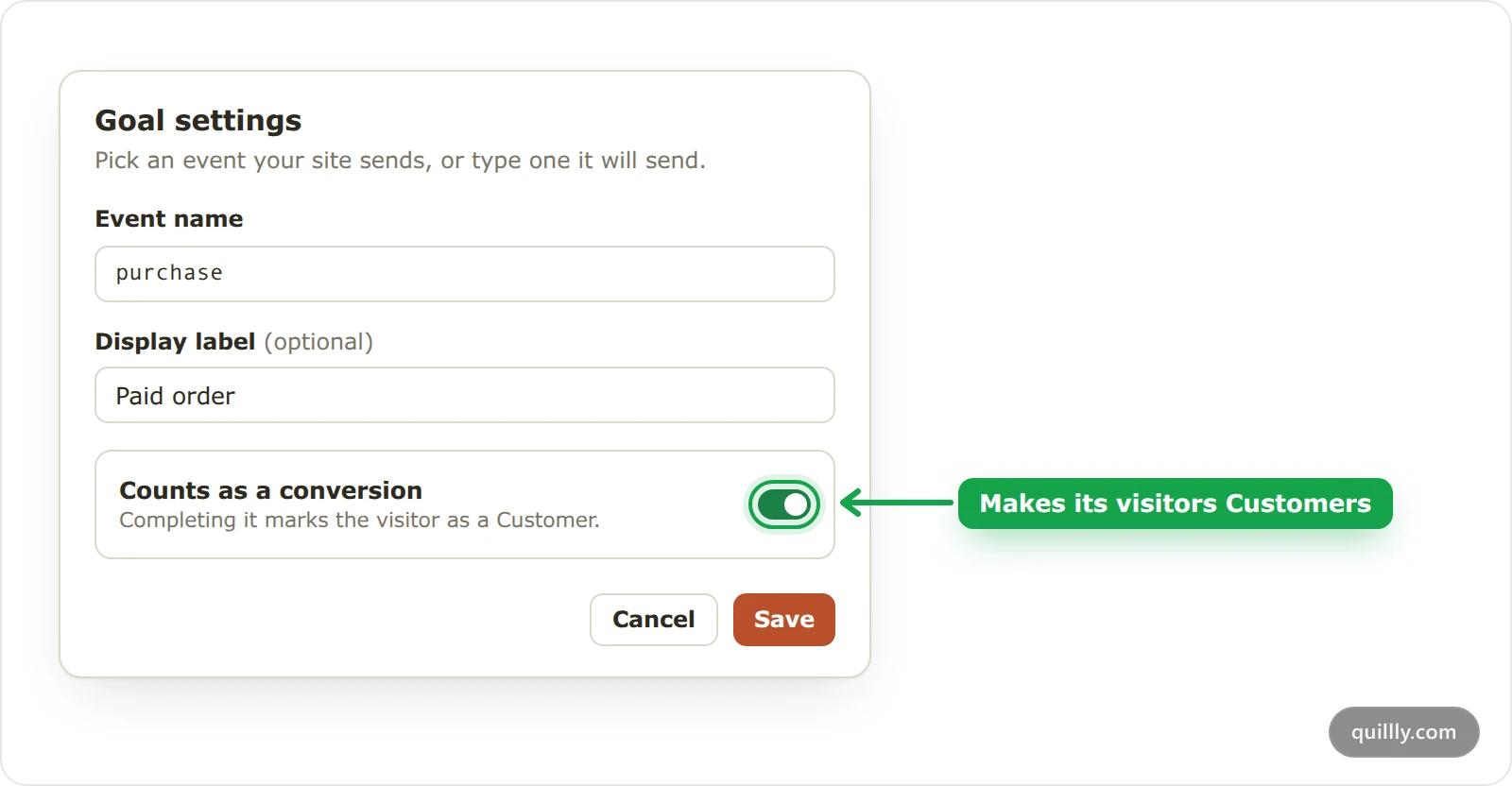
In the Goal tab, click the pencil beside the goal. For a goal your site doesn't send yet, click Add goals, then Goal settings, and type its name under Event name.
Add a label#
Type a Display label, such as "Paid order", if you want the list to show a friendlier name than the event. The label is optional.
Turn on the conversion switch#
Turn on Counts as a conversion, then click Save. From then on, completing the goal marks the visitor as a Customer, and the Users list shows a Customer badge beside them.
Warning
If you open the settings of
payment,purchaseorsubscribe, check that Counts as a conversion is on before you click Save. Saving with the switch off stops that goal from counting as a conversion.The trash icon beside a goal removes its label and conversion setting. The goal itself keeps counting. A site can keep settings for up to 50 goals, with labels of up to 80 characters.
Identify users and customers#
When someone signs up or logs in, call qa('identify', …) so the Users list shows who they are instead of a generated name.
qa('identify', {
  userId: 'u_4821',
  email: '[email protected]',
  name: 'Maya',
  plan: 'pro',
});userIdoremailis required. Without either one, the call sends nothing.nameis the name the Users list shows. The list also shows the email under it.Extra fields, such as
plan, are stored with the person: up to 10 of them, as text up to 200 characters, numbers ortrueandfalse.isCustomer: truemarks the person as a Customer, the same as completing a conversion goal.revenue, a positive number, also marks them as a Customer and adds to their revenue total. Funnels show it per visitor as Step value.
userId can be up to 128 characters, email up to 254 and name up to 120. Calling identify again with the same details is safe, but each call counts as one event toward your allowance.
To mark a Customer from your server instead, such as from a payment webhook, record the conversion with an API key and the same userId, as the Analytics JavaScript API shows under Record a conversion from your server.
Warning
Every revenue value adds to the person's total. Send it once for each payment, not on every page load.
Ask your AI about goals#
Your AI assistant reads goal completions and conversion rates with get_website_analytics. With manage_analytics_goal, it can list your goal settings, add a label or mark a conversion for you. The MCP tool reference lists both tools.
Common questions#
Do I have to create a goal before I send it?#
No. A goal appears in the Goal tab the first time your site sends it. You only open Goal settings to add a label or to mark it as a conversion.
Can a goal count only once per visitor?#
The completion count includes every time a goal fires, while the visitor count and conversion rate count each person once. Use the conversion rate when repeats would mislead you.
Why doesn't my goal show up?#
Check that the page has the tag and that your code calls qa('goal', …) when the action happens. Names with other characters than lowercase letters, digits, - and _, or starting with qy_, are dropped, and new completions take a few minutes to appear.
Related#
Build a conversion funnel: see where people drop off between goals.
Visitor journeys and the Users list: follow the people who completed a goal.
Install analytics on your website: the tag that sends your goals.
MCP tool reference: every tool your AI can use, including the analytics tools.