Tracking scripts on served pages
On this page
- Add a tracking script
- 1. Open the website's settings
- 2. Paste the snippet
- 3. Save it
- 4. Check a served page
- Snippets for common tools
- Where the script runs
- Where the script sits in the page
- Add tags here, not at your proxy
- If no visits show up
- Change or remove the script
- Common questions
- Can I add Google Tag Manager?
- Does the script slow my pages down?
- Can I use a different script on docs and blog pages?
- Related
Add a third-party tracking script, such as Google Analytics, Plausible or DataFast, to every page Quillly serves for your website. You paste the snippet once in website settings, and it runs on your posts, docs, changelog and news pages.
Before you start, you need:
A website in Quillly. See Add a website.
The snippet from your analytics tool, the HTML it tells you to paste into your site, usually one or two
<script>tags.
Quillly's own analytics tag is already on every page it serves, so you don't need to add it here.
Add a tracking script#
Open the website's settings#
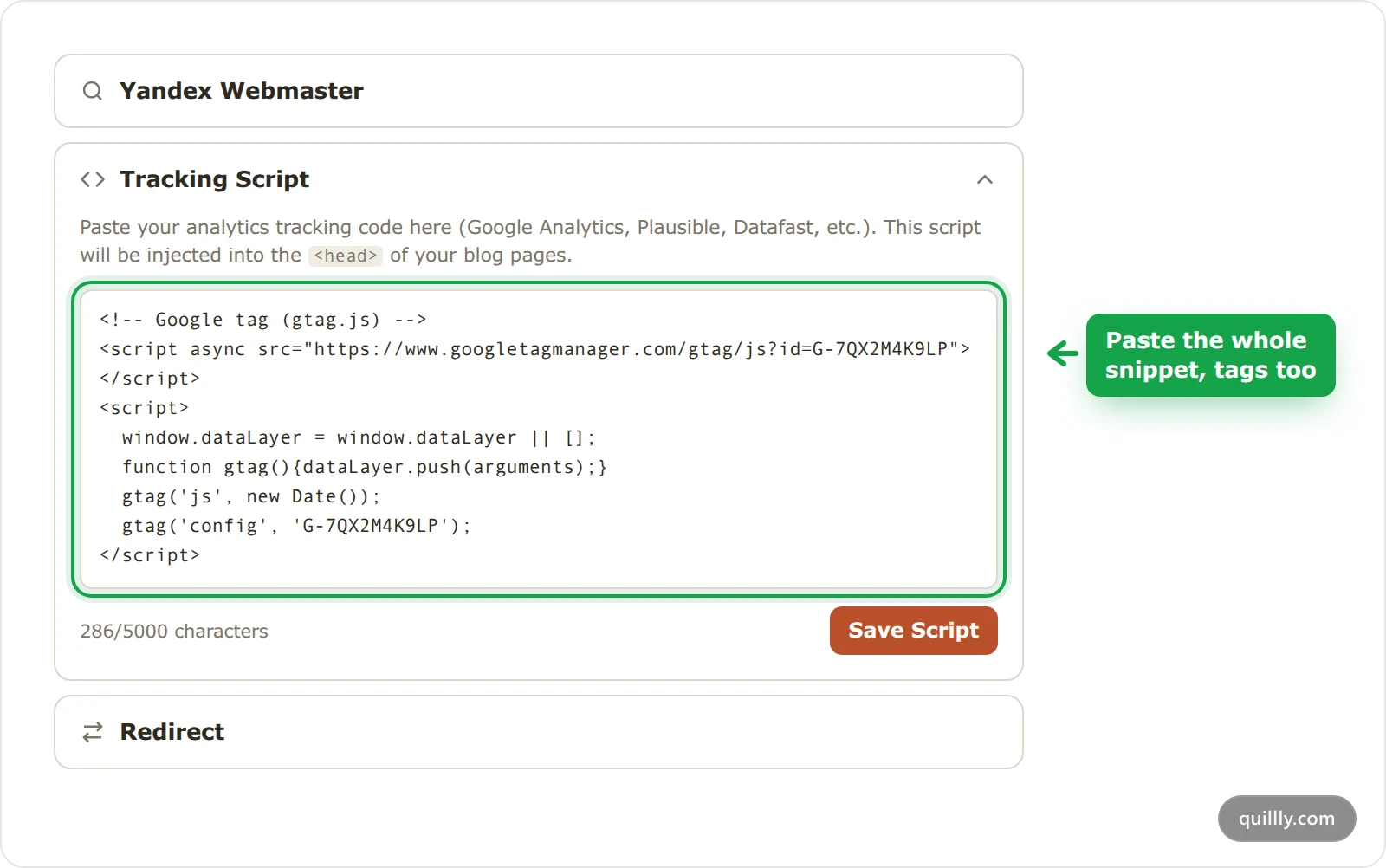
Open Websites and click your website. On its settings page, open Tracking Script.
Paste the snippet#
Paste the whole snippet,
<script>tags included, into the box. It holds up to 5,000 characters, and the count under the box shows how many you've used.Save it#
Click Save Script. The message Tracking script saved confirms it.
Check a served page#
Open one of your posts in a new tab, and look for a live visit in your analytics tool's real-time view. Served pages are cached for a few minutes, so a page opened right after you save can still show the old version.
Snippets for common tools#
Copy the snippet from your tool's own settings, because it carries your site's ID. They look like these.
Google Analytics 4, from the Google tag setup guide, with your measurement ID in place of G-XXXXXXXXXX:
<!-- Google tag (gtag.js) -->
<script async src="https://www.googletagmanager.com/gtag/js?id=G-XXXXXXXXXX"></script>
<script>
  window.dataLayer = window.dataLayer || [];
  function gtag(){dataLayer.push(arguments);}
  gtag('js', new Date());
  gtag('config', 'G-XXXXXXXXXX');
</script>
Plausible gives you its snippet in your site's settings in Plausible. The Plausible guide to the tracking script shows where to find it. Google Tag Manager gives you a container snippet when you create a container. Paste either one as it is.
Where the script runs#
The script is saved once per website and runs on every page Quillly serves for it, on your own domain or on your Quillly subdomain:
Runs on | Doesn't run on |
|---|---|
Blog home and posts | The |
Docs pages | Web Stories |
The changelog | Site pages, which are your own pages outside Quillly |
News home, categories and stories | The Quillly dashboard |
There's one script per website, not one per section. If your docs need a different tag from your blog, put both tags in the box.
Where the script sits in the page#
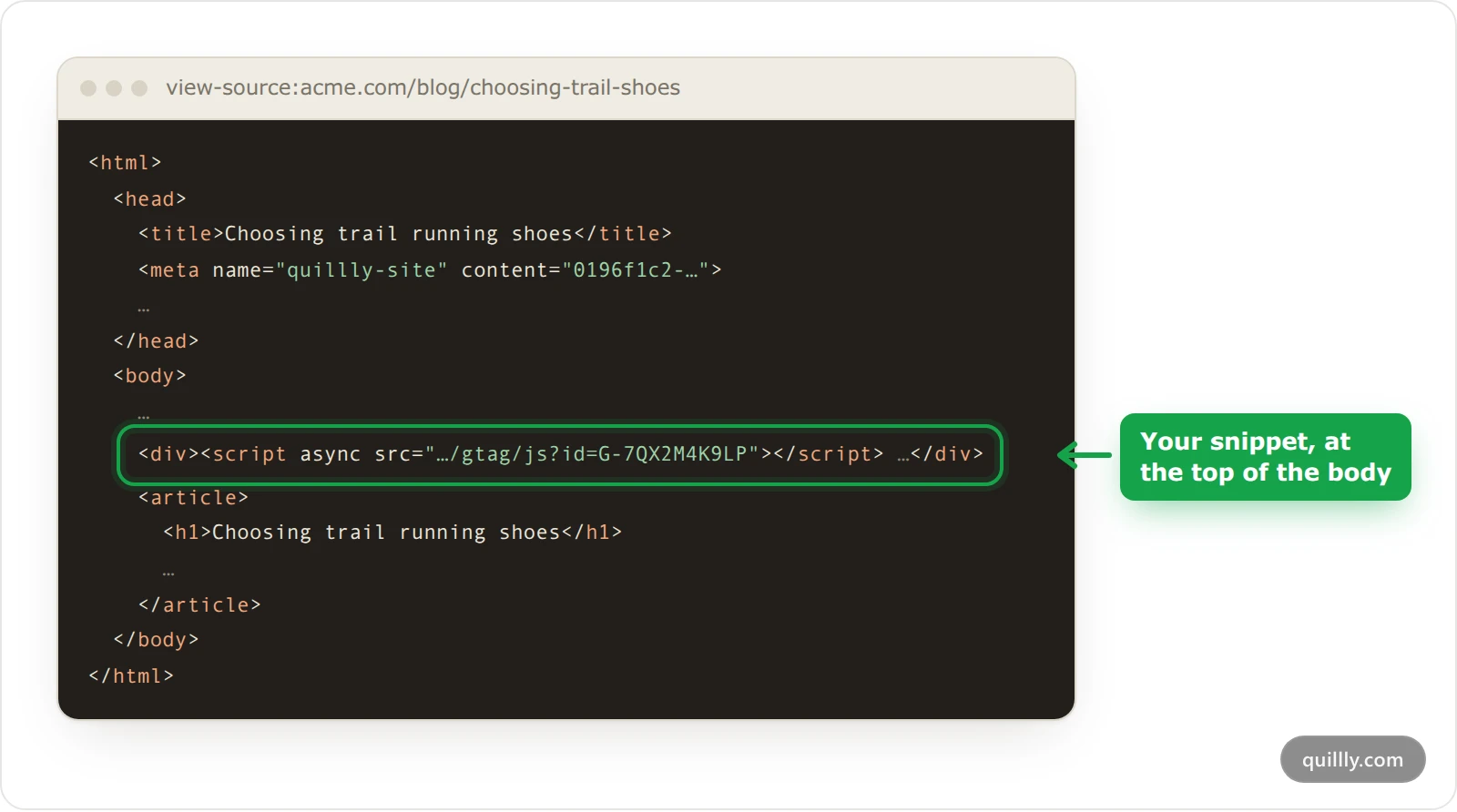
Quillly places your snippet at the top of the page body, before the content, not in the <head>. Script tags run from there as they would from the head, so analytics and tag managers work as usual.
Note
Tags that only count in the <head>, such as a <meta> tag that verifies your site with a search engine, don't work in this box. Verify your domain on the pages you serve yourself, as Prove you own your domain describes.
Add tags here, not at your proxy#
On your own domain, add tracking tags in this box rather than injecting them at your reverse proxy or CDN. Every day, Quillly compares the page on your domain with the page it serves. If your domain adds more than five scripts, the check fails. After repeated failures Quillly emails you, and then suspends delivery until you fix the page.
A script saved in Tracking Script is part of the page Quillly serves, so it never counts as added. The daily checks are covered in more detail with the reverse proxy setup.
If no visits show up#
Wait a few minutes. Served pages are cached, so the first pages after a save can still come without the snippet.
Check that the snippet is on the page. Open a post, view its source, and search for your tool's ID, such as
G-for Google Analytics.Check the domain in your tool. Tools such as Plausible count only the domains you added there. Add the domain your pages are served on, such as
acme.comoracme.quillly.com.Turn off ad blockers. Many browser extensions block analytics scripts. Test in a private window without extensions.
Change or remove the script#
Open Tracking Script again, edit the snippet or delete it all, and click Save Script. Served pages drop the old snippet within a few minutes.
Common questions#
Can I add Google Tag Manager?#
Yes. Paste the Tag Manager snippet. It runs from the top of the body, and the tags you set up in Tag Manager load from there.
Does the script slow my pages down?#
Only as much as the script itself. Use the async or defer attribute your tool provides, so the page doesn't wait for the script to load.
Can I use a different script on docs and blog pages?#
No. There's one script per website, and it runs in every section. Tools that filter by page path, such as Google Analytics, can split the reports instead.
Related#
Add a website: the website settings page and its sections.
Serve on your own domain: the reverse proxy and the daily checks on your domain.
Content types and URLs: the pages each content type serves.