API keys, OAuth and tool access
On this page
- What the Connections page shows
- Create API keys
- 1. Click Connect
- 2. Name the key and create it
- 3. Copy the snippet for your app
- Choose a key's tools
- Rotate a key
- Revoke a key or an OAuth connection
- OAuth connections
- Usage and limits
- Keys on a team
- Common questions
- I lost my key. Can I see it again?
- What is the key called Onboarding key?
- Do keys expire?
- Related
The Connections page controls how AI apps reach your Quillly account. On it you create, rotate and revoke API keys, choose the tools each key can use, manage OAuth connections, and check your daily usage and limits.
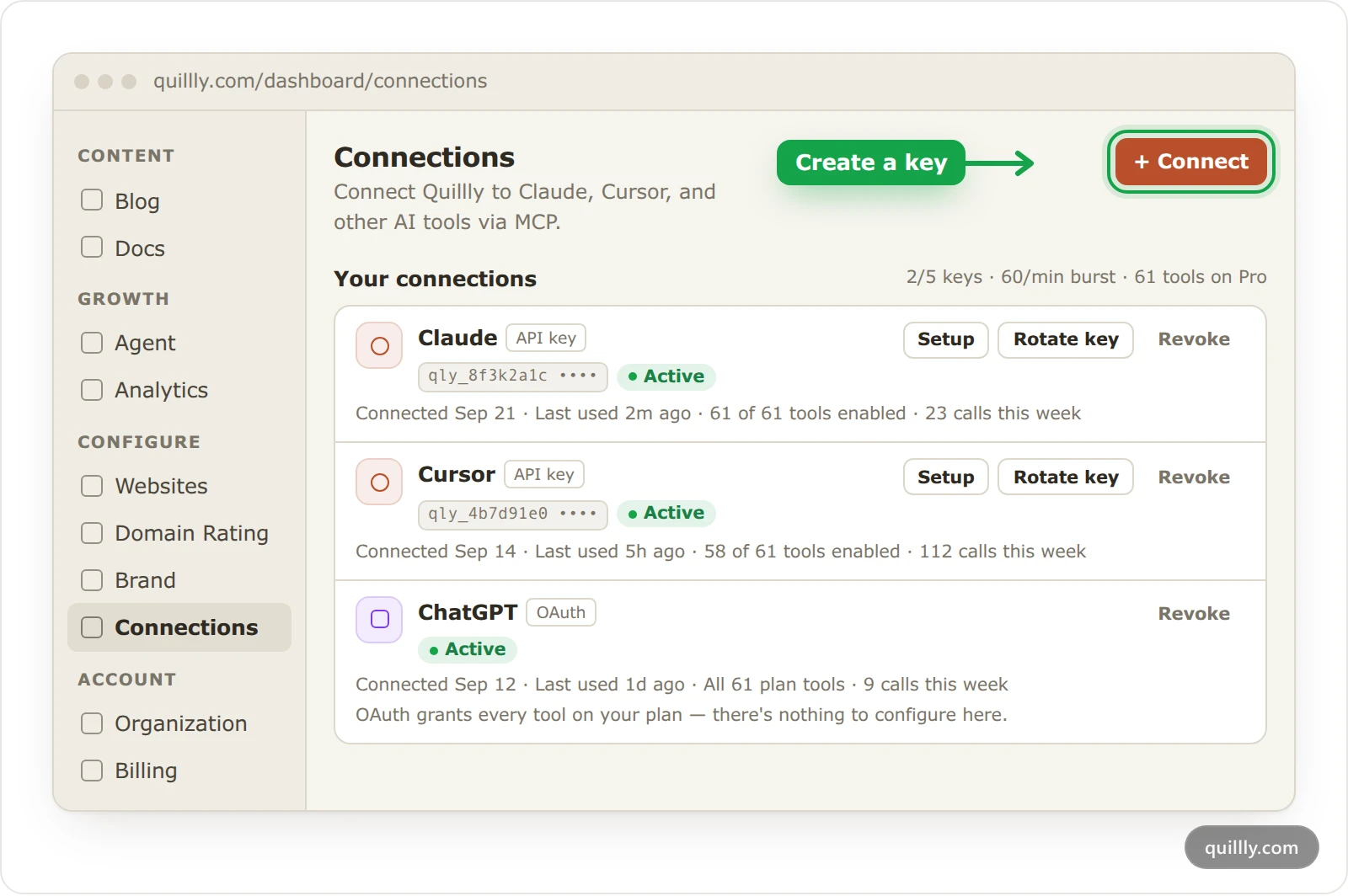
What the Connections page shows#
Open Connections under Configure. AI assistant usage sits at the top, and Your connections lists one line per API key or OAuth connection.
Each line shows the connection's name, an API key or OAuth badge, when it connected and was last used, how many tools it has, and its calls this week. The line above the list shows your keys against your plan's limit, the calls allowed per minute, and the number of tools on your plan.
Create API keys#
Click Connect#
On Connections, click Connect. When you reach your plan's key limit, the button is hidden: revoke a key you no longer use to make room.
Name the key and create it#
Name the connection after where it is used, such as
Work laptoporWeekly post routine, and click Create.Copy the snippet for your app#
The setup dialog opens with the key already in each snippet. Pick your app, click Copy and paste the snippet into the app, as its connection page shows.
After you close the dialog, Quillly shows only the start of the key, such as
qly_8f3k2a1c. A new key starts with every tool on your plan switched on, and it works until you rotate or revoke it.
Choose a key's tools#
Click a key's name to open it. Enabled tools lists each tool under Read, Write or Analytics, with a switch. Switch a tool off, and the AI using this key can no longer call it. If it tries, Quillly tells it the tool is off for this connection and where to turn it back on.
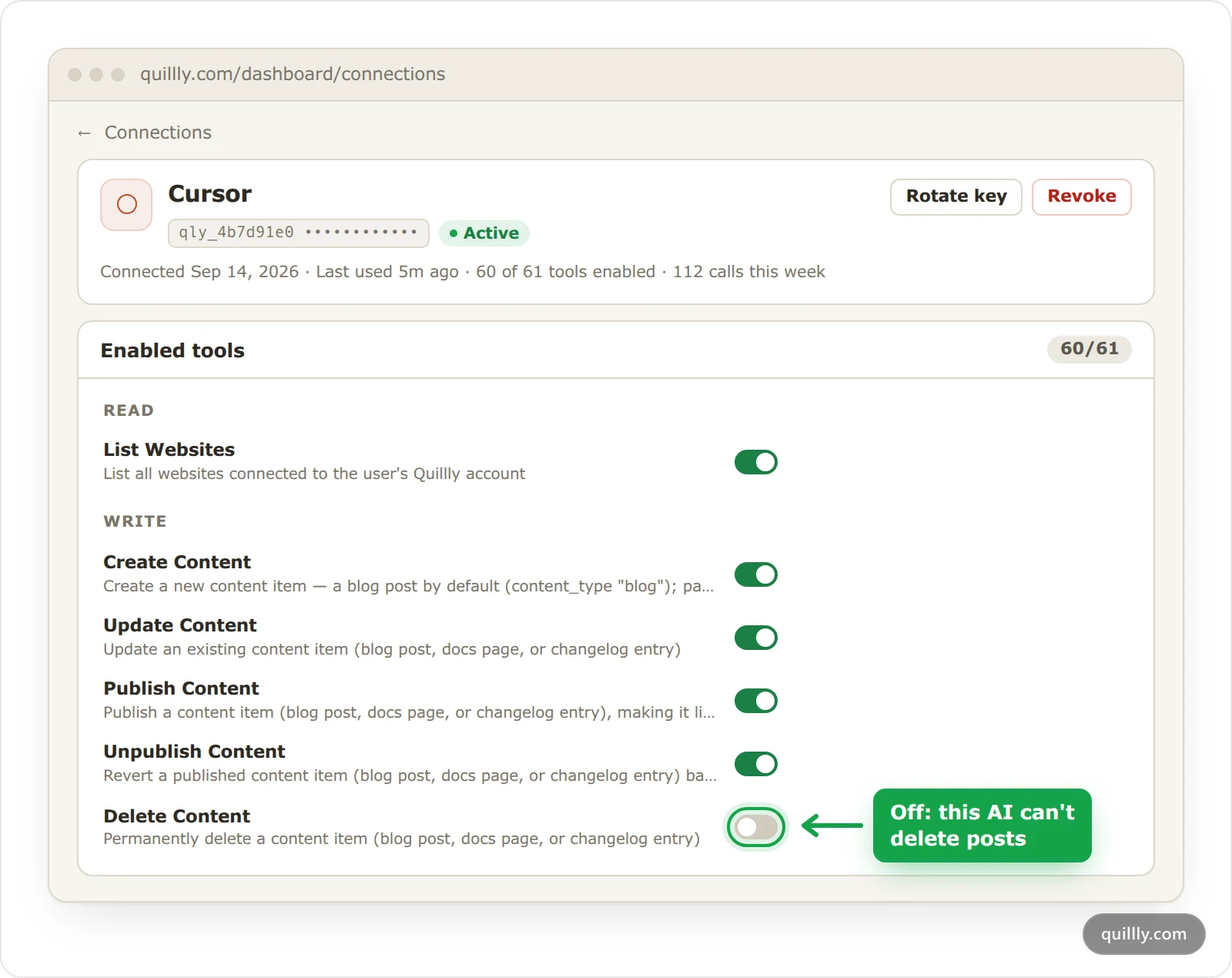
New tools start switched on. When Quillly adds a tool, it is on for your existing keys too. A tool you switched off stays off.
A badge such as Off for writers means your organization turned the tool off for your role. You cannot switch it on from here.
OAuth connections have no switches. They always get every tool on your plan.
Note
Switches decide which tools a key can call, not what a tool may do. Create Content can save a new post as published, so switching off Publish Content alone does not stop an AI from publishing.
Rotate a key#
Rotate a key when you lose it or think it leaked. Click Rotate key on its line, or inside the connection, and confirm. The new key appears once in the setup dialog, and the connection keeps its name and its tools.
Warning
Rotating or revoking a key cuts off every app that uses it, at once. Paste the new key into those apps right after you rotate.
Revoke a key or an OAuth connection#
Click Revoke and confirm. A revoked key stops working at once and leaves the list for good. Revoking an OAuth connection removes that app's access, and the app has to sign in again to reconnect.
OAuth connections#
Some apps can connect with OAuth instead of a key. You paste the plain server URL, https://quillly.com/api/mcp, and the app sends you to Quillly to sign in.
The first time an app asks, Quillly shows a screen titled Authorize with the app's name. It lists what the app may do: read and write your content, publish on your connected sites, and read your search and analytics data. Click Allow access to connect, or Cancel to refuse. The connection then appears on Connections with an OAuth badge.
We recommend a key instead. OAuth completes only in a browser where you are signed in to Quillly, so it fails in a terminal, on a server or on someone else's computer. Use OAuth where a key would be shared with other people, such as a connector for a whole Claude organization. In the setup dialog, it sits under Prefer OAuth?.
Usage and limits#
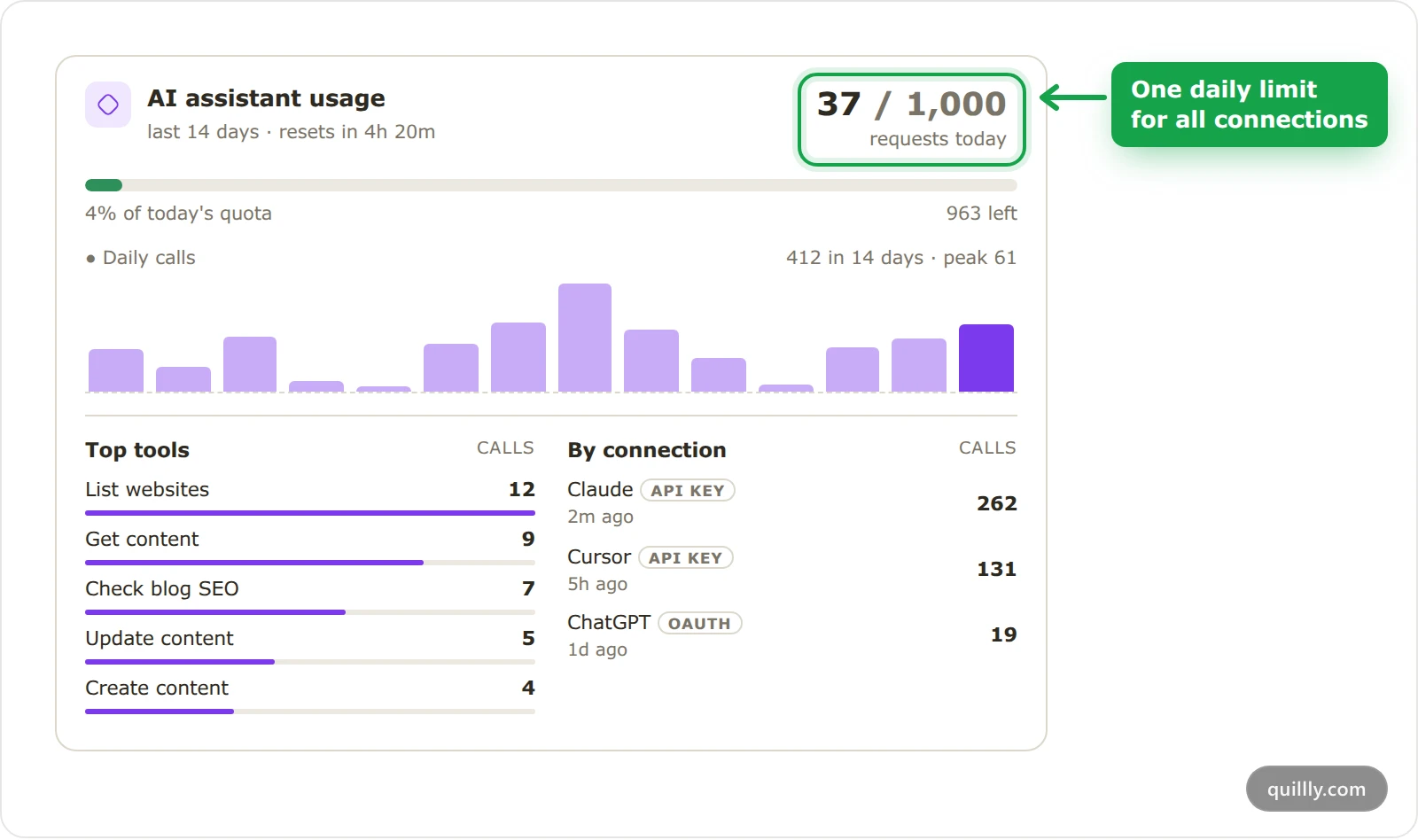
AI assistant usage shows today's requests against your daily limit, your calls over the last 14 days, today's top tools, and each connection's calls over those 14 days.
One daily limit covers all your connections, and it resets at midnight UTC.
There is also a per-minute limit, shown above your connections.
Only calls that succeed count. Calls that fail or are refused cost nothing.
At a limit, nothing runs. Quillly answers your AI with the time the limit resets.
Plan | API keys | Calls a day | Calls a minute |
|---|---|---|---|
Pro | 5 | 1,000 | 60 |
Autopilot Starter | 10 | 2,000 | 60 |
Autopilot Pro | 20 | 4,000 | 100 |
Autopilot Scale | 50 | 10,000 | 200 |
Analytics 10k | 3 | 500 | 30 |
Analytics 100k | 5 | 1,000 | 60 |
Analytics 500k | 10 | 2,000 | 60 |
Analytics 2M | 20 | 4,000 | 100 |
The trial uses Pro's limits. Plans, trial and limits covers what else each plan includes.
Keys on a team#
Keys belong to the person who creates them, so each teammate creates their own on their own Connections page. On a website someone shared with your organization, the organization's Agent tools settings also apply: a tool turned off there for your role stays off, whatever your key allows.
Common questions#
I lost my key. Can I see it again?#
No. Quillly stores keys hashed, so it cannot show one again, not even to you. Rotate the key to get a new one: the connection keeps its name and its tools, and only the key changes.
What is the key called Onboarding key?#
Onboarding creates it when you connect your AI there. It works like any other key, and you can open it, change its tools, rotate it or revoke it on this page.
Do keys expire?#
No. A key works until you rotate or revoke it, so check the list now and then and revoke keys you no longer use.
Related#
Connect your AI: the apps you can use and the one way we recommend.
Connect Claude: the connector, and OAuth for Team and Enterprise plans.
Plans, trial and limits: what each plan includes.
MCP tool reference: what each tool does, and the team role it needs.