Import existing posts
On this page
- Export from your old platform
- Import your posts
- 1. Open Import in your blog
- 2. Pick your platform
- 3. Upload the export file
- 4. Choose the posts and import them
- What carries over
- CSV columns
- After the import
- Common questions
- Can I import docs or changelog entries?
- What happens if I import the same file twice?
- Why did my import fail with Invalid import data?
- Related
Import the posts you already have into your Quillly Blog, from a WordPress, Ghost, Blogger or Medium export or from a CSV file. Every imported post arrives as a draft, so you can check it before it goes live.
Before you start, you need:
A website in Quillly. Import fills its Blog section. See Content types and URLs.
An export file from the platform you're leaving. The next section says how to get one.
Export from your old platform#
The import dialog shows these steps too, under How to export from your platform.
Platform | How to export | File |
|---|---|---|
WordPress | In your WordPress dashboard, go to Tools → Export, choose Posts (or All content), and click Download Export File. | One |
Ghost | In Ghost Admin, go to Settings → Labs and click Export under Export your content. | One |
Blogger | In Blogger, go to Settings, then Back up content under Manage blog, and click Download. | One |
Medium | Go to Settings → Security and apps → Download your information. Medium emails you a | Several |
CSV | Make a spreadsheet with one row per post, as the CSV section below describes. | One |
For more detail, see WordPress's Export screen, Ghost's guide to exporting content and Blogger's backup help.
Import your posts#
Open Import in your blog#
Under Content, open Blog. Click Import in the toolbar, next to the button for a new post.
Pick your platform#
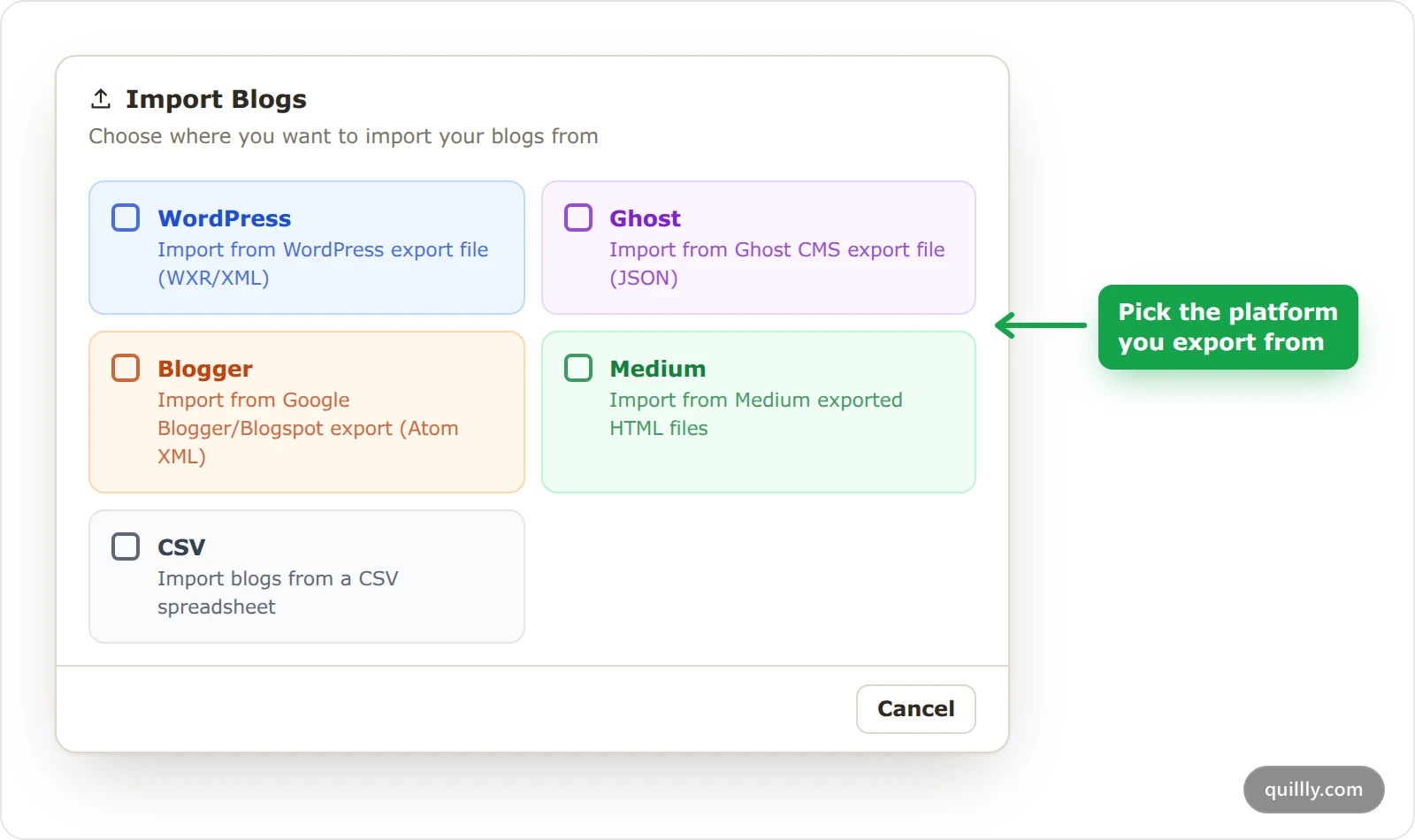
In Import Blogs, click WordPress, Ghost, Blogger, Medium or CSV.
Upload the export file#
Click the upload area and choose the file. For Medium, select every
.htmlfile you want at once. Your browser reads the file, and nothing is saved yet.Choose the posts and import them#
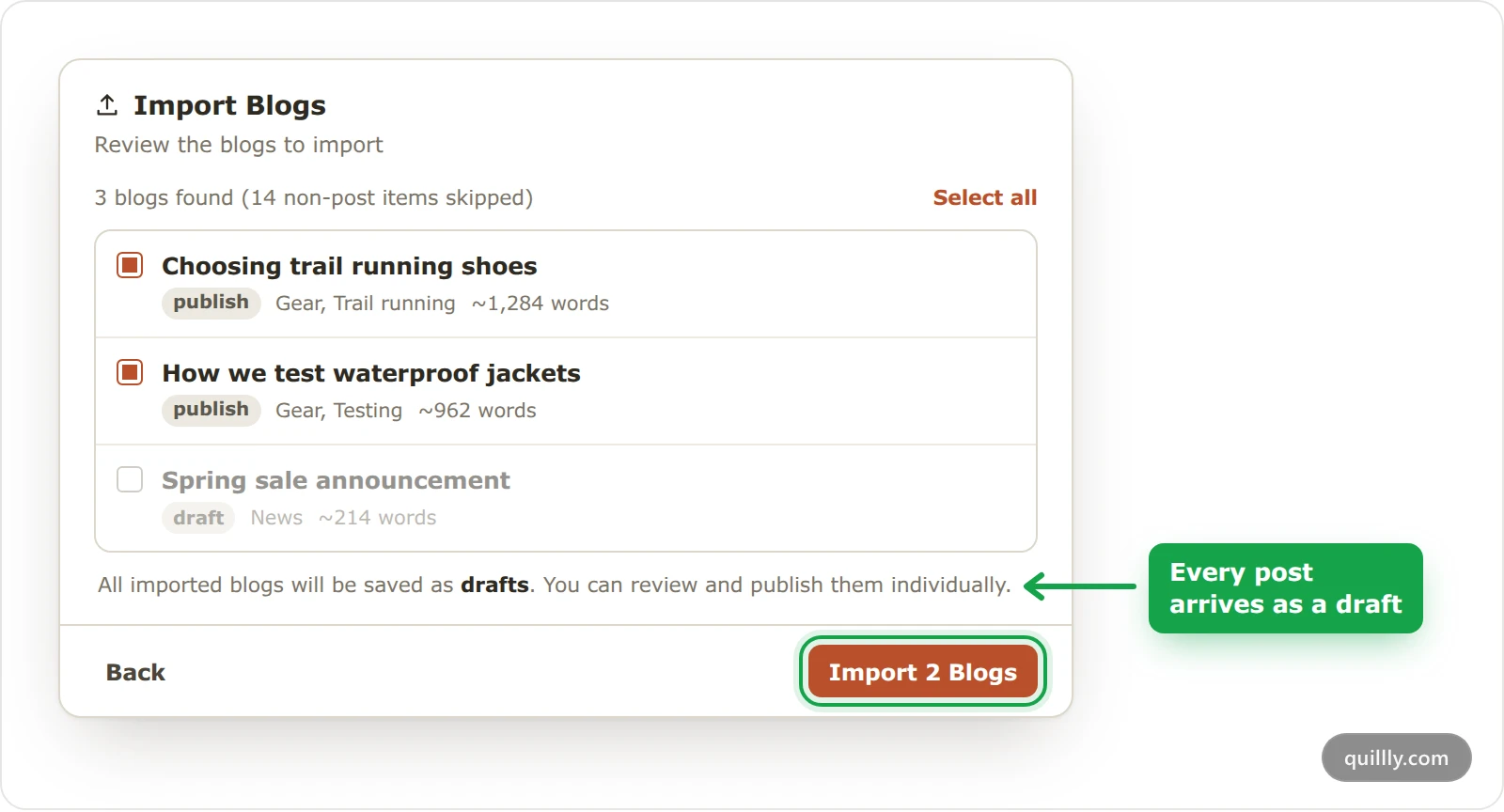
The list shows each post Quillly found, with its status on the old platform, its tags and its length. Clear the box next to any post you don't want, then click Import, which shows how many posts you picked, such as Import 2 Blogs. When it's done, the dialog reads 2 blogs imported successfully and lists any post that failed.
Warning
One import takes at most 200 posts. If you tick more, the whole import fails with Invalid import data. For a bigger blog, clear all but 200 and import them, then open Import again with the same file and tick the next batch.
What carries over#
Every source brings the title and the body. Bodies in HTML are converted to Markdown, and headings, lists, links, images, quotes, tables and code blocks survive the conversion. The rest depends on the source:
Source | Slug | Excerpt | Featured image | Tags | SEO title and meta description |
|---|---|---|---|---|---|
WordPress | Yes | Yes | No | Tags and categories | No |
Ghost | Yes | Custom excerpt | Yes | Tags | Yes |
Blogger | From the post's URL | No | No | Labels | No |
Medium | From the file name | Subtitle | No | No | No |
CSV | Yes | Yes | Yes | Yes | Yes |
A few things change on the way in:
Every post is a draft. The status from your old platform shows in the list, but Quillly doesn't apply it.
Publish dates aren't kept. A post gets its date when you publish it in Quillly.
Tags become target keywords, the keywords Quillly scores the post against. From WordPress, categories count as tags too.
Images stay where they were. The post links to each image at its old address, so keep those images online, or replace them before you shut the old site down.
Embeds become links. A YouTube video or other embedded frame becomes a link named Embedded content.
Only posts come across. WordPress pages and attachments, Ghost pages, and Blogger comments are skipped, and the list says how many.
Without its own SEO title, a post uses its title, and without a meta description, it uses the excerpt.
Ghost posts that have no HTML or plain text in the export, only Ghost's editor format, are skipped with a warning.
CSV columns#
A CSV file needs a header row with at least a title and a content column. Content can be Markdown or plain text. Quillly matches columns by name, and each column accepts a few names:
Column | Also accepted as |
|---|---|
|
|
|
|
|
|
|
|
|
|
|
|
|
|
|
|
|
|
title,slug,content,tags,meta_description
"Choosing trail running shoes",choosing-trail-shoes,"## Fit comes first

Try shoes on in the afternoon.","Gear, Trail running","How to pick trail shoes that fit."
Quote any cell that holds a comma or a line break, as above.
After the import#
The posts wait in Blog as drafts. Open each one, check the SEO score and fix what it flags, then publish. If the old posts lived on another domain or path, set up redirects from the old URLs on the old host, so links and search rankings follow the posts. Redirects and moving to a new domain explains how.
Common questions#
Can I import docs or changelog entries?#
No. Import fills the Blog section only. To bring docs in, ask your AI assistant to create them with bulk_create_content and content_type set to docs, up to 10 pages per call. The MCP tool reference lists the tool.
What happens if I import the same file twice?#
Nothing is overwritten. A post whose slug already exists on the website fails to import and is listed as an error. A post with no slug in the file gets a new one, so it can come in twice.
Why did my import fail with Invalid import data?#
Either more than 200 posts were ticked, or one post broke a limit, such as a title over 500 characters, an excerpt over 1,000 or a featured image that isn't a full URL. Clear that post, or fix it in the file, and import again.
Related#
Content types and URLs: where your Blog lives and the other content types.
Publish into WordPress, Ghost, Webflow or Shopify: keep your old platform and publish into it instead.
MCP tool reference:
bulk_create_contentand the other tools your AI assistant can use.Redirects and moving to a new domain: keep old links working after the move.