The in-app agent: chat and the editor panel
On this page
- Ask the in-app agent about a draft
- 1. Open a draft
- 2. Click the agent icon
- 3. Ask for a change
- Ask the agent about one passage
- 1. Open the comment popup
- 2. Switch to Ask the agent
- 3. Type the request and send it
- Chat on the Agent page
- 1. Click New chat
- 2. Ask for something
- 3. Follow the work
- What the in-app agent can and can't do
- Common questions
- Why is the Agent page locked on Pro?
- Does the in-app agent read my Agent Notes?
- Can I change a scheduled post in chat?
- Related
Quillly's in-app agent works inside the dashboard. Open it beside a draft and ask for changes, send it one passage from the editor, or use the agent chat on the Agent page. It uses the same tools your own AI uses over MCP, saves drafts and edits, and never publishes.
Before you start, you need:
A Content + Analytics plan or the free trial. The agent panel in the editor works on all of them. The Agent page, with its list of chats and New chat, comes with the Autopilot plans.
On a website shared with your organization, the writer role or higher, by default.
Ask the in-app agent about a draft#
Open a draft#
Open any post, docs page, changelog entry or news story in the editor.
Click the agent icon#
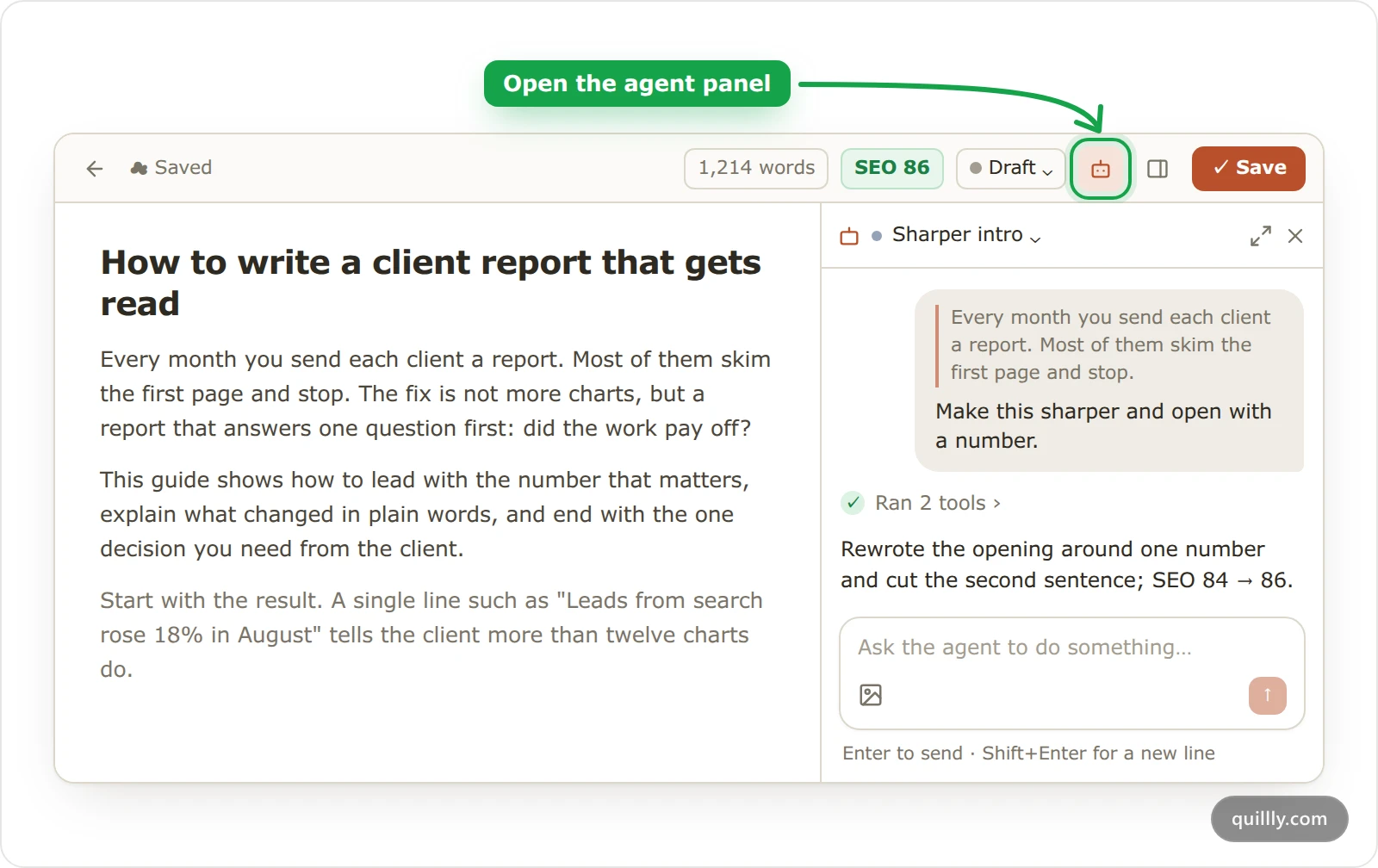
Click the robot icon in the top bar, Ask the agent about this draft. The panel opens beside the draft and continues this item's latest session, or starts one.
Ask for a change#
Type what you want, such as "Tighten the intro and fix the SEO issues", and press Enter. The agent reads the draft, edits it with small changes rather than rewriting it, and starts its answer with a summary of what changed.
If everything is saved and you are not typing in the draft, the editor shows the changes at once. Otherwise a bar says The agent changed this item and offers Load theirs or Keep mine.
The menu at the top of the panel switches between This content’s sessions and starts a New session. The expand icon opens the full session view, and you can drag the panel's left edge to make it 320 to 640 pixels wide.
Ask the agent about one passage#
Open the comment popup#
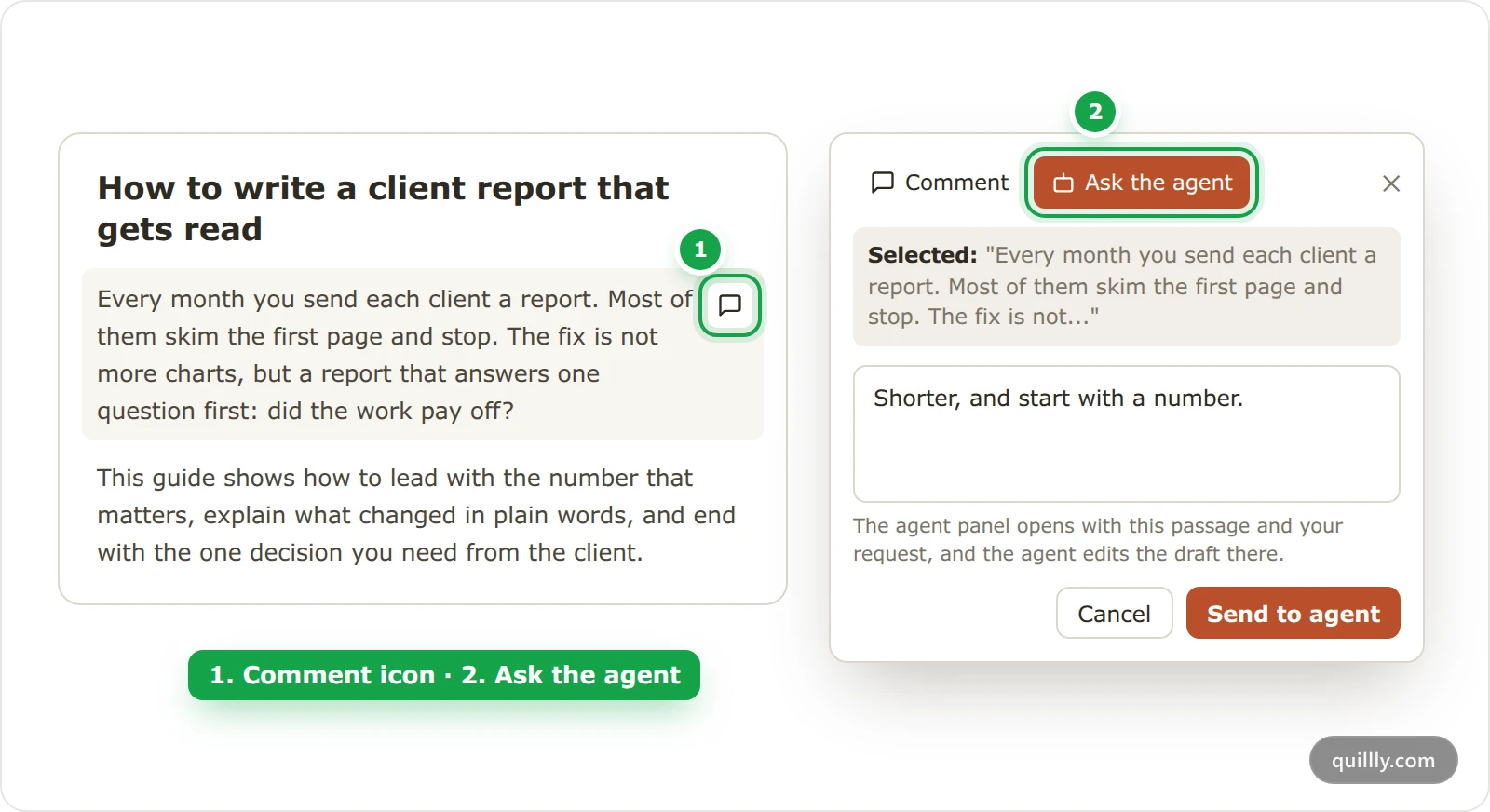
Hover over the paragraph and click the speech bubble at its right edge, Add comment.
Switch to Ask the agent#
Click Ask the agent at the top of the popup. The popup quotes the paragraph, up to its first 200 characters.
Type the request and send it#
Type what should change, such as "Shorter, and start with a number". Click Send to agent, or press Cmd+Enter (Ctrl+Enter on Windows and Linux). The agent panel opens with the passage and your request, and the agent edits the draft there.
Tip
To quote only a few words, select them, click Ask in the toolbar above your selection, type the request and press Enter. That quotes exactly what you selected, up to 600 characters.
Chat on the Agent page#
On an Autopilot plan, the Agent page lists every chat with the in-app agent next to your scheduled runs.
Click New chat#
Open Agent under Growth and click New chat. By default, only the website's owner and admins see this button, so writers and editors chat from the editor.
Ask for something#
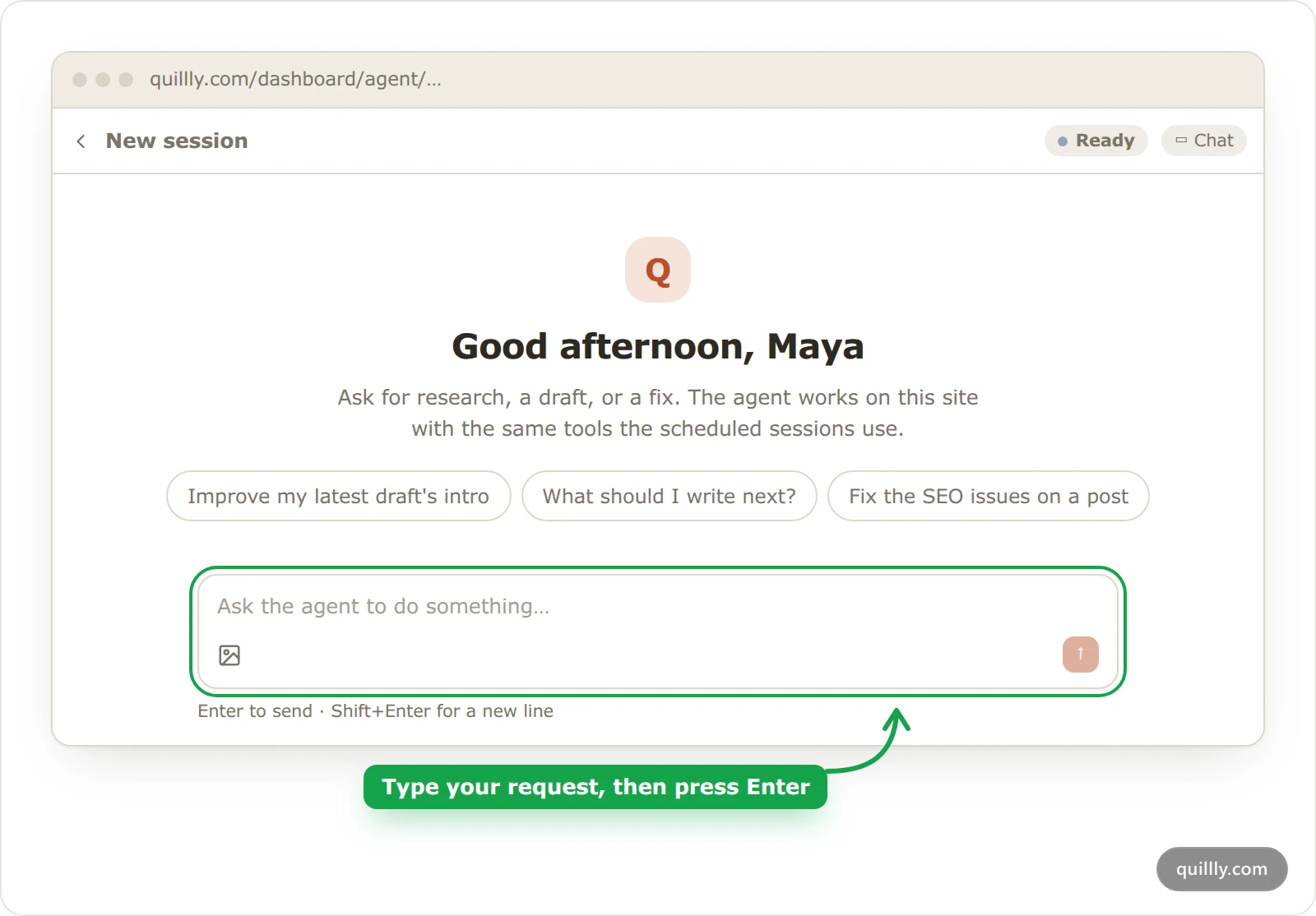
A new chat offers three starting points, such as "What should I write next?". Clicking one fills the box without sending it. Press Enter to send, or Shift+Enter for a new line.
Follow the work#
The agent shows its plan, such as "Plan · 2 of 4 done", and each tool it runs, then answers. You can leave the page: the agent keeps working, and the chat is named after your first message.
What the in-app agent can and can't do#
It uses your tools. The agent has the MCP tools of your plan and role, on this website unless you name another of yours. It researches keywords, writes and saves drafts, edits posts, fixes SEO issues, reads your search numbers and reads and writes Agent Notes.
It never publishes. It cannot publish, unpublish, archive or delete anything. Ask for that and it tells you to do it from the editor or your content list.
Research spends your credits. Keyword lookups and SERP checks cost 1 credit each, a competitor gap or a web search 5, and link prospects 15, from the credits of the person chatting. Writing and editing cost none.
It asks when a choice is yours, such as which of two topics to write, with two to four buttons to answer.
Stop, the square button, ends the current turn; a step already running finishes first.
Each message has limits. A message holds up to 8,000 characters and 4 images (PNG, JPEG, WebP or GIF, 8 MB each). The agent is told an image is attached but cannot see what is in it, so describe what matters in words.
Each turn has limits. The agent makes up to 10 tool calls and works up to 6 minutes per message, then stops and says so. Send a follow-up to continue.
Long chats are summarized. The agent works from your last 12 messages. In a long chat, older messages are folded into a summary, and a divider marks the point. After 400 messages, start a new session.
Common questions#
Why is the Agent page locked on Pro?#
The Agent page, with its chats and scheduled runs, belongs to the Autopilot plans. On Pro and during the trial, open a draft and use the agent panel instead.
Does the in-app agent read my Agent Notes?#
Only when it opens the site brief or your notes, which it does not do for every message. When a rule matters, start with "Read Agent Notes first".
Can I change a scheduled post in chat?#
Yes. Open the run on the Agent page and type in the box at the bottom. The agent knows what the run did and edits its draft.
Related#
The editor: the rest of what the editor does.
Keyword research and credits: what each research tool costs.
Autopilot: posts written on a schedule: scheduled runs that appear next to your chats.
Agent Notes: what your agents remember: the memory agents carry between sessions.