Markdown syntax: pictures, CTAs, callouts and citations
On this page
- The Markdown syntax of a fenced block
- Pictures made from code
- Diagrams: image:mermaid
- Charts: image:chart
- Custom visuals: image:html
- Vector drawings: image:svg
- Screenshots: image:screenshot
- Call-to-action blocks
- Call-to-action links
- Callouts
- Source citations
- Common questions
- Why does my page show code where a picture should be?
- Why is my picture in the wrong colours?
- Related
Quillly reads ordinary Markdown plus a few additions of its own: fenced blocks that become pictures, call-to-action blocks and links, callouts, and source citations. This page is the reference for that Markdown syntax, with every option Quillly accepts and an example you can copy for each. Your AI writes this syntax when it creates or updates a page, and anything else that sends Markdown to Quillly can use it too. In the editor, the same blocks come from the slash menu instead.
The Markdown syntax of a fenced block#
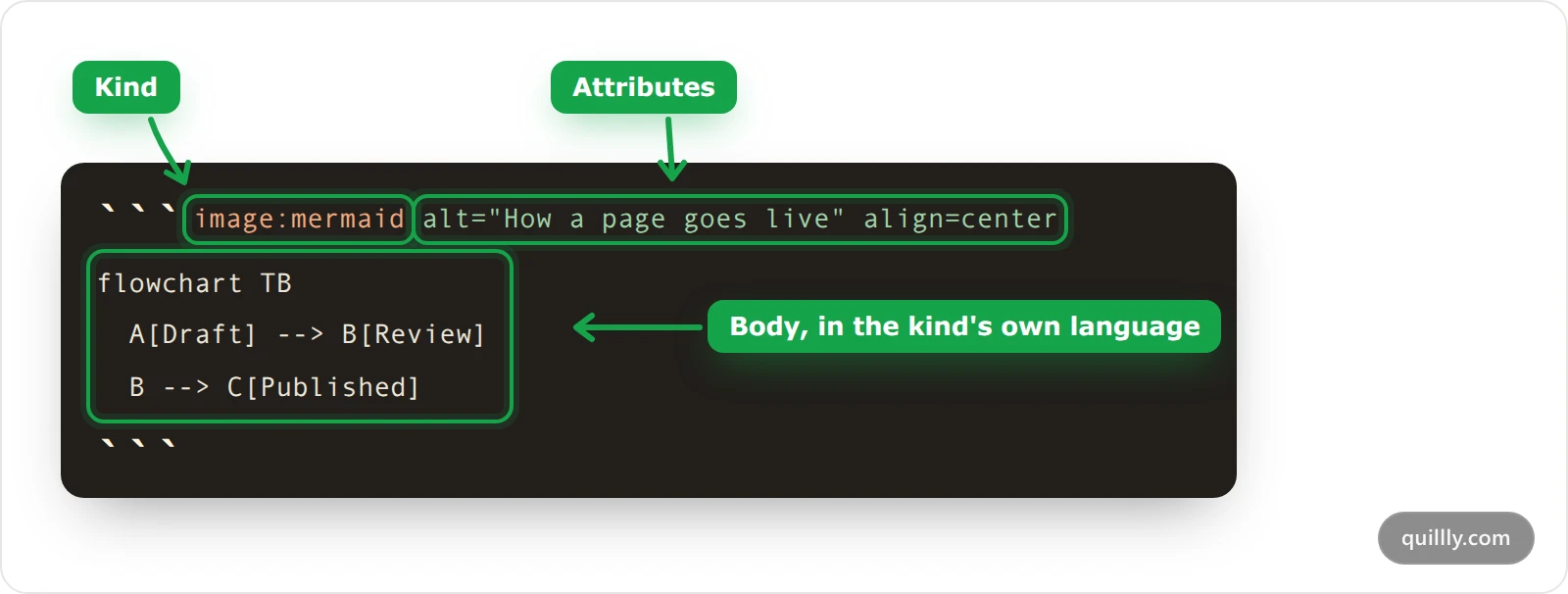
A fenced block starts with a line of three backticks followed directly by its kind, such as image:mermaid, and then its attributes. The lines after it are the body, written in the kind's own language. A line of three backticks on its own ends the block.
Note
A code block ends at the first line that starts with three backticks, so a code block cannot show a whole fenced block. The examples below give the first line and the body as two separate blocks. To use one, type three backticks and then the first line, add the body, and close with a line of three backticks.
Pictures made from code#
The same Markdown syntax covers five kinds of block that are drawn into pictures when you save the page:
Kind | The body is | In the editor |
|---|---|---|
| A diagram in Mermaid syntax | Diagram in the slash menu |
| A chart configuration in JSON | Chart |
| HTML, with Tailwind classes available | Custom visual |
| One SVG drawing | Custom visual, then the SVG kind |
| The address of a web page to capture | Not available, ask your AI |
Every kind takes the same attributes on its first line:
Attribute | What it does |
|---|---|
| Describes the picture. It becomes the image's alt text, and the SEO score counts a picture without one as missing. Write it in double quotes. |
| Text shown under the picture. An italic line right after the block works too. |
| Where the picture sits. Center is the default. |
| The picture's width on the page, in pixels. Diagrams, charts, HTML and SVG are also drawn at this width, from 320 to 1600, and the default is 800. |
When the page is saved, Quillly draws each block on a white card, with your site's primary colour as the accent and your domain in a small label in the bottom corner, and serves the result as an ordinary image. Until a picture is ready, the page shows the block's code instead. A picture is drawn again when its code, its width or your primary colour changes.
Diagrams: image:mermaid#
The body is a Mermaid diagram: a flowchart, a sequence diagram, a mind map or any other type Mermaid supports.
First line, after the three backticks:
image:mermaid alt="A flow from draft to published, with an optional review step" width=520Body:
flowchart TB
  A[Draft] --> B[Review]
  B --> C[Published]
  A -->|Publish now| C
It renders like this:
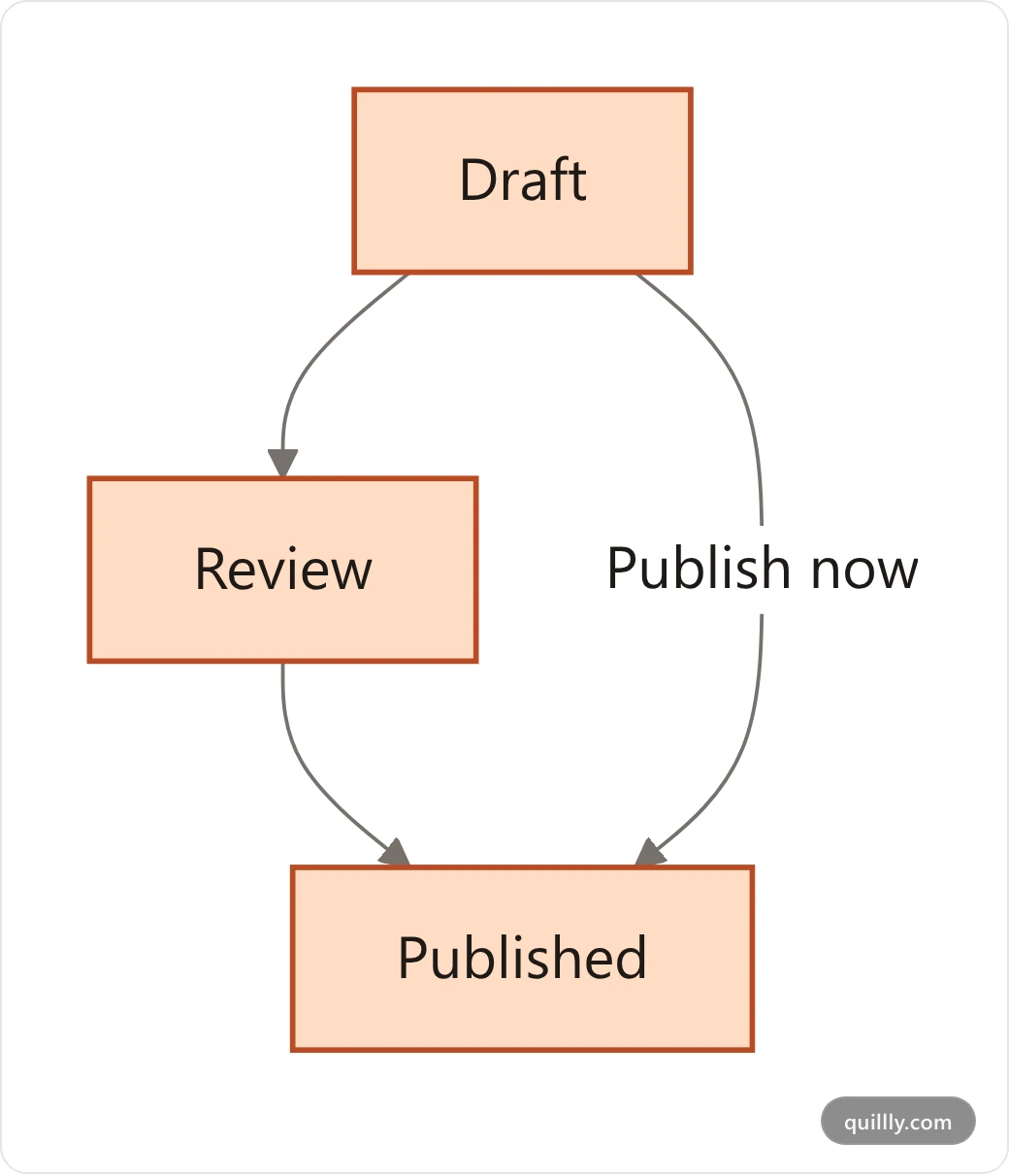
Write flowcharts top to bottom with flowchart TB. A left-to-right flowchart with more than three boxes shrinks to fit the column, and the SEO score flags it. Mermaid runs in strict mode, so click actions and links inside the diagram are ignored.
Charts: image:chart#
The body is a Chart.js configuration written as JSON, with type, data and, if you like, options.
First line:
image:chart alt="Bar chart of monthly visits to the Acme docs from January to June"Body:
{
  "type": "bar",
  "data": {
    "labels": ["Jan", "Feb", "Mar", "Apr", "May", "Jun"],
    "datasets": [
      { "label": "Docs visits", "data": [1284, 1570, 1893, 2210, 2468, 2931] }
    ]
  },
  "options": {
    "plugins": { "title": { "display": true, "text": "Visits to the Acme docs, 2026" } }
  }
}
It renders like this:
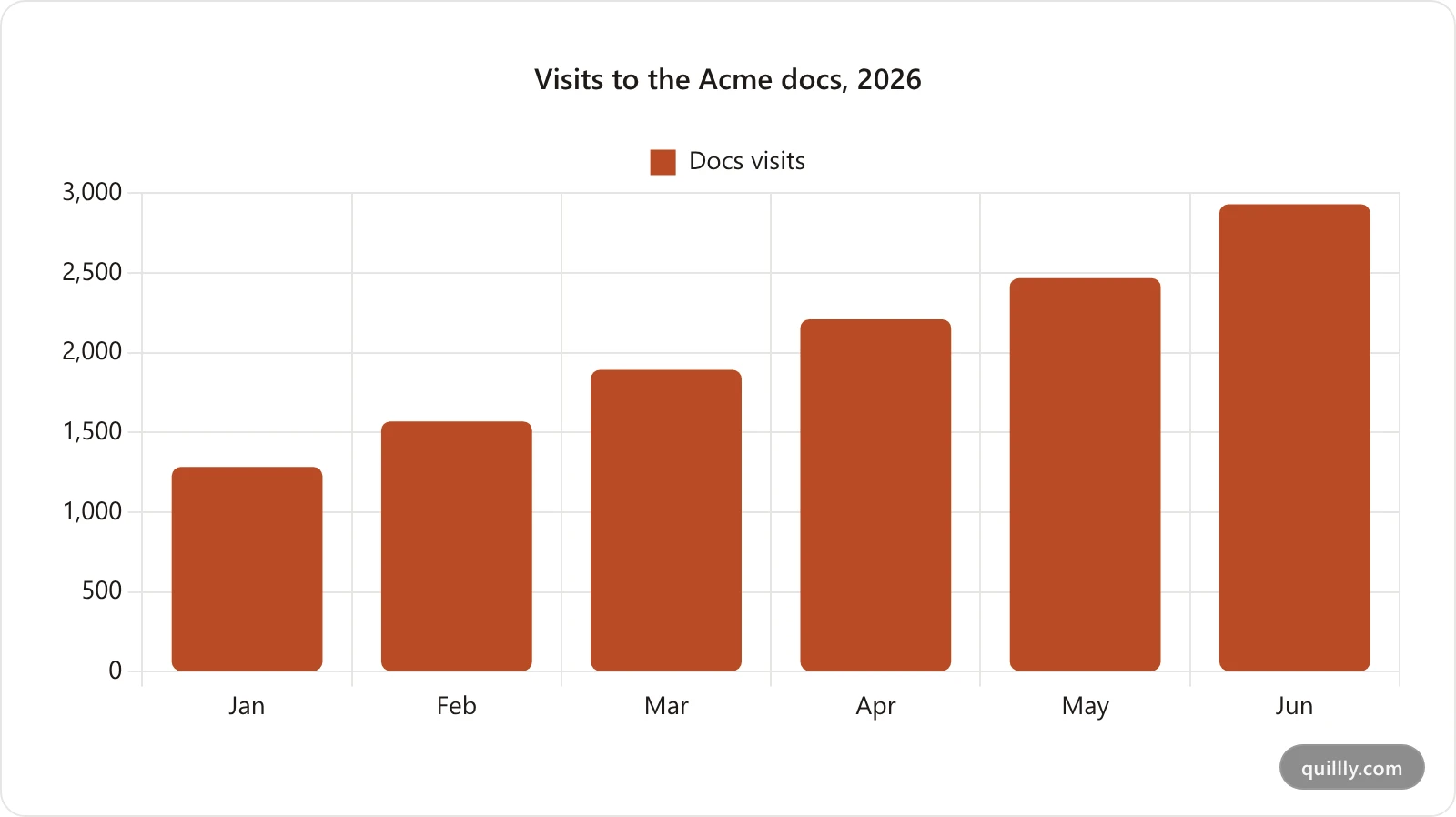
The body must be valid JSON, so it cannot contain functions or comments. Animation is turned off, and datasets without their own colours get a palette that starts with your site's primary colour. Pie, doughnut, polar area and radar charts are drawn wide, with the legend on the right, unless the options say otherwise.
Custom visuals: image:html#
The body is HTML. Tailwind utility classes work, and so do these CSS variables: var(--brand) holds your site's primary colour, and var(--ink), var(--surface), var(--border) and var(--muted) hold the card's text, background, border and muted colours.
First line:
image:html alt="Two cards comparing median load time before and after caching" width=720Body:
<div class="grid grid-cols-2 gap-4">
  <div class="rounded-xl border p-6">
    <p class="text-sm text-gray-500">Before caching</p>
    <p class="mt-1 text-4xl font-bold">4.2 s</p>
    <p class="mt-2 text-sm">Median load time</p>
  </div>
  <div class="rounded-xl border-2 p-6" style="border-color: var(--brand)">
    <p class="text-sm text-gray-500">After caching</p>
    <p class="mt-1 text-4xl font-bold" style="color: var(--brand)">0.9 s</p>
    <p class="mt-2 text-sm">Median load time</p>
  </div>
</div>
It renders like this:
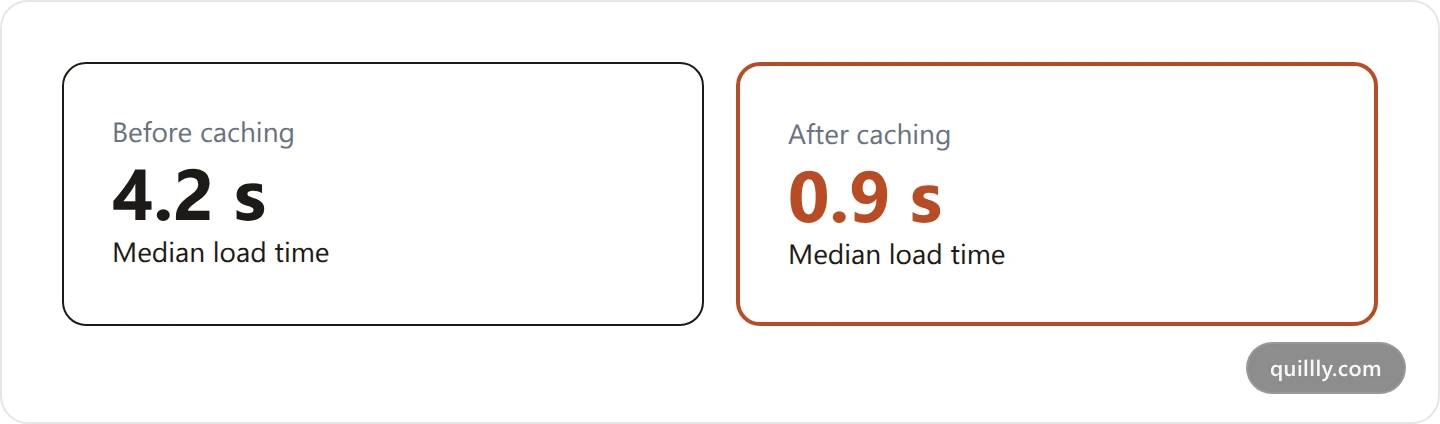
Scripts, event handlers, frames and links to other files are removed before drawing. The drawing has no internet access, so a picture inside the HTML must be written into it, as inline SVG or a data: address. Most pictures in these docs are drawn this way.
Vector drawings: image:svg#
The body is one <svg> element. It is centred and scaled down to fit the width.
First line:
image:svg alt="Three boxes in a row: write, check and publish"Body:
<svg xmlns="http://www.w3.org/2000/svg" viewBox="0 0 520 110" width="520" height="110" font-family="Inter, sans-serif" font-size="16">
  <rect x="10" y="30" width="140" height="50" rx="10" fill="none" stroke="#b9502a" stroke-width="2"/>
  <text x="80" y="60" text-anchor="middle" fill="#211d1a">Write</text>
  <path d="M150 55 H 190" stroke="#a8a29e" stroke-width="2"/>
  <rect x="190" y="30" width="140" height="50" rx="10" fill="none" stroke="#b9502a" stroke-width="2"/>
  <text x="260" y="60" text-anchor="middle" fill="#211d1a">Check</text>
  <path d="M330 55 H 370" stroke="#a8a29e" stroke-width="2"/>
  <rect x="370" y="30" width="140" height="50" rx="10" fill="#b9502a"/>
  <text x="440" y="60" text-anchor="middle" fill="#ffffff">Publish</text>
</svg>
It renders like this:
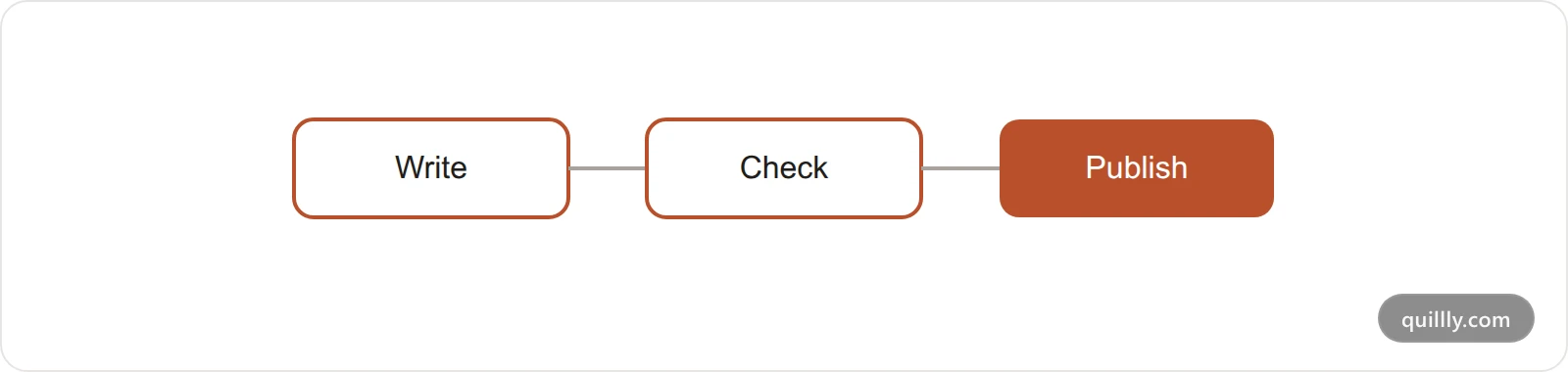
The same clean-up as HTML applies, and a block without an <svg> element fails. MDN's SVG reference lists the elements you can use.
Screenshots: image:screenshot#
This Markdown syntax is different from the other kinds: the body is a few key: value lines that name a public web page to capture.
First line:
image:screenshot alt="The pricing table on the Acme pricing page"Body:
url: https://acme.com/pricing
selector: .pricing-table
wait_for: .pricing-table
width: 1280Key | What it does |
|---|---|
| Required. The public http or https address to capture. |
| Captures one element, the first that matches this CSS selector, instead of the whole view. |
| Scrolls this element into view before a capture of the view. |
| Waits up to 8 seconds for this element to appear before capturing. |
|
|
| The browser width, from 320 to 1920 pixels. The default is 1280. |
A # starts a comment at the end of a line. An unknown key or a missing url fails the block. A capture of an error page, a bot check or a blank page is not published, so the block stays as code until you fix the address or the selector.
Call-to-action blocks#
A cta block is a box with a heading, a line of text and a button. In Markdown syntax, its body is key: value lines.
First line: cta, straight after the three backticks.
Body:
heading: Ready to publish your first page?
body: Connect your AI and ask it for a page about your product.
button: Connect your AI | https://quillly.com/docs/connect-your-ai
variant: cardKey | What it does |
|---|---|
| The bold first line. |
| The sentence under it. |
| The button's label, a vertical bar, then its address. Only the first bar splits them. Without an address, the block has no button. |
|
|
Other lines are ignored, and when a key appears twice the last one wins. A button with a full address opens in a new tab, and one that starts with / or # stays in the same tab. In the editor, choose CTA from the slash menu. On blog posts, the SEO score expects about one call to action per 800 words, with one near the end. Docs pages, changelog entries and news stories are not scored on them.
This is the example above, drawn on this page:
Ready to publish your first page?
Connect your AI and ask it for a page about your product.
Connect your AICall-to-action links#
The Markdown syntax is a {cta=…} suffix straight after a link, with a short name of your choice, which marks the link as a call to action:
[Start your free trial](https://acme.com/signup){cta=signup}The link looks like any other link. Clicks on it are counted as call-to-action clicks in Analytics, with the link's text, its address and where on the page it sits. It also counts toward the SEO score's call-to-action check, like a block. In the editor, click a link and choose Tag as call-to-action. The Markdown version of a page, and Copy page on docs, leave the {cta=…} part out.
Callouts#
A quote that starts with a marker becomes a callout with a title, an icon and a colour. The Markdown syntax is the one GitHub uses for alerts, and callouts work on blog posts, docs pages, changelog entries and news stories.
Marker | Title | Colour in most themes |
|---|---|---|
| Note | Blue |
| Tip | Green |
| Important | Green |
| Warning | Amber |
| Caution | Red |
> [!WARNING]
> Deleting a website also deletes its pages.
A quote whose first words are a label, such as Note: or **Tip:**, also becomes a callout, titled with that word:
> **Tip:** Number every page in a section, in steps of 10.The marker must open the quote, and a quote inside another quote stays a plain quote. The editor draws a quote with a marker as a callout while you write. Writing docs pages shows callouts next to the other docs features, and the note near the top of this page is one.
Source citations#
A citation ties a few words to the sources that back them. Its Markdown syntax is an HTML span around the words, with the sources in data-sources as a JSON list. Each source has a url and a title, and quotation marks inside the list are written as ":
Quillly treats a page that answers 404 as a broken link <span class="qs-citation" data-sources="[{"url":"https://developer.mozilla.org/en-US/docs/Web/HTTP/Status/404","title":"404 Not Found"}]">because the page no longer exists</span>.What a citation does:
The SEO score counts it as a source, in the same check as links to other sites.
The editor shows a small pill with the source's site after the cited words.
On your published page, the cited words are plain text, with no pill and no link. Link to a source as well when readers should be able to open it.
The Markdown version of the page keeps the span, so AI agents that read it see the sources.
The editor has no button that adds a citation. Your AI adds them when it writes from sources. News stories have their own list of sources as well, described in News stories and sources.
Common questions#
Why does my page show code where a picture should be?#
The picture is not drawn yet, or its code has an error. Open the block in the editor: its preview shows the error, such as a Mermaid syntax mistake or JSON that does not parse. After a fix, the picture is drawn when you save.
Why is my picture in the wrong colours?#
Pictures are always drawn on a white card, even on pages shown in dark mode, and their accent is your site's primary colour, not a section look. Change the primary colour on the Brand page and the pictures are drawn again.
Related#
The editor: the slash menu items that make the same blocks.
Writing docs pages: numbered steps, callouts and the rest of the docs template.
Web Stories: a different Markdown syntax, for story slides.