Connect Cursor, Windsurf, VS Code and others
On this page
- The config most apps use
- Connect Cursor
- Connect Windsurf, now Devin Desktop
- Connect VS Code
- Connect Gemini
- The Gemini app
- Gemini CLI
- Connect Grok
- Connect Cline
- Connect Continue
- Connect any other MCP app
- Common questions
- Where do I find my key again?
- Why does my app list fewer Quillly tools than I expected?
- Can I keep my key out of the config file?
- Related
Connect Cursor, Windsurf, VS Code, Gemini, Grok, Cline, Continue or any other MCP app to Quillly. Each section gives the exact setup to paste, with your key from Connections. The app can then write, check and publish on your websites.
Before you start, you need:
A key from Connections: click Connect, name the connection after the app, and click Create.
Your key, in place of
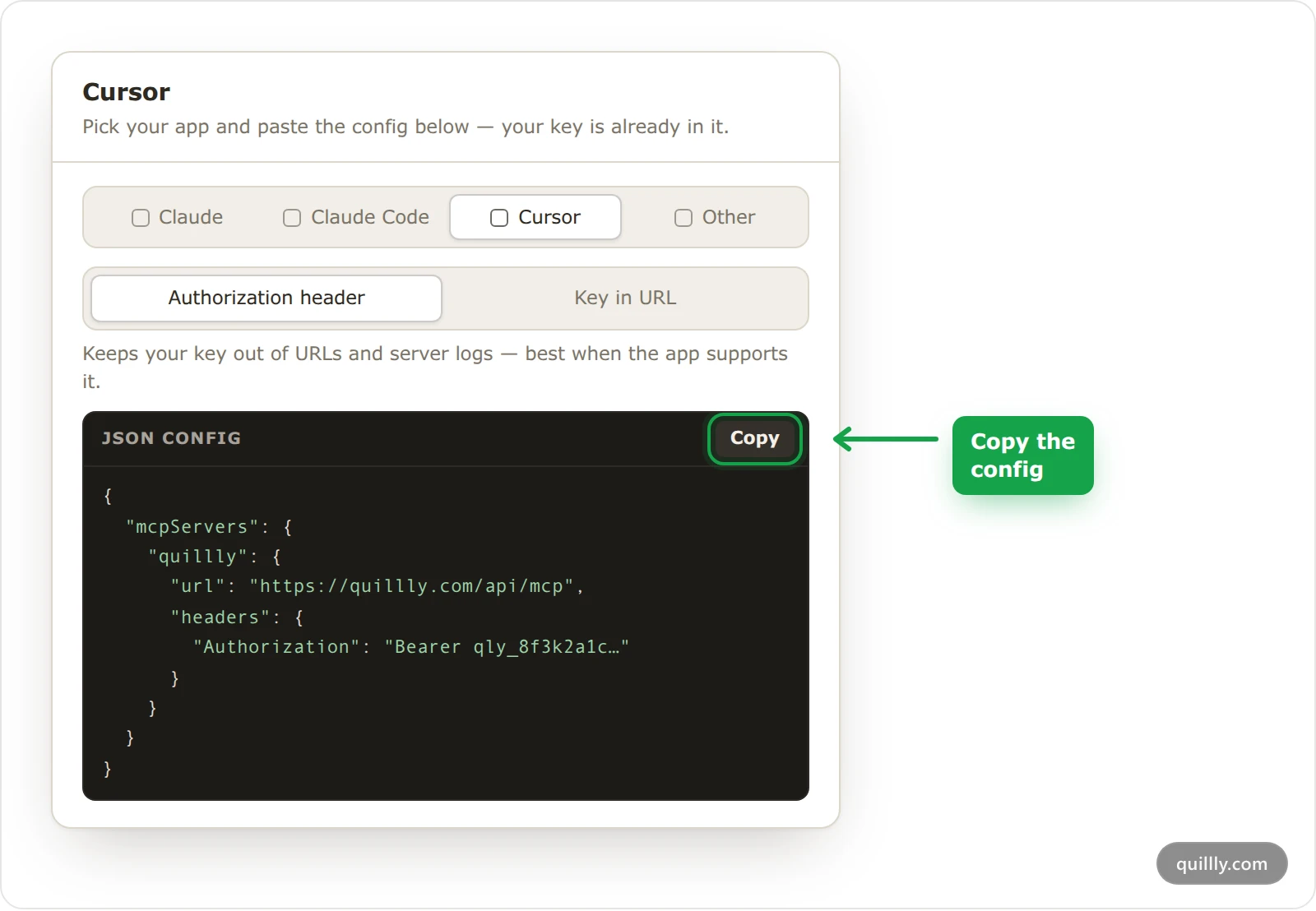
qly_your_keyin the examples. The Cursor and Other tabs of the setup dialog give the standard JSON with your key already in it.
The config most apps use#
Cursor and many other MCP apps read the same JSON. It gives the server's URL and puts your key in an Authorization header:
{
  "mcpServers": {
    "quillly": {
      "url": "https://quillly.com/api/mcp",
      "headers": {
        "Authorization": "Bearer qly_your_key"
      }
    }
  }
}
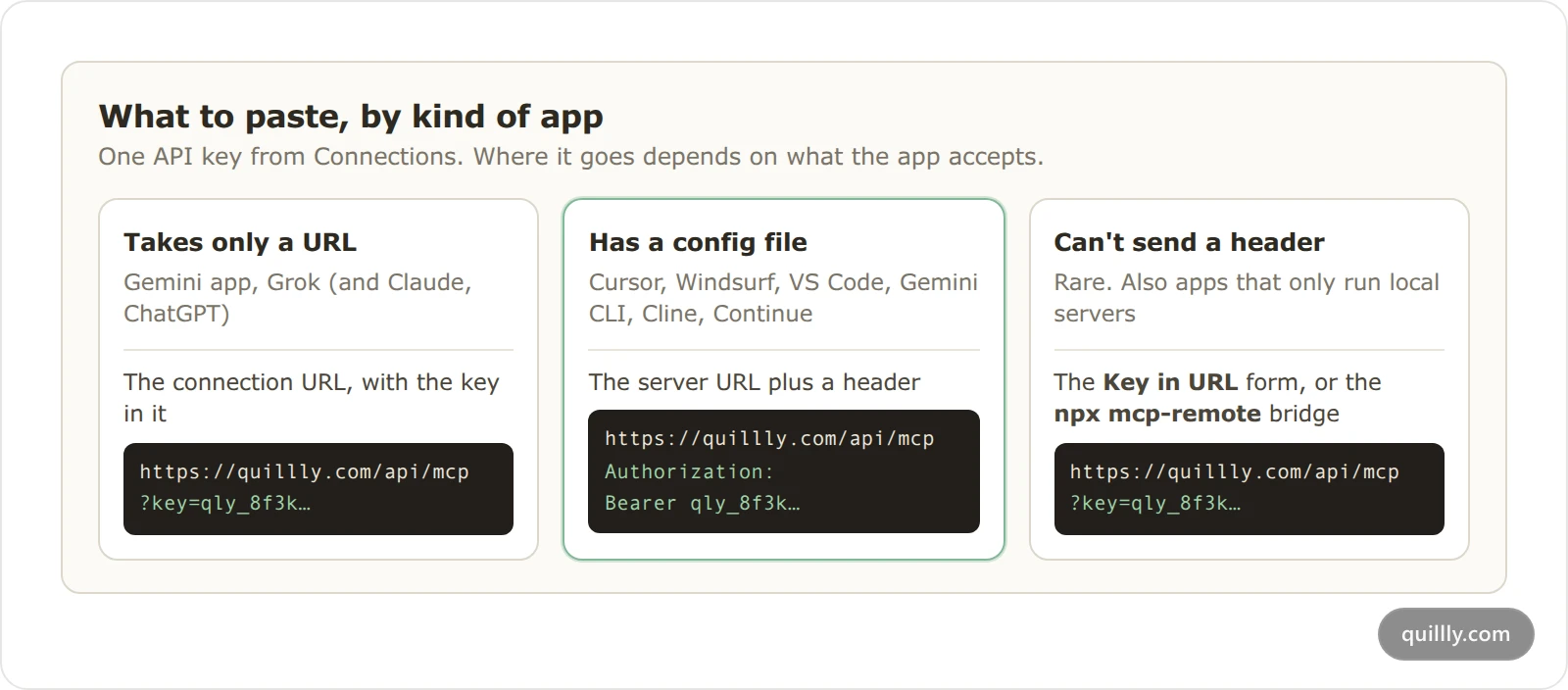
Some apps name these fields differently, as the sections below show. Apps whose connector form takes only a URL, such as the Gemini app and Grok, get the connection URL with the key inside it instead.
Connect Cursor#
Add the JSON above to ~/.cursor/mcp.json to use Quillly in every project, or to .cursor/mcp.json in one project's folder. Then reload Cursor. Cursor's agent uses Quillly's tools when a request needs them.
To keep the key out of the file, store it in an environment variable and write "Authorization": "Bearer ${env:QUILLLY_API_KEY}" instead (Cursor's MCP guide).
Connect Windsurf, now Devin Desktop#
Windsurf is now called Devin Desktop. In the Cascade panel, open the … menu at the top right and click Open MCP config file. Add Quillly with serverUrl for the address:
{
  "mcpServers": {
    "quillly": {
      "serverUrl": "https://quillly.com/api/mcp",
      "headers": {
        "Authorization": "Bearer qly_your_key"
      }
    }
  }
}
Cascade can use at most 100 tools at a time across all your MCP servers (Devin Desktop's MCP guide). Quillly brings up to 61, so if you run other servers too, switch off the Quillly tools you do not need on Connections.
Connect VS Code#
Create .vscode/mcp.json in your project with the entry below. VS Code asks for your key when it starts the server, so the key never sits in the file:
{
  "inputs": [
    {
      "type": "promptString",
      "id": "quillly-key",
      "description": "Quillly API key",
      "password": true
    }
  ],
  "servers": {
    "quillly": {
      "type": "http",
      "url": "https://quillly.com/api/mcp",
      "headers": {
        "Authorization": "Bearer ${input:quillly-key}"
      }
    }
  }
}
To use Quillly in every workspace, run MCP: Open User Configuration from the Command Palette and add the same entry there. Then open the Chat view and ask for something that needs Quillly (VS Code's MCP guide).
Connect Gemini#
The Gemini app#
In the Gemini web app, open Settings, then Connected Apps. Under Custom apps, enter the connection URL with your key in it, and click Next. The setup dialog's Claude tab shows that URL. If Gemini asks you to sign in, it is using OAuth instead of the key: sign in to Quillly and click Allow access.
Google offers custom apps only to personal Google accounts, in English, for people 18 or over in the US (Google's help page). You add them in the web app, and they then work in the Gemini mobile app too.
Gemini CLI#
Run this once in a terminal:
gemini mcp add --scope user --transport http \
  -H "Authorization: Bearer qly_your_key" \
  quillly https://quillly.com/api/mcp
Without --scope user, Gemini CLI adds Quillly to the current project only. In a session, type /mcp to check that Quillly is connected. If you edit ~/.gemini/settings.json by hand instead, use httpUrl for the address, not url (Gemini CLI's MCP guide).
Connect Grok#
Open grok.com/connectors, click New Connector and choose Custom. Paste the connection URL with your key in it as the MCP server URL, and complete any sign-in Grok asks for.
On Grok Business and Enterprise, a team admin sets up connectors for everyone first (xAI's connector guide). As with any shared connector, do not put your own key in one your whole team uses.
Connect Cline#
In the Cline panel, click the MCP Servers icon, open the Configure tab and click Configure MCP Servers. Add Quillly with streamableHttp as the type (Cline's MCP guide):
{
  "mcpServers": {
    "quillly": {
      "type": "streamableHttp",
      "url": "https://quillly.com/api/mcp",
      "headers": {
        "Authorization": "Bearer qly_your_key"
      }
    }
  }
}
Connect Continue#
Create .continue/mcpServers/quillly.yaml in your workspace:
name: Quillly
version: 0.0.1
schema: v1
mcpServers:
  - name: Quillly
    type: streamable-http
    url: https://quillly.com/api/mcp
    requestOptions:
      headers:
        Authorization: Bearer qly_your_key
Continue uses MCP tools in agent mode only (Continue's MCP guide).
Connect any other MCP app#
Quillly's server speaks MCP over streamable HTTP at https://quillly.com/api/mcp, and most apps accept the JSON at the top of this page. Two alternatives cover apps that cannot use it:
Key in URL. If the app cannot send a header, click Key in URL in the setup dialog. The key moves into the URL, so treat the whole URL as a password.
The mcp-remote bridge. If the app runs only local servers, run
mcp-remotewith the connection URL as its argument:
{
  "mcpServers": {
    "quillly": {
      "command": "npx",
      "args": ["-y", "mcp-remote", "https://quillly.com/api/mcp?key=qly_your_key"]
    }
  }
}
Apps that support only the older SSE transport cannot connect, because Quillly's server takes MCP requests as POST only.
Common questions#
Where do I find my key again?#
You cannot see it again, because Quillly stores keys hashed and shows each one only once. Rotate the key on Connections to get a new one; the connection keeps its name and its tools.
Why does my app list fewer Quillly tools than I expected?#
Tools switched off for the connection are left out, and so are tools outside your plan's product line. Open the connection on Connections to see its Enabled tools.
Can I keep my key out of the config file?#
Yes, in Cursor, Devin Desktop and VS Code. Cursor and Devin Desktop read ${env:NAME} from your environment, and VS Code can ask for the key with an input variable, as the VS Code example shows.
Related#
Connect your AI: how the connection works and the one way we recommend.
Connect Claude Code: the same header setup, as one command.
Plans, trial and limits: calls a day and keys for each plan.
Your first session: what to ask your AI once it is connected.