Autopilot: posts written on a schedule
On this page
- What each plan allows
- Set up a routine
- 1. Open Agent
- 2. Add a routine
- 3. Name it and give it instructions
- 4. Pick the days and time
- 5. Save and turn Autopilot on
- Schedule and timezone
- Review each draft or publish automatically
- What a run does
- Read the session log
- Common questions
- Does Autopilot spend research credits?
- Why was a run marked Missed?
- Can two routines run at the same time?
- Related
Autopilot writes posts for your website on a schedule you set. Each run picks a keyword, writes and scores a draft, then publishes it or keeps it for your approval. This page shows how to set up routines, choose the timezone and the review mode, and read what each run did.
Before you start, you need:
An Autopilot plan: Starter, Pro or Scale. On Pro and during the trial, Agent shows the Autopilot plans instead of a schedule.
Keywords in your Focus list that no page targets yet. Each blog run picks one of them.
To change the schedule, you need to own the website or, by default, be an admin of its organization. Other roles can watch the runs.
What each plan allows#
Plan | Posts a month | Scheduled posts a week | Posts a day | Publish automatically |
|---|---|---|---|---|
Autopilot Starter | 8 | 2 | 1 | No, every draft waits for you |
Autopilot Pro | 30 | 7 | 1 | Yes |
Autopilot Scale | 90 | 21 | 3 | Yes |
You can create as many routines as you like. Quillly checks the weekly and daily limits of each website's schedule when you save it, and the Routines window counts the runs started in your billing period.
Set up a routine#
A routine is one job: what to write, and when to start it.
Open Agent#
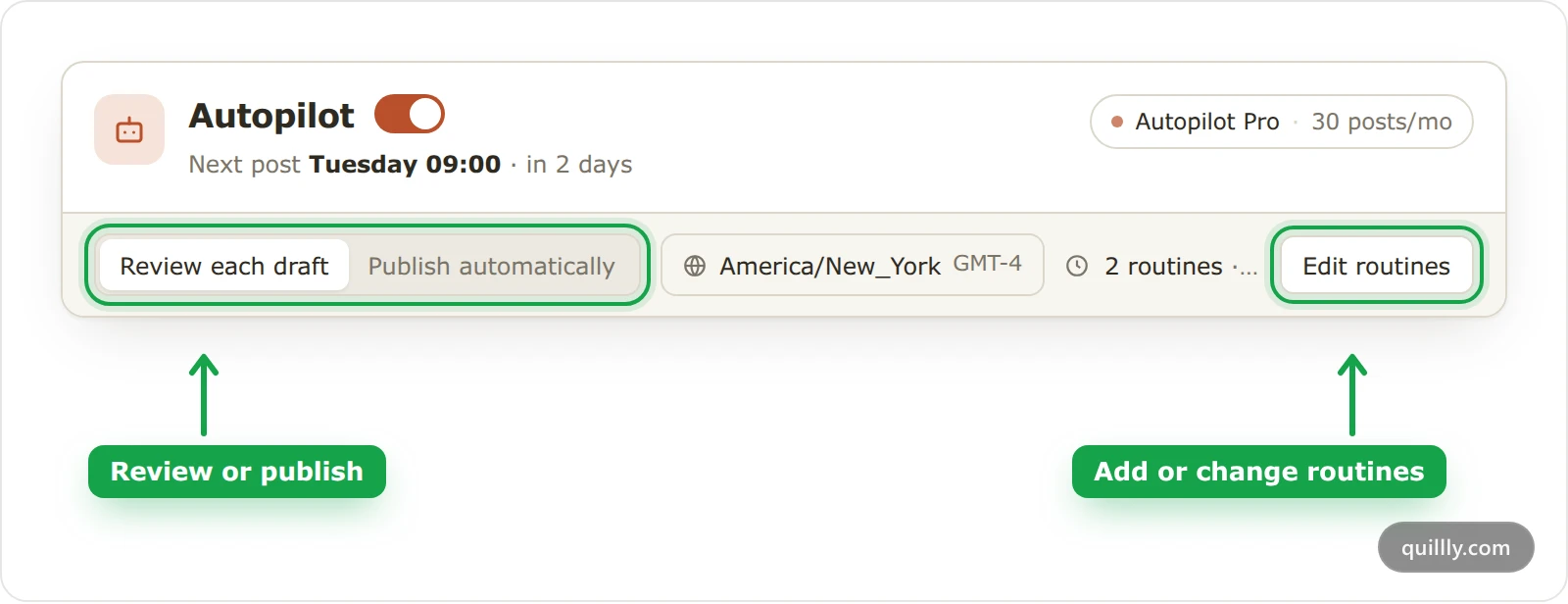
Click Agent under Growth. The Autopilot card at the top holds the schedule of the website you have selected.
Add a routine#
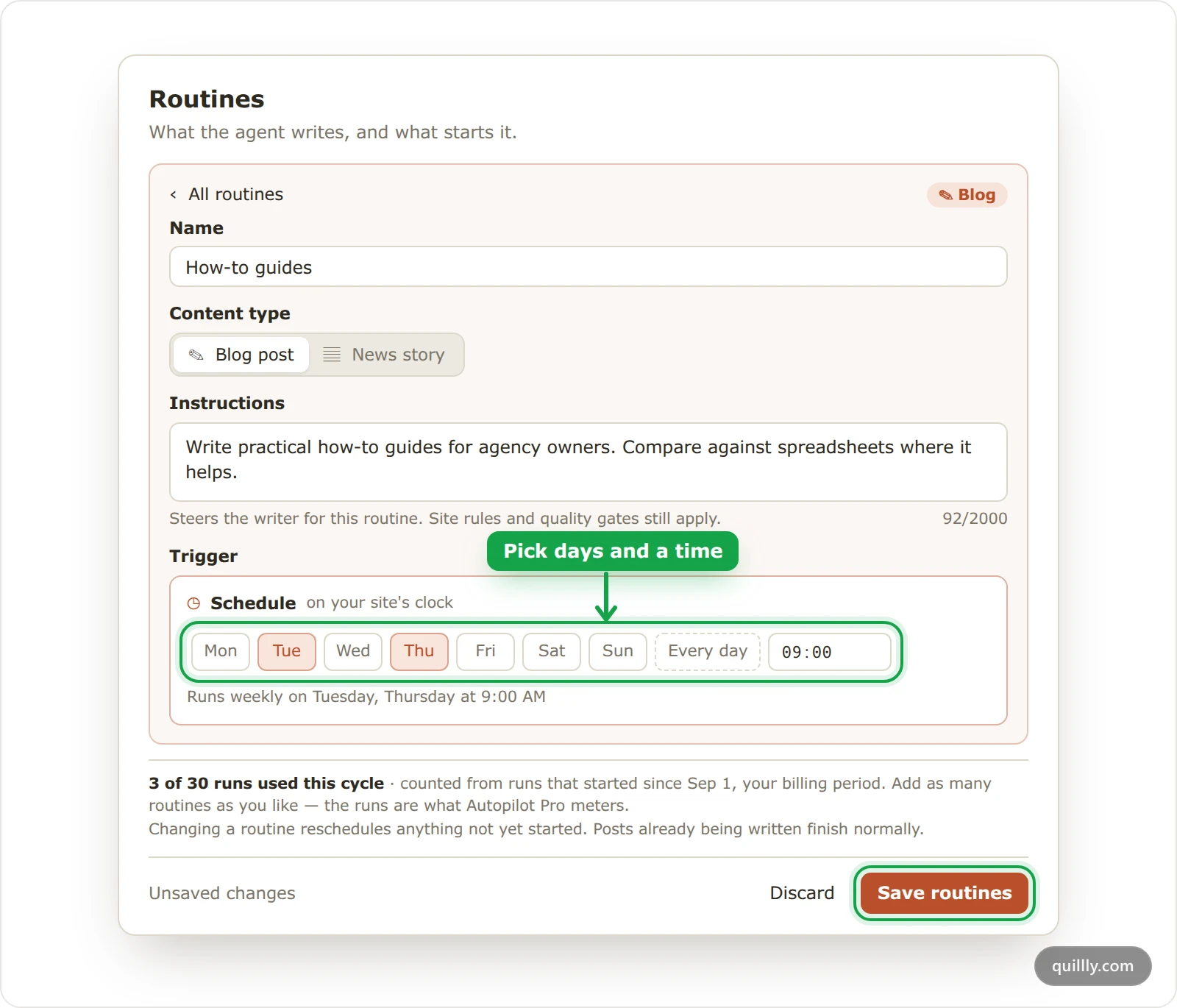
Click Edit routines, then New routine. A new routine writes a Blog post every Monday at 9:00 AM until you change it.
Name it and give it instructions#
Name: up to 60 characters. Left empty, the routine shows as "Weekly blog post" or "Daily blog post".
Content type: Blog post or News story. A news routine needs a news section with at least one category.
Instructions: up to 2,000 characters that steer the writer, such as "Write practical how-to guides for agency owners". Your writing rules and quality checks still apply, but runs don't pass your Agent Notes to the writer, so put standing rules here.
Pick the days and time#
Under Trigger, click the days the routine runs, or Every day, and set a time in steps of 15 minutes. The line below reads it back, such as "Runs weekly on Tuesday, Thursday at 9:00 AM".
Save and turn Autopilot on#
Click Save routines. Then turn on the switch next to Autopilot and click Save changes in the bar at the bottom of the page. The card now shows the next post, such as "Next post Tuesday 09:00 · in 2 days".
Schedule and timezone#
Times follow your website's timezone. Click the timezone button to search more than 400 IANA time zones, such as
America/New_York; Wikipedia keeps a full list. A new schedule starts with your browser's timezone.Writing starts early. A run starts up to 6 hours before its time, so the post is ready, or waiting for you, when the time comes.
Late runs are skipped. A run that can't start within 12 hours after its time is marked Missed instead of publishing late.
Changes apply to runs that haven't started. Posts already being written finish as planned.
Pausing keeps your routines. Turn the switch off and save, and the card reads "Paused — your schedule is kept".
Review each draft or publish automatically#
Pick the mode in the Autopilot card, then click Save changes.
Review each draft: every post waits as a draft, and its run shows Needs review. Click Review draft to open it in the editor and publish it from there. This is the only mode on Autopilot Starter.
Publish automatically: a post that passes the final quality review and your website's minimum SEO score, 85 unless you changed it, is scheduled to go live at its routine's time. If either check fails, or the website has reached its weekly limit on new posts, the post waits for you as in review mode. The New posts from AI agents card on your site's page, under Websites, shows that limit and when the next slot opens.
News stories always wait for your review, whatever the mode. The mode is read when a run finishes, so a change also applies to runs in progress. When you review a draft, Google's guide to helpful, people-first content is a good yardstick.
Note
Quillly does not email you when a draft is waiting. Check Agent for runs marked Needs review.
What a run does#
A blog run takes these steps, and its log shows each one:
Reads the site brief: your writing rules, brand details and limits.
Picks a keyword from your Focus list that no page targets yet and that fits your website's difficulty and volume limits.
Checks the live Google results for it, for 1 research credit from the website owner's credits. A result it can't compete with sends it back to step 2.
Outlines and writes the post, then saves it as a draft.
Scores the draft and improves it, for up to three rounds.
Adds a "Related reading" line that links to the new post at the end of two of your published posts. In review mode, that line shows as plain text until you publish the new post.
Runs a final quality review, then publishes or waits for you. After it publishes, it leaves a handoff note in Agent Notes.
A news run picks the newest story from your news sources that your site hasn't covered, writes it with its source cited and always waits for review. When every story is already covered, the run ends without writing.
Read the session log#
Every run appears on the Agent page as a Routine row, next to your chats. Filter with All, Routines and Chats, or search by title.
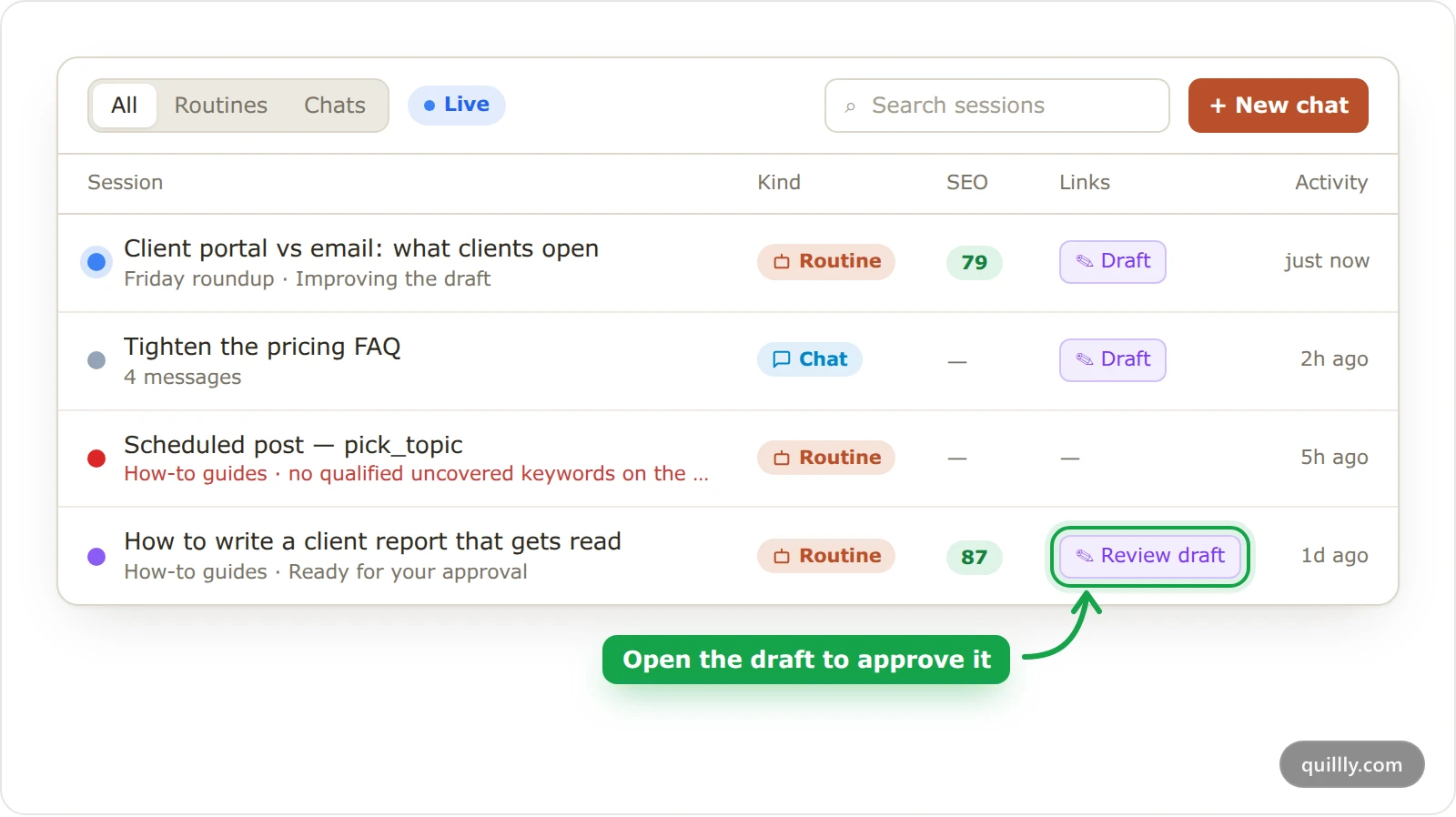
The dot shows the status: Queued, Writing, Interrupted (stopped by an outage or a time limit, and it resumes on its own), Needs review, Published, Failed or Missed.
The line under the title names the routine and what the run is doing, or the error that stopped it.
SEO is the draft's latest score, and Links opens the draft in the editor.
Click a row to open the full log: one step per stage, such as "Picking a keyword from the focus list.", with each tool call and check underneath. To change that draft, type in the box at the bottom. The in-app agent continues the same session and knows what the run did.
A failed run does not retry, and the routine's next time runs as usual. The most common error is "no qualified uncovered keywords on the focus list — research needed before autopilot can write": every keyword on your Focus list already has a page or falls outside your limits. Save new keywords from Research.
Common questions#
Does Autopilot spend research credits?#
Yes. Each blog run checks the search results for its keyword for 1 credit from the website owner's credits, and more when it has to try another keyword. A keyword checked in the last 14 days costs nothing.
Why was a run marked Missed?#
It couldn't start within 12 hours after its time, for example during an outage. Quillly skips it rather than publish a post that late, and the next run goes ahead as planned.
Can two routines run at the same time?#
No. Two routines can't share the same day and time; the Routines window asks you to move one before you save.
Related#
Keyword research and credits: find and save the keywords Autopilot writes about.
Publishing: statuses, scheduling and review: what happens when you publish a draft.
The SEO score: the score each post must reach to publish on its own.
News stories and sources: the news section a news routine needs.