Publishing: statuses, scheduling and review
On this page
- The five statuses
- Publish a page
- 1. Open the section
- 2. Open the page's status menu
- 3. Choose Published
- Checks before publishing
- Schedule a page
- 1. Ask your AI to schedule the page
- 2. Check the time in the answer
- 3. Let it go live
- Review: when a writer cannot publish
- Unpublish, archive or delete
- Common questions
- Why didn't my page publish?
- Can I set a publishing time in the dashboard?
- Does unpublishing delete the page?
- Related
Every page in Quillly has a status that decides whether readers can see it. This page covers the five statuses, publishing a page, scheduling it for later, the checks that run before publishing, and why a writer's pages go to review.
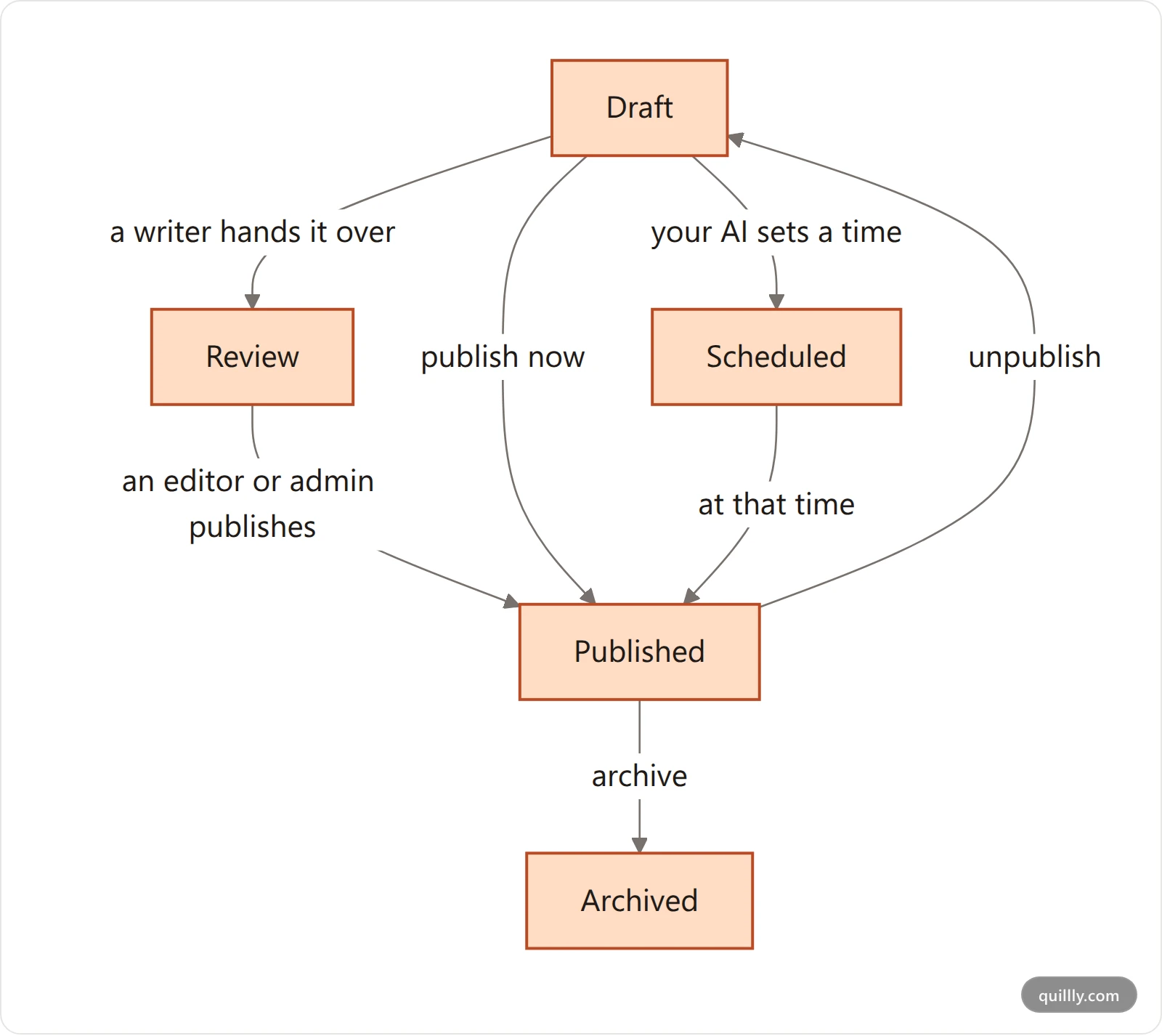
The five statuses#
Status | Who can see the page | What it is for |
|---|---|---|
Draft | Only you and your team | Work in progress. New pages start here. |
Review | Only you and your team | Ready for an editor or admin to check and publish. |
Scheduled | Only you and your team, until its time | Goes live on its own at a set time. |
Published | Everyone | Live at its address on your site. |
Archived | Only you and your team | Taken off your site but kept, so you can bring it back. |
Publishing also tells search engines about the page, and taking a live page down tells them it is gone.
Publish a page#
Open the section#
Open Content and the section the page is in: Blog, Docs, Changelog or News.
Open the page's status menu#
Every row shows the page's status as a small button, such as Draft. Click it.
Choose Published#
Choose Published. The message Status changed to published confirms it, and the page is live at its address. If a check refuses it, the message names the reason instead.
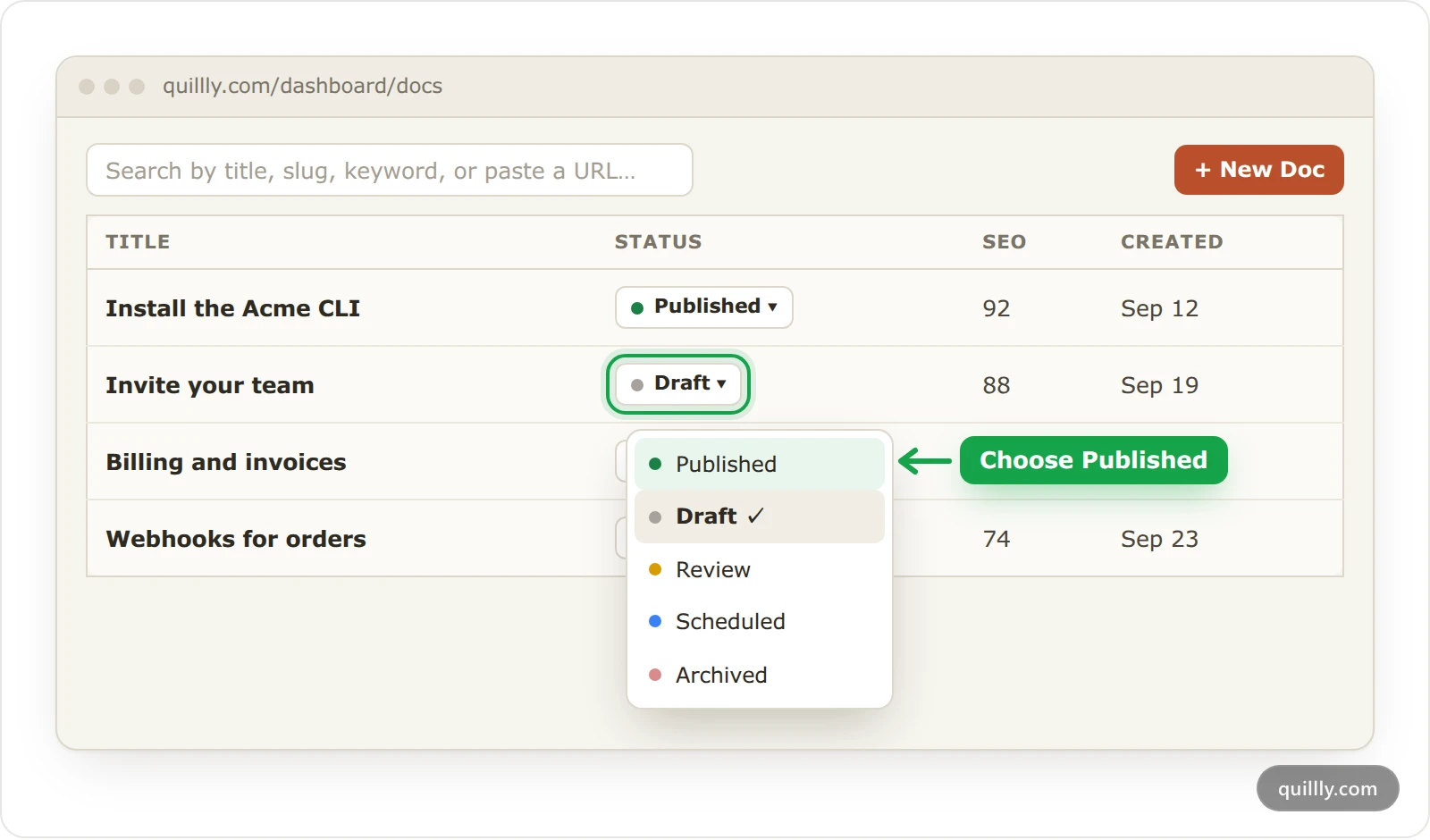
To publish several pages at once, tick their rows, open Status above the list, pick a status and confirm.
Publishing from your AI works the same way: ask it to publish the page, and it calls
publish_content. Your first session shows the prompts that work.
Checks before publishing#
Quillly checks a page before it goes live, and some checks depend on how you publish.
Check | Where it applies | What happens |
|---|---|---|
Broken links | Publishing and scheduling, from the dashboard or your AI | Publishing stops and the message lists each dead link. |
SEO score | Publishing from your AI | Publishing stops below the website's minimum, 85 unless the owner changed it. |
Verified reverse proxy | Docs and changelog pages on your own domain, published from the dashboard | Publishing stops until the section's proxy passes its check. |
Broken links. A link counts as broken when the other site answers 404 Not Found or 410 Gone, when its domain does not exist, or when it points at one of your pages that was deleted. Fix or remove each link, then publish again. Internal links and broken links shows how Quillly finds them. Links to your own pages that are still drafts are not broken: they show as plain text until those pages go live.
The SEO score. Your AI can publish below the minimum only when you tell it to, by passing force. That skips the score, never the broken-link check. The dashboard's status menu does not check the score.
The reverse proxy. On your own domain, a docs or changelog page would return "not found" until your proxy forwards its path. Serve on your own domain shows how to set the proxy up and run the check.
The editor adds one more warning. When a page links to pages that are scheduled or not yet published, choosing Published in the editor lists them first. It offers Publish now anyway, and, when the linked pages are scheduled, Schedule for a minute after the last of them goes live.
Schedule a page#
Scheduling needs a date and time, and today your AI is the one that sets it.
Ask your AI to schedule the page#
For example: "Schedule the trail shoes post for Tuesday at 9:00 Berlin time." The AI calls
publish_contentwith the time.Check the time in the answer#
The answer repeats the time and the time zone it used. A time without a time zone is read in your account's time zone, not the server's. Name the zone as it appears in the list of time zones, such as
Europe/Berlin, to leave no doubt.Let it go live#
The page stays hidden until its time, then goes live within a minute and search engines are told. The checks run when you schedule, as they do for publishing now.
Warning
Choosing Scheduled in a status menu does not set a time, so the page never goes live on its own. Schedule through your AI, or choose Published.
While a page is scheduled, links to it from your live pages carry
rel="nofollow", so search engines do not follow them early. If your plan lapses, scheduled pages wait and go live once the plan is active again.
Review: when a writer cannot publish#
On a shared website, each person has a role. Owners, admins and editors can publish, schedule, unpublish and archive. Writers create pages and edit their own, and they can set only Draft or Review.
When a writer chooses Published, Quillly answers: "Your role can't publish. Set the status to Review and an editor or admin will take it live." A writer's AI gets the same rule: it can save a page as Review, and its attempts to publish are refused.
Nothing notifies editors when a page moves to Review, so check for them. In the list, open Filter and choose Review to see the pages waiting.
Unpublish, archive or delete#
Draft takes a live page down. Its address returns "not found", and search engines are told it is gone.
Archived also takes it down, and keeps it apart from your drafts. Choose Published again to bring it back.
Delete removes the page for good. Writers can delete their own pages only while they are unpublished.
In the list, if other live pages link to the page you are taking down, Quillly asks first. The dialog lists every page that loses a link, with Unpublish anyway or Archive anyway. Those links show as plain text until you publish the page again.
Common questions#
Why didn't my page publish?#
The message says why: a broken link, your role, or a docs or changelog section whose proxy is not verified yet. Fix that one thing and publish again.
Can I set a publishing time in the dashboard?#
Not yet. Ask your AI to schedule the page. The editor offers Schedule for only when the page links to pages that are already scheduled.
Does unpublishing delete the page?#
No. The page goes back to Draft with its text, links and settings, and you can publish it again at the same address.
Related#
The editor: writing and saving the page before you publish it.
Serve on your own domain: the proxy check for docs and changelog sections.
MCP tool reference:
publish_content,unpublish_contentandarchive_content.Web Stories: publishing a page's story, which needs the page live first.