The editor
On this page
- Save your work
- Add a block with the slash menu
- 1. Start an empty line
- 2. Type a slash
- 3. Pick the block
- Format and link text
- Add pictures
- Draw diagrams and charts from code
- 1. Add the block
- 2. Write the code and the alt text
- 3. Apply, then save the page
- Tables, formulas and CTA blocks
- Citations and comments
- Paste markdown into the editor
- The Properties panel
- Common questions
- Does the editor save while I type?
- Can I edit the markdown directly?
- Why does my diagram show code on the published page?
- Related
The editor is where you write and change blog posts, docs pages, changelog entries and news stories in Quillly. This page shows how to save, add blocks with the slash menu, and use each kind of block, including what the editor does not do yet.
The same editor opens for every content type. Open a section under Content (Blog, Docs, Changelog or News) and click a title, or click New Post, New Doc, New Entry or New Story. A new item opens a short form first: give it a title, click Save, and the full editor opens.
Save your work#
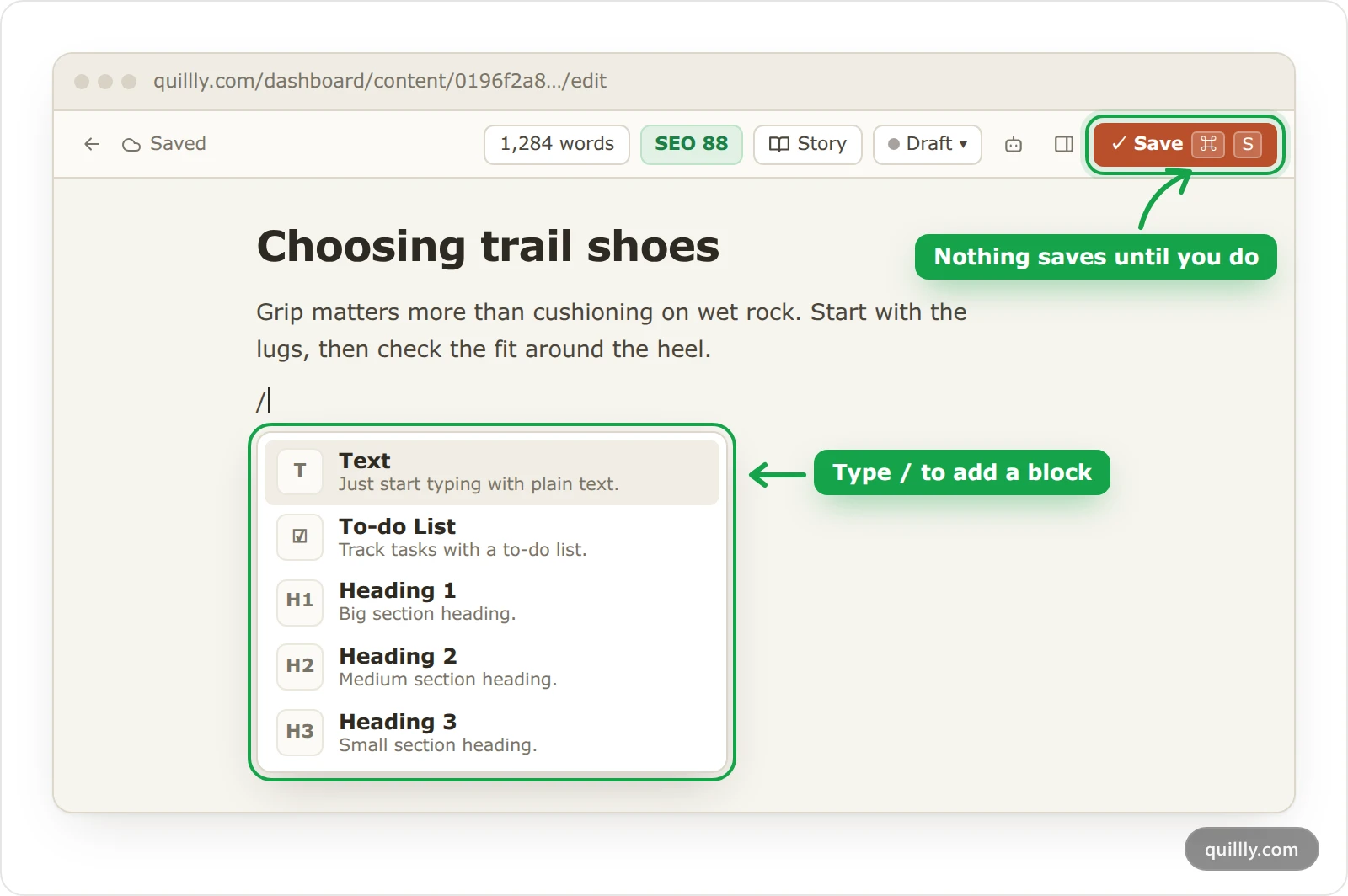
The editor does not save on its own. The top bar says Saved, Unsaved or Saving…, so you always know where you stand.
Click Save, or press ⌘S on a Mac and Ctrl S on Windows.
Leave with unsaved changes and the editor asks first: Save & Leave, Discard & Leave or Cancel.
The big first heading is the title. Change the title there, not in a separate field.
If your AI edits the page while you have it open, the editor loads its change when you have nothing unsaved. If you do have unsaved changes, a bar offers Load theirs or Keep mine, so your work is never replaced without asking.
Add a block with the slash menu#
Start an empty line#
Press Enter at the end of a paragraph. You can also click the + at the left of any line, which opens the same menu below it.
Type a slash#
Type
/. The slash menu opens under the line.Pick the block#
Type a few letters to filter the list, move with the arrow keys, and press Enter. Drag the handle at the left of a block to move it somewhere else.
TableBlock
What it adds
Text, Heading 1, Heading 2, Heading 3
A paragraph or a heading.
To-do List, Bullet List, Numbered List
A list.
Quote, Code
A quote, or a code block with a copy button on the published page.
Table
A table with three rows, three columns and a header row.
Formula (Block), Formula (Inline)
A LaTeX formula.
Link to blog
A link to another page of this website.
Image, Upload Image
A photo from Unsplash, or a file from your computer.
Diagram, Chart, Custom visual
A picture drawn from code.
CTA
A call-to-action box with a button.
Amazon Product also appears in the menu when the Amazon integration is available on your account.
Format and link text#
Select some text and a toolbar appears above it. It changes the block type, adds a Link, and sets bold, italic, underline, strikethrough or inline code. Ask sends the selected text to the agent panel with your question.
Link searches the pages of your website as you type, or takes a pasted URL. A link to your own page stays correct when that page's address changes, and Internal links and broken links covers the rest.
Add pictures#
Image searches Unsplash for free photos. You can filter by Landscape, Portrait or Square, and the editor adds the photographer's credit as the caption.
Upload Image, pasting an image or dropping a file adds a picture from your computer.
Type a short line straight under an image and it becomes the caption once you click elsewhere.
Warning
An uploaded image is stored inside the page itself, not as a separate file, so each upload makes the page heavier to load. Keep uploads small, or use Image and pictures your AI adds by URL.
Draw diagrams and charts from code#
Diagram, Chart and Custom visual add a block whose source is code and whose published result is an image. Diagrams use Mermaid, charts use a Chart.js configuration in JSON, and custom visuals are HTML with Tailwind classes. The block's menu also offers SVG.
Add the block#
Type
/diagram,/chartor/customand press Enter.Write the code and the alt text#
Type or paste the code. A live preview shows above it as you type. Describe the picture in the alt text field: search engines and screen readers read it instead of the image.
Apply, then save the page#
Click Apply, then save the page. Quillly draws the picture within a few seconds, in your site's colours, with your domain as a small watermark. The code stays in the block, so you can change it later.
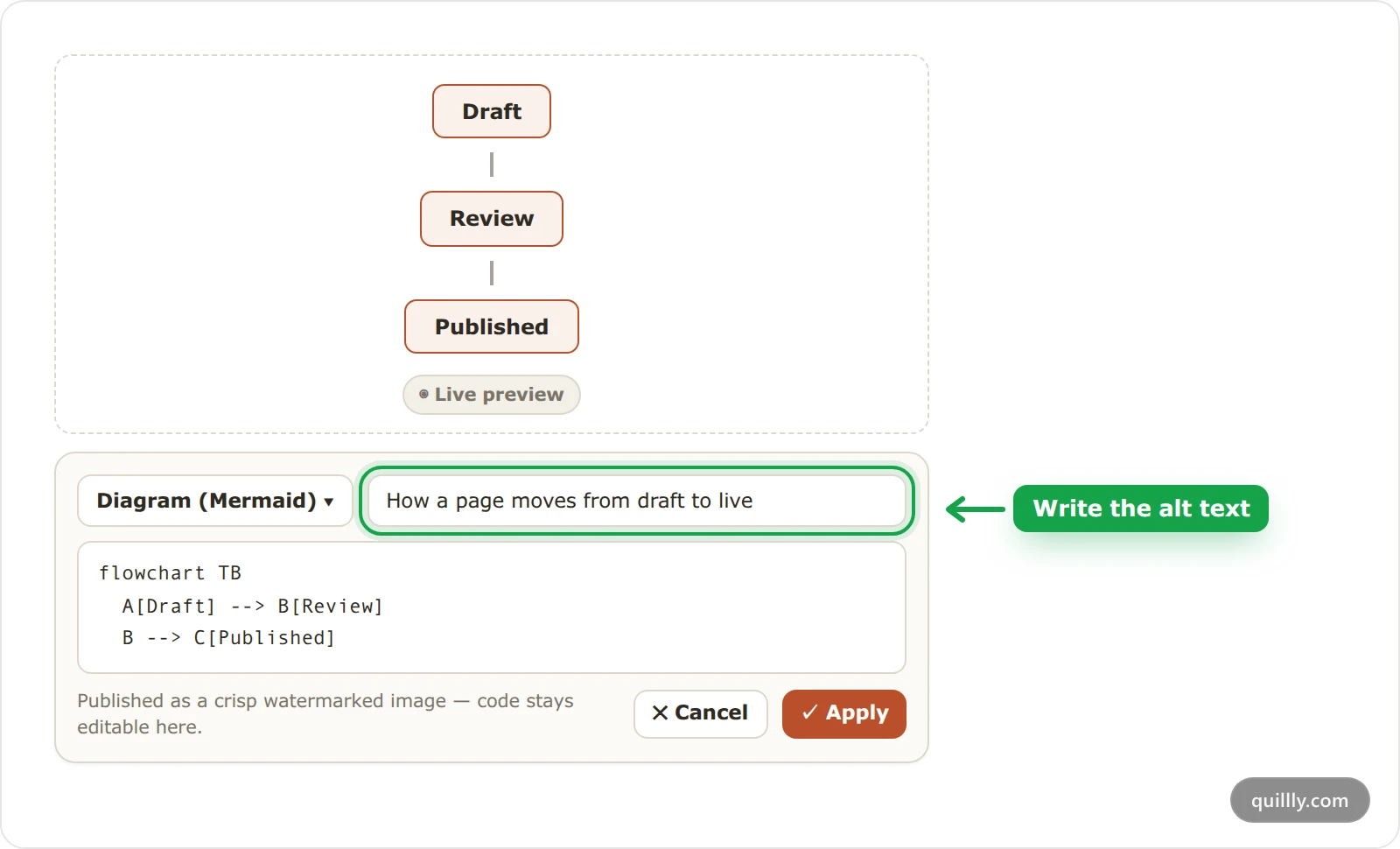
Until a picture is drawn, or when its code has an error, the published page shows the code instead. Markdown syntax lists what each kind of picture accepts.
Tables, formulas and CTA blocks#
Tables. Hover a table to see a handle above each column and beside each row. A column's menu has Insert left, Insert right, Clear contents and Delete column. A row's menu has Insert above, Insert below, Clear contents, Delete row and Toggle header row. A cell holds text only, not lists or pictures.
Formulas. Formula (Block) shows Click to add formula: click it and type LaTeX, such as E = mc^2. The editor draws it with KaTeX, which keeps a list of supported LaTeX commands. Formula (Inline) asks for the formula when you add it. On published pages a formula currently shows as its LaTeX text, not as typeset math, so check the page before you rely on one.
CTA blocks. A CTA is a box with a heading, a supporting line and one button. Choose Card or Banner (full-width accent), then fill in the button label and URL. A box without a button URL shows no button. To count clicks on an ordinary link instead, hover the link and click Tag as call-to-action.
Citations and comments#
Citations. When your AI cites a source for a sentence, the editor shows a small pill after it with the source's site. Click the pill to add or remove source links; the change applies when you click outside the panel. On the published page the sentence reads as normal text, and the SEO score counts the sources.
Comments. Hover a block and click the speech bubble at its right to write a note about it. Your notes appear at the bottom of the Properties panel, where Mark Addressed and Dismiss tidy the list. Comments are not saved: they disappear when you reload or leave the page.
Paste markdown into the editor#
Paste markdown that contains an image, such as , and the editor turns the whole paste into blocks: headings, lists, tables, images and captions. Other pasted text arrives as paragraphs, with bold, italic and inline code formatted and the rest as typed.
To bring in a whole markdown document, give it to your AI and ask it to save the page. The AI writes markdown, and Quillly converts it into editor blocks on save. Your first session shows how to ask.
The Properties panel#
Click the panel icon at the right of the top bar, or the SEO score, to open Properties:
Settings: the Slug, which is the page's address, and the Excerpt.
SEO: the score out of 100 with each category, the Meta Title and Meta Description with their length counters, and Keywords.
Details: when the page was created and published, and its version number.
News story fields appear for news stories only, as News stories and sources describes.
Common questions#
Does the editor save while I type?#
No. Nothing is saved until you click Save or press ⌘S. If you try to leave with unsaved changes, the editor asks whether to save them first.
Can I edit the markdown directly?#
Not in the dashboard: the editor is visual. Your AI reads and writes each page as markdown, so ask it for changes you would rather make in markdown.
Why does my diagram show code on the published page?#
The picture has not been drawn yet, or its code has an error. Open the block, check the code in the live preview, click Apply and save again.
Related#
Publishing: taking the page live once it is written.
Content types and URLs: where each kind of page is published.
Your first session: asking your AI to write and change pages.
MCP tool reference: the tools your AI uses to read and save pages.
Web Stories: the Story button in the top bar.