Connect ChatGPT
On this page
- Connect ChatGPT in five steps
- 1. Create a connection in Quillly
- 2. Turn on developer mode
- 3. Create an app for Quillly
- 4. Turn Quillly on in a chat
- 5. Test the connection
- What ChatGPT can and cannot do
- If ChatGPT does not connect
- Common questions
- Why does ChatGPT use the Claude tab's URL?
- Is my key safe in the URL?
- Can I use one key for both ChatGPT and Claude?
- Related
Connect ChatGPT to Quillly as a developer-mode app, so ChatGPT can write, check and publish on your websites from the chat. This page also explains what ChatGPT can and cannot do once it is connected.
Before you start, you need:
A ChatGPT plan with developer mode. OpenAI lists Plus, Pro, Business, Enterprise and Education, on the web, and a workspace admin can turn it off (OpenAI's developer mode guide).
A Quillly account with at least one website.
Connect ChatGPT in five steps#
Create a connection in Quillly#
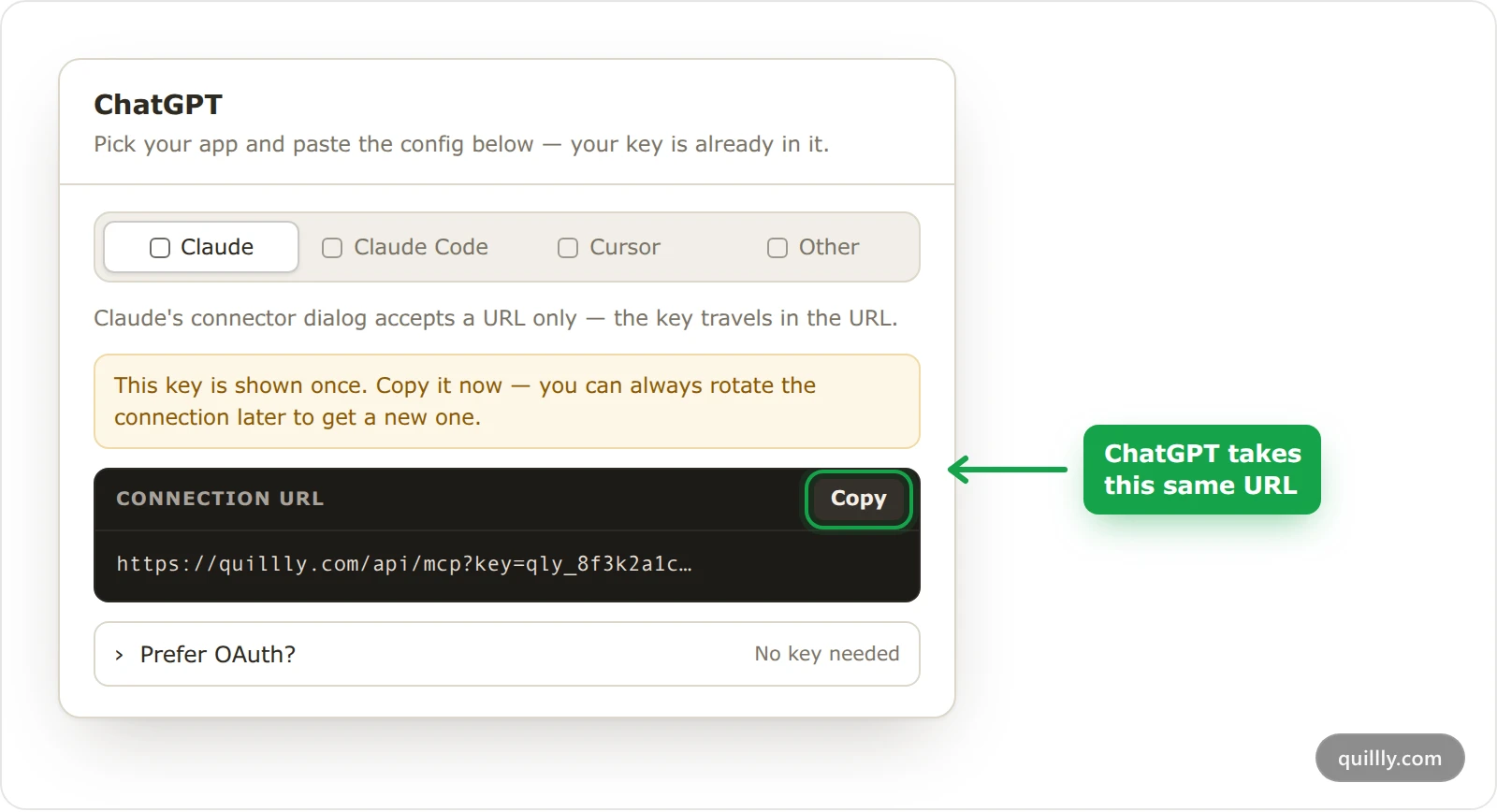
Open Connections, click Connect, name the connection
ChatGPTand click Create.The setup dialog has no ChatGPT tab. ChatGPT takes the same connection URL as Claude, so stay on the Claude tab and click Copy. The URL ends with your key (
?key=qly_…), and Quillly shows it only this once.Turn on developer mode#
In ChatGPT on the web, open Settings, then Security and login, and turn on Developer mode.
Create an app for Quillly#
In ChatGPT's app settings, click + to create a developer-mode app. Name it
Quilllyand paste the connection URL as the MCP server URL.If ChatGPT asks how the app signs in, choose No Authentication: the key in the URL already signs ChatGPT in. ChatGPT then shows the Quillly tools it found. OpenAI moves these screens from time to time, and its developer mode guide shows the current ones.
Turn Quillly on in a chat#
Start a new chat, open the + menu, choose Developer mode and select Quillly.
Test the connection#
Send
List my Quillly websites. ChatGPT runs the lookup and lists your websites. On Quillly's Connections page, the ChatGPT connection now shows when it was last used.
What ChatGPT can and cannot do#
It can use every tool the key allows. That covers finding your websites, drafting and editing posts, checking and fixing SEO scores, publishing, and reading analytics.
It asks before it writes. ChatGPT treats every tool that is not marked read-only as a write action and asks you to confirm it. Quillly marks most of its lookups as read-only, so listing and reading run straight away, while drafting, editing and publishing wait for your OK. You can approve a tool for the rest of the conversation.
It cannot publish past Quillly's checks. A post below your website's minimum SEO score, 85 unless you change it, is refused unless you tell ChatGPT to publish it anyway. A post with a broken link is refused every time.
It cannot go past your plan. Calls a day, research credits and the tools in your plan's product line apply to ChatGPT like any other app.
It works in ChatGPT on the web. Developer mode is a web feature, so you set up and turn on Quillly there.
Warning
Read each write action before you confirm it. OpenAI warns that in ChatGPT developer mode, a model's mistake on a write action can change or destroy data. Switch off tools ChatGPT does not need, such as Delete Content, under Enabled tools on Connections.
If ChatGPT does not connect#
ChatGPT finds no tools, or cannot reach the server. Check that you pasted the whole URL, including
?key=qly_…, with no spaces.Tools stopped working after a while. The key was rotated or revoked on Connections, and the old URL stopped working at once. Get a new key and create the app again with the new URL.
ChatGPT says a tool is switched off for this connection. Turn it back on under Enabled tools for the ChatGPT connection.
ChatGPT will not publish a post. Usually the post scored below your website's minimum or has a broken link. Ask ChatGPT to get the fixes and apply them, then publish again.
Common questions#
Why does ChatGPT use the Claude tab's URL?#
Both apps take a single URL with the key inside it, so the connection URL is the same. The Claude tab shows exactly that URL, while the other tabs show commands and settings files.
Is my key safe in the URL?#
Treat the whole URL as a password, because a URL can end up in logs and browser history. If you think it leaked, rotate the key on Connections: the old URL stops working at once, and you paste the new one into ChatGPT.
Can I use one key for both ChatGPT and Claude?#
You can, but a key for each app is safer. With separate keys, each app gets its own tools and its own line in the usage panel, and revoking one leaves the other working.
Related#
Connect your AI: how the connection works and the apps you can use.
Connect Claude: the same connection URL, in Claude.
Plans, trial and limits: calls a day and research credits for each plan.
Your first session: what to ask ChatGPT once it is connected.