Changelog and release notes
On this page
- Write release notes in Quillly
- 1. Open Changelog
- 2. Click New Entry
- 3. Add tags
- 4. Publish
- Tag colours
- How readers see your changelog
- Where else your changelog entries appear
- Connect a GitHub repository
- 1. Open the settings
- 2. Install the Quillly app on GitHub
- 3. Pick the repository
- Publishing and the SEO score
- Common questions
- Can a changelog entry have its own page?
- Why did an older entry move to the top?
- Why doesn't my entry show any tags?
- Related
Your changelog is one page of release notes: every published entry on a single timeline, newest first, under the heading "What's new". This page shows how to write changelog entries, tag them, and share them, and where else your release notes appear: the RSS feed, Markdown for AI agents and Web Stories.
Write release notes in Quillly#
Write an entry in the dashboard, or ask your AI: "Write a changelog entry for this week's release: CSV export, saved filters, and a fix for scheduled reports." It creates the entry in your changelog section.
Open Changelog#
In the dashboard sidebar, open Content → Changelog. If your site has no changelog yet, click Set up changelog and choose where it is served. Content types explains the options.
Click New Entry#
Give the entry a title that says what changed, in the words your users use, such as "CSV export and saved filters". Keep the body short. Group the changes under headings such as New, Improved and Fixed: on the timeline, headings inside an entry show as small labels rather than full headings.
Add tags#
Open SEO in the editor's side panel and type the tags in Keywords, separated by commas. The first three show as tags above the entry's title.
Publish#
Publish from the Changelog list or from your AI, as Publishing explains. The entry's date on the timeline is the day it was published.
Tag colours#
Each tag gets a colour from the words in it. The first row that matches wins:
A tag containing | Shows in |
|---|---|
New, Added, Launch | Green |
Improved, Updated, Changed, Better, Faster, Performance | Blue |
Fix, Patch, Bug | Amber |
Security, Breaking, Deprecated, Removed | Red |
Anything else | Your theme's accent colour |
A tag like "Security fix" shows in amber, because Fix comes first. Tags are also the entry's SEO keywords.
How readers see your changelog#
The changelog lives at the address you chose, such as acme.com/changelog. Entries are grouped by month, newest first, and the page shows your 100 most recent release notes.
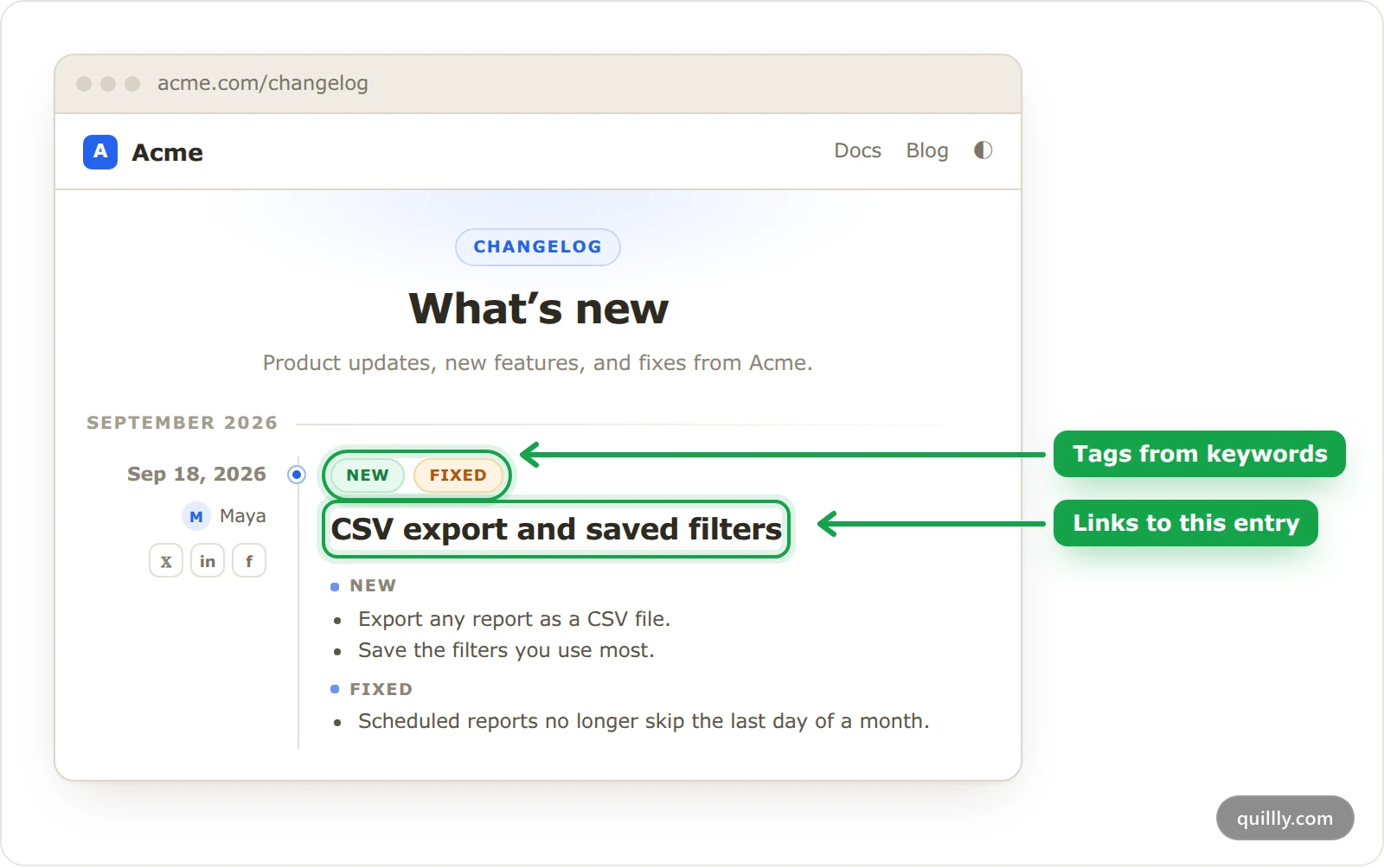
Next to each entry, readers see:
The date, and the author's name and picture from their Quillly profile.
Buttons to share the entry on X, LinkedIn and Facebook. They share a link to the entry, not to the whole page.
A Story link when the entry has a published Web Story.
Entries have no pages of their own. The title links to the entry's place on the timeline, and the entry's own address, such as acme.com/changelog/csv-export, opens the timeline scrolled to it. If you rename an entry, its old address still works. Callouts, code blocks, tables and pictures work inside entries as on any other page.
Where else your changelog entries appear#
RSS feed. Your 50 most recent entries, each linking to its place on the timeline, in RSS 2.0 format at the changelog's address followed by
/rss.xml. The RSS feed switch on the Identity tab of the Brand page turns feeds off for the whole site.Markdown. Add
.mdto the changelog's address for every entry as one Markdown file, or to an entry's address for that entry alone. The changelog'sllms.txtfile lists the entries, and a line at the bottom of the timeline links both for AI agents.Sitemap. The changelog has its own
sitemap.xml, linked from the page footer.Web Stories. An entry with a published Web Story shows a Story link next to its date.
Connect a GitHub repository#
A changelog section can be connected to the GitHub repository it covers. Quillly asks GitHub for read-only access to contents, pull requests and metadata, nothing that can write, and it does not read your code.
Open the settings#
In Content → Changelog, click the settings button at the top right of the section and choose Repository.
Install the Quillly app on GitHub#
Click Connect GitHub. On GitHub, choose the account and the repositories the app may see. GitHub's guide to installing apps explains that screen.
Pick the repository#
GitHub sends you back to Quillly and the settings open. Choose Repository again and click Connect next to the repository this changelog covers.
Note
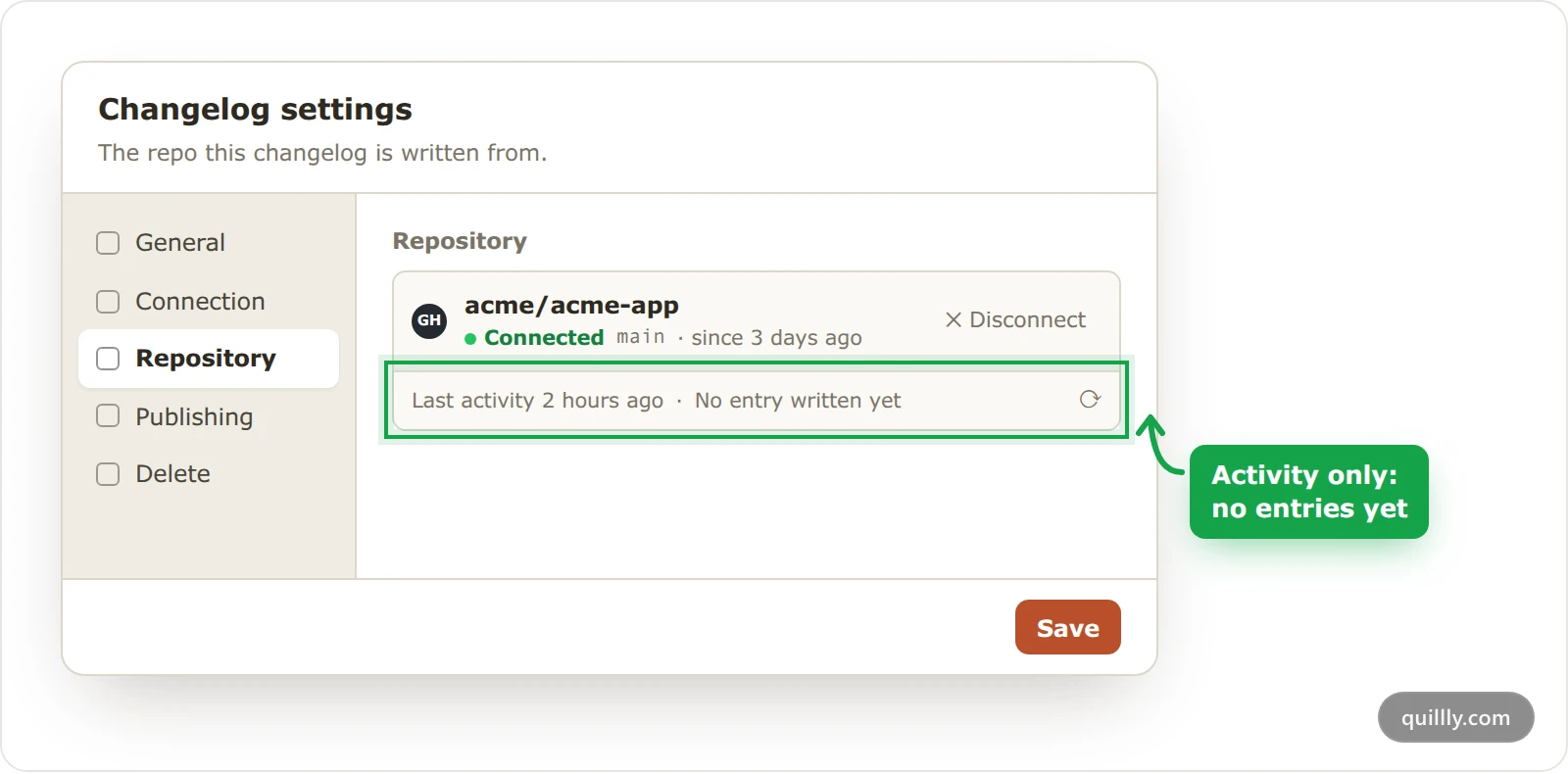
Today the connection records activity only: the pane shows when the repository last had a push, a published release or a merged pull request. Quillly does not write entries from it yet, so No entry written yet stays. Write your release notes yourself or with your AI, for example by pasting the release's notes into the chat.
To stop, click Disconnect. Removing the app on GitHub, or removing the repository from it, disconnects it in Quillly too.
Publishing and the SEO score#
Changelog entries are scored more gently than blog posts. There is no check for calls to action, an FAQ, a featured image or a Web Story, and missing keywords do not cap the score. Length still counts, though, and a well-written 100-word entry scores in the mid 70s.
That matters when your AI publishes. Its publish tool refuses items below your site's minimum score, which is 85 unless you changed it. For short release notes, publish from the Changelog list instead: the status menu there has no score minimum. Broken links block publishing everywhere, as Internal links explains.
When the changelog is served from your own domain through a reverse proxy, the dashboard publishes an entry only after the proxy is verified. Until then it says: "Set up and verify the reverse proxy for your changelog endpoint (/changelog) before publishing — otherwise this page would 404 on your domain."
Many teams follow Keep a Changelog: one entry per release, newest first, with changes grouped under headings such as Added, Changed, Fixed and Removed. The timeline and the tag colours fit that style.
Common questions#
Can a changelog entry have its own page?#
No. Every entry lives on the timeline. Its address opens the timeline at the entry, and a published Web Story is the only page an entry has on its own.
Why did an older entry move to the top?#
It was unpublished and published again. Publishing sets the entry's date to that day, so it moves to the top of the timeline.
Why doesn't my entry show any tags?#
It has no keywords. Add up to three in SEO → Keywords in the editor and save.
Related#
Publishing: statuses, scheduling and the checks that run first.
Content types: where the changelog is served.
The editor: headings, callouts, code blocks and pictures.