Connect Claude Code
On this page
- Connect Claude Code in four steps
- 1. Create a connection in Quillly
- 2. Copy the command
- 3. Run it in your project folder
- 4. Check that the tools load
- Replace or remove the key
- If the tools do not load
- Common questions
- Why a header instead of the key in the URL?
- Can Claude Code and Claude Desktop share one connection?
- Does Claude Code need a browser to connect?
- Related
Connect Claude Code to Quillly with one terminal command, then check that Quillly's tools load. At the end, Claude Code can draft, check and publish on your websites from the terminal, and your key travels in a header, never in a URL.
Before you start, you need:
Claude Code installed and signed in (Claude Code's MCP guide).
A Quillly account with at least one website.
Connect Claude Code in four steps#
Create a connection in Quillly#
Open Connections, click Connect, name the connection
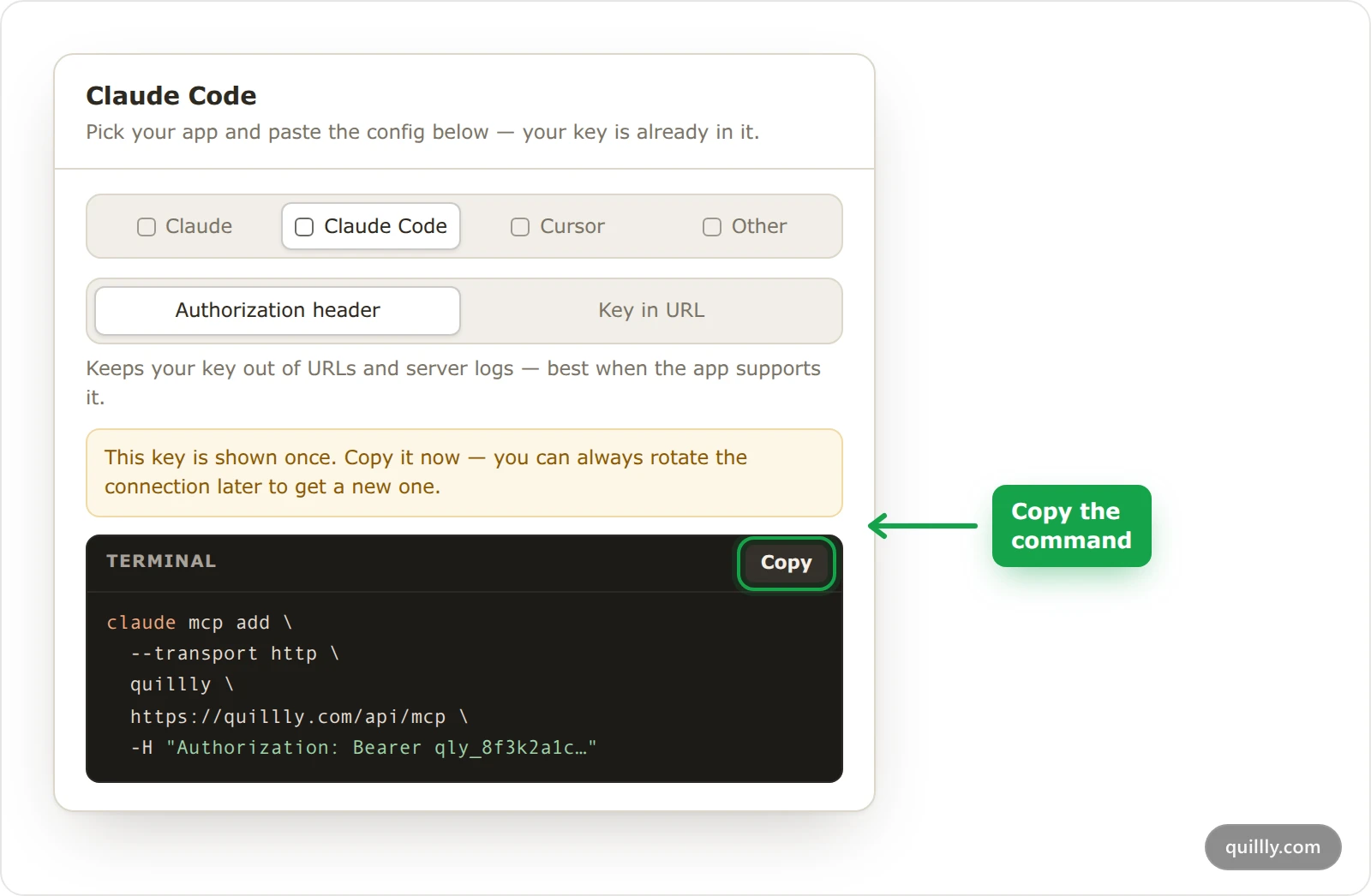
Claude Codeand click Create. In the setup dialog, pick Claude Code and leave Authorization header selected.Copy the command#
Click Copy. The command has your key in it, where this example shows
qly_your_key:bashclaude mcp add \ --transport http \ quillly \ https://quillly.com/api/mcp \ -H "Authorization: Bearer qly_your_key"Quillly shows the key only this once, so run the command before you close the dialog.
Run it in your project folder#
Open a terminal in the folder of the project where you want Quillly, paste the command and press Enter. By default, Claude Code adds Quillly to that project only.
To use Quillly in every project on your computer, add
--scope userafterclaude mcp add:bashclaude mcp add --scope user \ --transport http \ quillly \ https://quillly.com/api/mcp \ -H "Authorization: Bearer qly_your_key"Check that the tools load#
Run
claude mcp list. It shows each server Claude Code knows and whether it is connected, andquilllyshould be one of them. Inside a Claude Code session, type/mcpto see the same status and Quillly's tools.Then ask Claude Code:
List my Quillly websites. When it answers with your websites, the connection works, and Quillly's Connections page shows when it was last used.Warning
Do not add Quillly with
--scope projectwhile your key is in the command. That scope writes the server to.mcp.jsonin your project, a file meant to be committed, so your key would end up in the repository.
Replace or remove the key#
When you rotate the key on Connections, the old one stops working at once. Remove Quillly from Claude Code, then run the new command from the setup dialog:
claude mcp remove quilllyIf you added Quillly with --scope user, add it back with --scope user too. To see which tools the key allows, open the connection on Connections. A tool you switch off under Enabled tools is left out of the tools Claude Code sees in its next session.
If the tools do not load#
claude mcp listshows Quillly failing to connect. Check that the command had the whole key afterBearer, with no line break inside it. A key that was rotated or revoked also fails: get a new one on Connections and add Quillly again.Quillly works in one project but not another. It was added with the default scope, which covers one project. Add it again with
--scope user.A tool call says the tool is switched off. Turn it back on under Enabled tools for this connection on Connections.
Common questions#
Why a header instead of the key in the URL?#
A header keeps the key out of URLs and out of server logs, which is why the setup dialog uses one for Claude Code by default. The Key in URL option exists for apps that cannot send a header, and Claude Code can.
Can Claude Code and Claude Desktop share one connection?#
They can, but a key for each is easier to manage. Claude Desktop connects through a custom connector on your Claude account, as the Connect Claude page shows, and a separate key lets you revoke one without breaking the other.
Does Claude Code need a browser to connect?#
No. The key in the header is all it needs, so Quillly also works in Claude Code on a server or in a terminal without a browser.
Related#
Connect your AI: how the connection works and the apps you can use.
Connect Claude: Claude on the web, desktop and mobile.
Plans, trial and limits: calls a day and keys for each plan.
Your first session: what to ask Claude Code once it is connected.