Orders, progress and listings
On this page
- Follow an order
- 1. Open Orders
- 2. Pick Current or Past
- 3. Open the order's directories
- 4. Open a directory
- What an order card shows
- Where each listing stands
- Track listings you submit yourself
- 1. Open the directory's form
- 2. Set the status
- 3. Add the details
- Refresh out-of-date listings
- 1. Open Issues
- 2. Click Refresh them
- 3. Click Refresh now
- Common questions
- Why does my listing still say Submitted?
- Can I change the order of the directories?
- Can I use the Directory list without an order?
- Related
Every Directory Submission order has a card in the Orders dialog, and every directory has a row in the Directory list. This page shows how to follow an order, see where each of your directory listings stands, track listings you submit yourself, and refresh listings after you change your kit.
Follow an order#
Open Orders#
In Domain Rating, click Orders. The button already shows where things stand: In line, a count such as 37/150 while the agent works, Needs you, or a tick and a number once your orders are delivered.
Pick Current or Past#
Current holds orders that are in line, running or waiting on you. Past keeps done and refunded orders.
Open the order's directories#
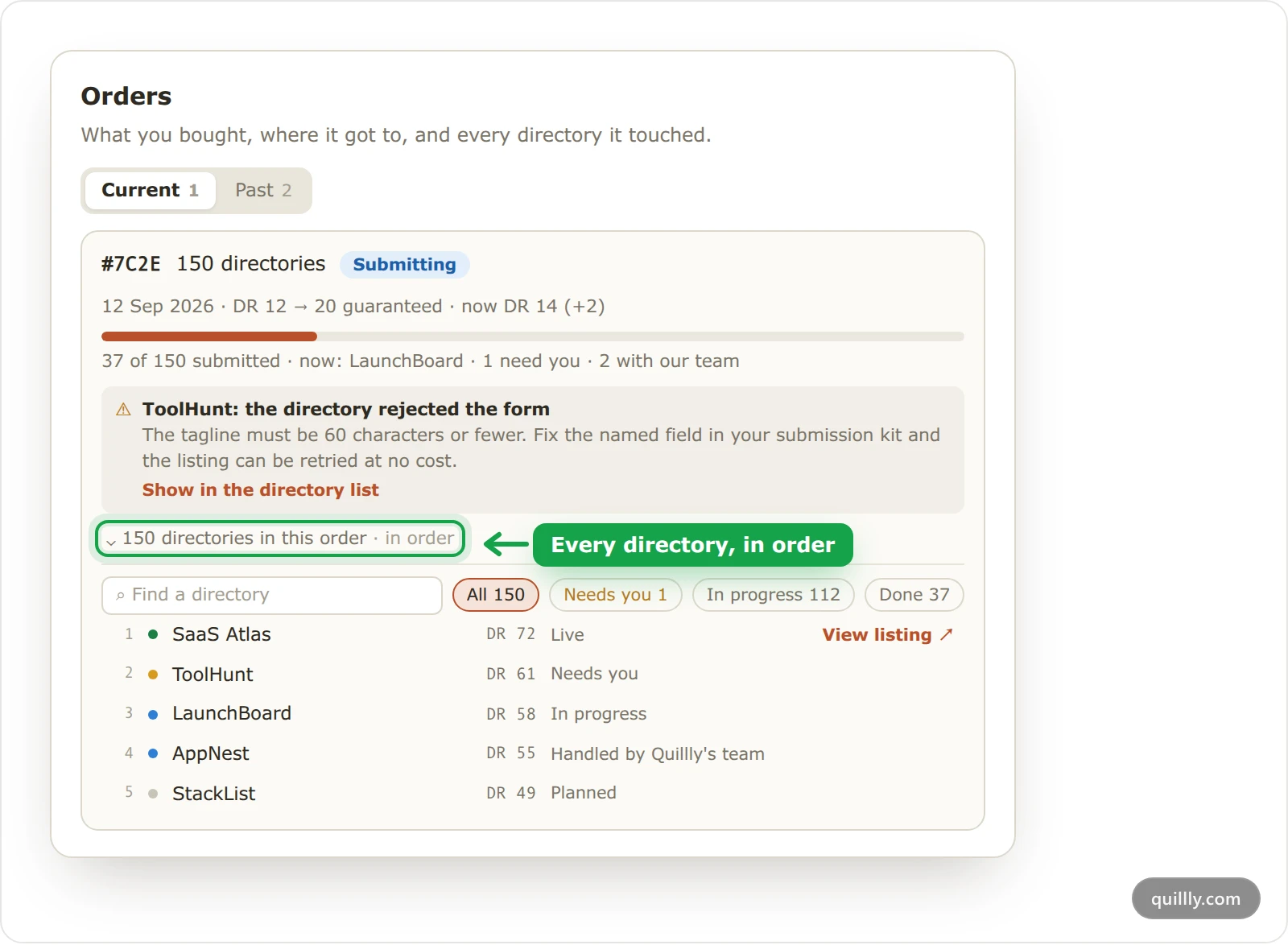
Click 150 directories in this order on the card. The list is numbered in the order the agent works through it. When an order has more than eight directories, type in Find a directory or filter by Needs you, In progress or Done.
Open a directory#
Click a directory. When Quillly has its listing link, the listing opens in a new tab. Otherwise the dialog closes and the directory's row lights up in the Directory list.
What an order card shows#
Each card sums up one order: what it covered, what it cost, the Domain Rating target it was sold with, how far it has got and anything that needs you. The parts, from top to bottom:
Short ID, size and status, for example #7C2E, 150 directories and Submitting. The short ID also shows as a chip on every listing the order touched in the Directory list, and clicking the chip opens the order.
Date, price and target. An order with a Domain Rating target reads, for example, DR 12 → 20 guaranteed · now DR 14 (+2): the target it was sold with, and your DR today. An order without one says listings only, no DR target.
Progress. Before it starts: Position 2 in the queue · starts in about 3 hours. While it runs: 37 of 150 submitted · now: LaunchBoard, plus how many need you and how many are with Quillly's team.
Notes, when something needs saying. The table below lists them.
The DR guarantee, once the order is done. The DR guarantee explains each state.
A rating. A done order asks How did this order go?, with one to five stars and an optional comment.
Orders that only refresh listings read Refreshed 8 listings — free or Instant sync — 5 listings, and show Refreshing while they run.
Note on the card | What it means | What you do |
|---|---|---|
ToolHunt: the directory rejected the form | The directory refused a value from your kit. The note names it. | Fix that field in your submission kit. The listing can then be retried at no cost. |
2 listings are with our team | A directory needed a person, for example for a security check or a sign-in. | Nothing. |
Your kit changed while this order ran | Some listings went out with an earlier version of your kit. | Nothing. They show Out of date and refresh with your next sync at no cost. |
140 of 150 listings went through | The order finished with fewer listings than planned. The note gives your DR measurement date. | Nothing. If the target is missed, Quillly keeps submitting at no extra cost. |
A note about one directory has a Show in the directory list link.
Where each listing stands#
The Directory list under the kit is the whole catalog, with your site's status on each directory. In its header, a count such as 12 live of 480 · 3 out of date sums up your listings.
Find a directory by name or domain, or narrow the list with All categories and All tiers, from Elite (DR 80+) to Minimal (0–19).
Filter by status with All, Not listed, Planned, Submitted, Live and Needs you.
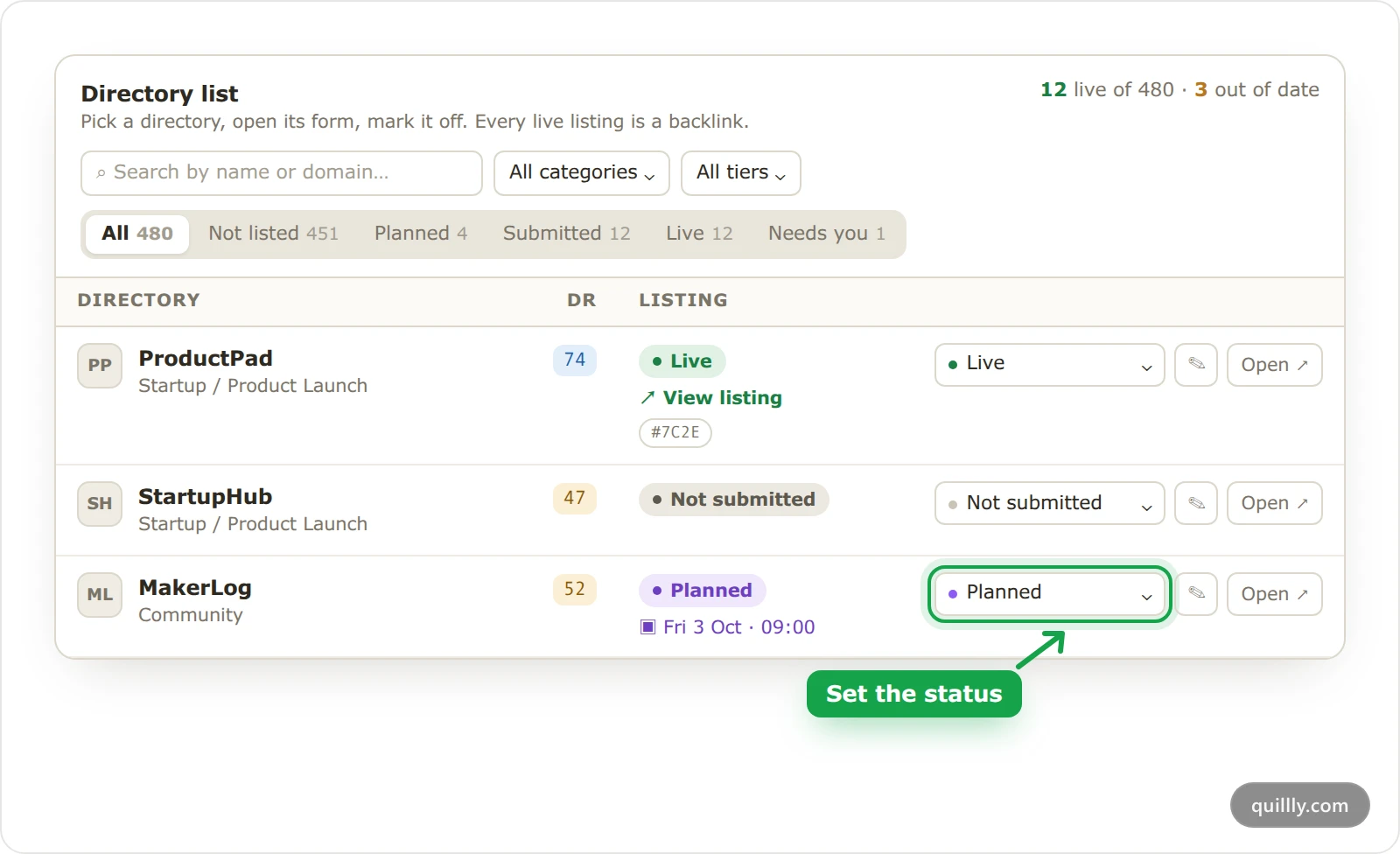
Read the row. Each row gives the directory's category, its Domain Rating and your listing's status. Below the status you may see a View listing link, a launch date, your note, and chips such as Out of date, Badge missing or an order's short ID.
Quillly checks each listing it submitted about once a day and marks it Live once the directory has published it. A listing page that tells search engines not to index it does not count as live yet. View listing opens the page on the directory, so you can see each listing for yourself.
Track listings you submit yourself#
The Directory list also works as a checklist for directories you submit to on your own, with or without an order.
Open the directory's form#
Click Open on its row. The directory's submission page opens in a new tab.
Set the status#
Pick a status in the row's menu:
Planned asks for a launch date, and today if you leave it empty. Every directory you plan for the same day comes in one launch-day email on that day.
Submitted and Live record the listing. A Live listing's badge joins your "Featured on" strip.
Needs attention asks for a note saying what is blocking the submission.
Add the details#
Click the pencil button to set the Launch date & time, the Listing link, the Badge embed code and a Note, then click Save.
Warning
Choosing Not submitted deletes the listing's row, with its link, badge and note, and takes its badge off your strip. Use it only for a listing that does not exist.
Refresh out-of-date listings#
Listings Quillly made carry a copy of your submission kit. When you save a kit that changed, they show Out of date until they are refreshed, and two of the three ways are free.
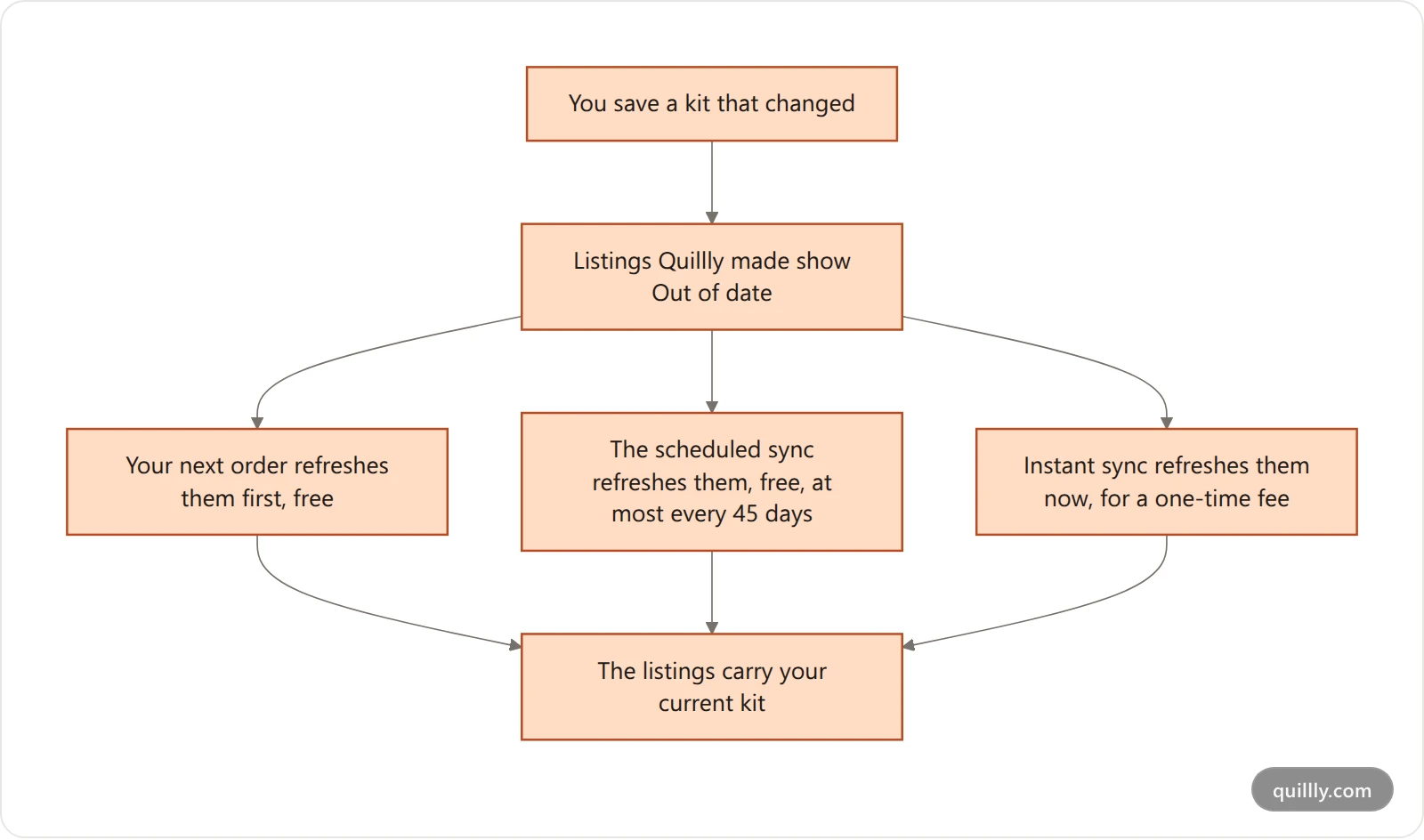
The scheduled sync runs only after your kit has gone 7 days without edits, and only while its required fields are filled. To refresh now instead, use Instant sync.
Open Issues#
Click the Issues pill at the top of Domain Rating. It lists the out-of-date listings, for example 5 listings are out of date.
Click Refresh them#
The Refresh your listings dialog shows how many listings Quillly made are out of date and when the free sync is due.
Click Refresh now#
The button reads, for example, Refresh 5 now, followed by the one-time fee. You pay on the checkout page, and the refresh appears in Orders as Instant sync — 5 listings.
While an order is running, the Issues row says See the order instead, because that order refreshes the listings for free as it goes. A listing refreshed in the last 24 hours waits for the next round. Listings you made yourself are yours to update, as The submission kit explains.
Common questions#
Why does my listing still say Submitted?#
The directory has not published it yet. Some publish at once and others review for days or weeks, and Quillly checks each listing it submitted about once a day. A listing you submitted yourself changes only when you set it to Live.
Can I change the order of the directories?#
No. Quillly refreshes out-of-date listings first, then submits to the directories that usually list quickly, and then works through the rest from the highest Domain Rating down.
Can I use the Directory list without an order?#
Yes. The Directory list is open on every account, so you can submit to directories yourself, track each listing and plan launch days without buying anything.
Related#
How Directory Submission works: the order, the queue and every status.
The submission kit: the fields every listing is built from.
The "Featured on" badge: the strip your live listings' badges go in.
The DR guarantee: the target an order carries and how it settles.
Domain Rating tracking: where your DR comes from.