Billing: change plan, seats and credits
On this page
- What the Billing page shows
- Start a subscription
- 1. Choose the product and the billing period
- 2. Click Subscribe
- 3. Pay on the checkout page
- Change your plan
- 1. Click Upgrade or Downgrade
- 2. Read the summary
- 3. Click Confirm switch
- Monthly or yearly billing
- Seats
- Manage payments in the portal
- Cancel your subscription
- 1. Open the payments portal
- 2. Open your subscription
- 3. Choose when it ends
- Buy research credits
- 1. Click Add credits
- 2. Choose an amount
- 3. Pay on the checkout page
- Common questions
- Am I charged when I change plan?
- What happens to my credits when I cancel?
- Can a teammate pay for the team?
- Related
The Billing page is where you subscribe, change plan or billing period, manage payments, buy research credits and check your hosted page views. Seats are bought on the Organization page. What each plan costs and includes is on Plans, trial and limits.
Before you start
You are the account owner. In an organization, only the owner changes the team's plan, and the whole team works on the owner's plan. A teammate who pays for a subscription of their own can open Billing to manage it.
Payments go through Dodo Payments. You enter your card on Dodo's secure checkout page, and manage it later in Dodo's payments portal.
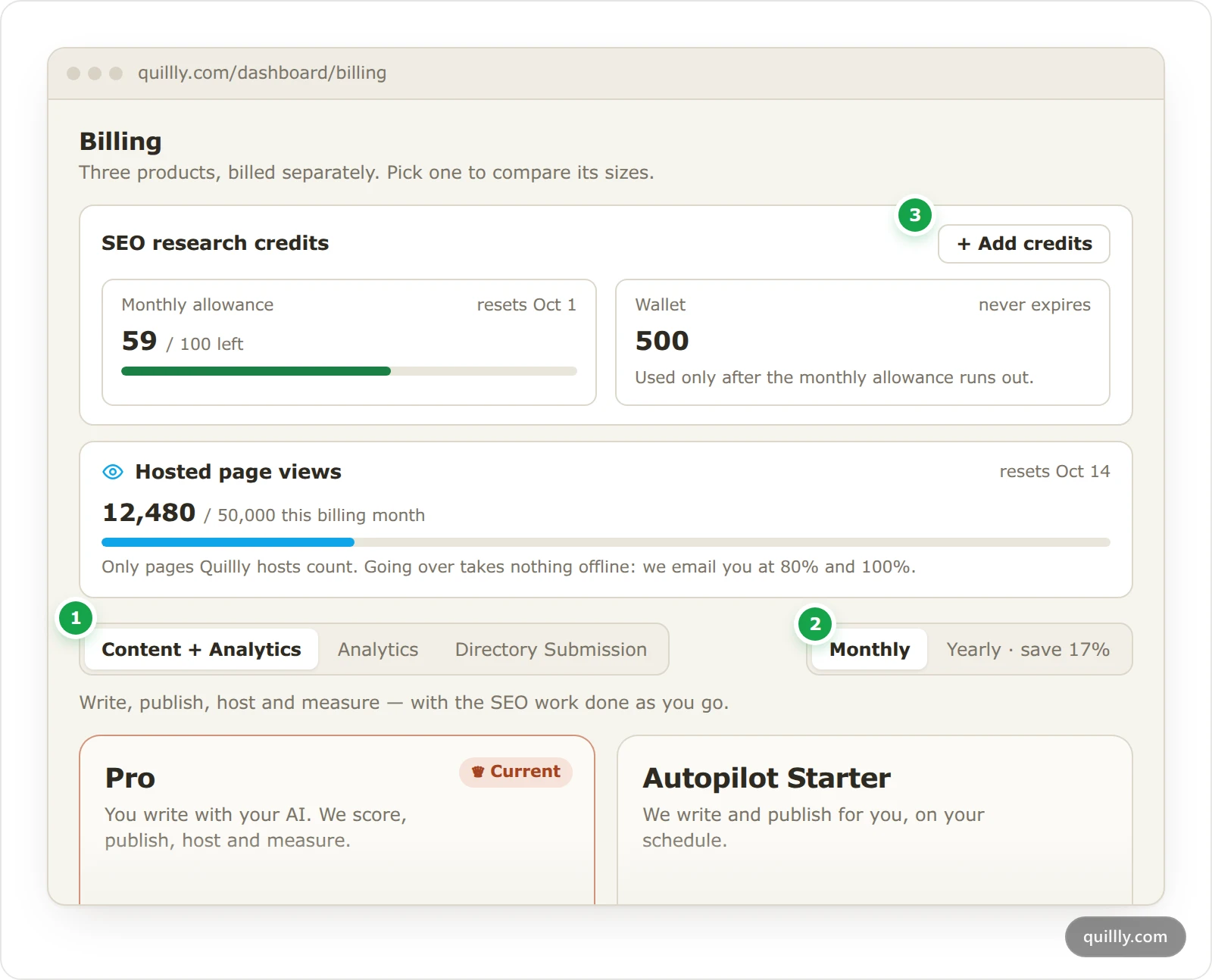
What the Billing page shows#
The numbers match the picture above.
Product. Content + Analytics, Analytics and Directory Submission are separate products, billed separately. The page opens on the one you have. Directory Submission is a one-time order for one website, placed from the Domain Rating menu.
Monthly or Yearly · save 17%. It opens on the period you pay now, and sets the prices on the cards and the billing period of the plan you pick next. A year costs ten months' price.
SEO research credits. Your monthly allowance, with a bar that shows what is left, your wallet and a list of every credit spent or added. Add credits tops up the wallet.
Under the credits, Hosted page views shows this billing month's views of the pages Quillly hosts for you, out of your plan's allowance, and the date the count resets. It appears on Content + Analytics plans and during the trial. The bar turns amber at 80%, and going over takes nothing offline: Quillly emails you at 80% and 100%.
Each plan card has one button. On your current plan it is Manage Subscription, Switch to yearly or Switch to monthly when the other period is picked, or Subscribe now during the free trial. On the other plans it names the move, such as Subscribe, Upgrade or Downgrade. On the Analytics tab, pick a size under Events per month first.
Start a subscription#
Follow these steps during the free trial, or after a trial or plan has ended.
Choose the product and the billing period#
Click the product tab, then Monthly or Yearly · save 17%.
Click Subscribe#
During the trial, click Subscribe now on the Pro card to keep Pro, Upgrade on a bigger plan, or Subscribe under a size on the Analytics tab. After a trial or plan has ended, click Subscribe on the plan you want.
Pay on the checkout page#
Enter your payment details on the Dodo Payments checkout. When the payment goes through, you land back on Billing with a welcome message, and your websites, pages and settings stay as they were. If the payment fails, Billing says so and nothing changes.
Change your plan#
On a paid plan, Quillly shows you what a change does before you pay for it.
Click Upgrade or Downgrade#
To change the billing period at the same time, pick Monthly or Yearly · save 17% first. Then click the button on the new plan's card. To move between Content + Analytics and Analytics, open the other product's tab and click its button there, such as Switch to Analytics.
Read the summary#
The dialog shows your seats, the new price and what you pay today. Warnings that need your consent are listed before you confirm, such as teammates who would lose their seat or menus that close.
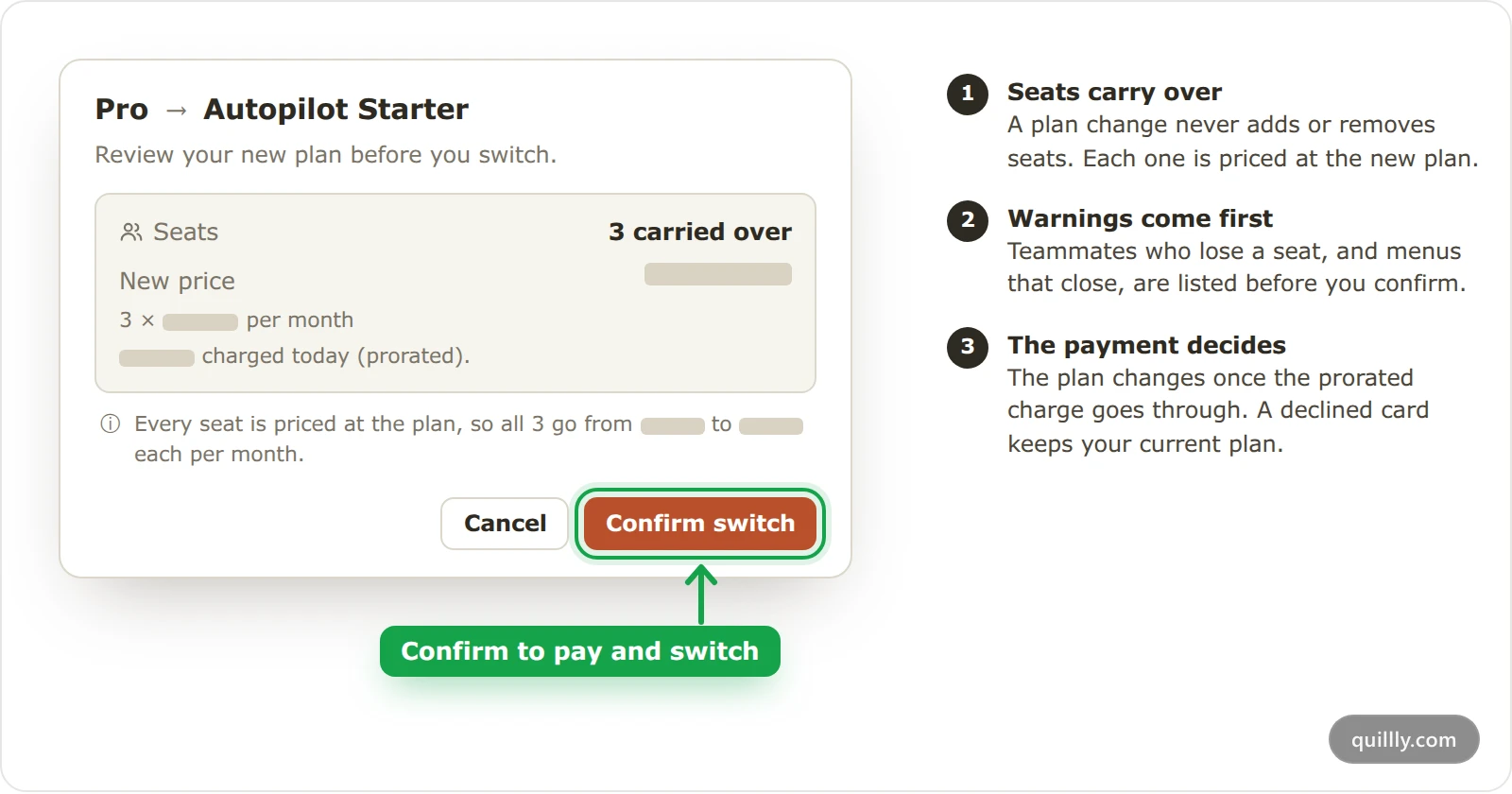
Click Confirm switch#
The switch waits for the prorated payment. If your card is declined, you stay on your current plan. When it goes through, a message names the change, such as "Switching to Autopilot Starter. Your account updates within a moment.", and the page reloads.
Warning
Moving from Content + Analytics to an Analytics plan closes publishing, research, the agent, brand settings and your team, and pages Quillly hosts for you stop being served. Nothing is deleted, and subscribing again brings it all back.
Monthly or yearly billing#
When you subscribe: choose Monthly or Yearly · save 17% before you click Subscribe.
When you change plan: choose the other period before you click the new plan. The dialog notes the change, and Dodo prorates it.
On the plan you already have: pick the other period, then click Switch to yearly or Switch to monthly on your current plan's card. On the Analytics tab, the button is under the size you have. The Switch to yearly billing dialog shows the new price and what you pay today. Click Confirm, and a message names the change, such as "Switching Pro to yearly billing."
Seats#
A seat is a licence of your plan for one person. It costs what the plan costs, in the same billing period, and each plan card shows the price per teammate.
Change the number on the Seats card of Organization: set the number, click Review change and confirm. The Change seats dialog shows the new price and the prorated amount you pay today, and after Confirm the message names the new count, such as "Changing your team to 4 seats."
A plan change keeps your seats and prices each one at the new plan. The dialog shows what each seat costs before and after.
Not during the trial. Extra seats wait until you subscribe.
Organizations and seats explains what happens when a team has fewer seats than people.
Manage payments in the portal#
Manage Subscription on your current plan's card opens the Dodo Payments customer portal for your subscription. There you:
update your payment method and billing details,
download invoices and receipts,
cancel your subscription.
Changes you make there, a plan change included, reach Quillly on their own, within seconds. If the portal can't open, Billing tells you why in a message.
Tip
Change plans on the Billing page rather than in the portal. Billing shows what happens to your seats and menus before you pay.
Cancel your subscription#
Open the payments portal#
On Billing, click Manage Subscription on your current plan's card.
Open your subscription#
In the portal, click Manage subscription next to your Quillly plan, then Cancel Subscription.
Choose when it ends#
Cancel at next billing date keeps your plan until the end of the period you paid for.
Cancel now ends it straight away.
When the plan ends, the dashboard locks, and pages Quillly hosts keep serving for 7 days before they pause. Plans, trial and limits explains what pauses and how to come back.
Note
If you pay for a subscription of your own and belong to someone else's organization, Billing stays open to you, so you can change or cancel that subscription there.
Buy research credits#
Research credits pay for live search data. Quillly spends your plan's monthly allowance first, then your wallet. In an organization, a teammate's lookups on a shared website they don't own spend the team owner's credits.
Click Add credits#
It is on the SEO research credits card on Billing, and on the + next to Credits in the sidebar.
Choose an amount#
Pick 250, 500, 1,250 or 2,500 credits, or type an amount from 250 to 25,000 in steps of 50. The button shows the price.
Pay on the checkout page#
The credits reach your wallet within a minute of payment, and Billing confirms how many were added.
Paid plans only. Add credits and the + appear only on a paid Content + Analytics plan. During the free trial, the card says Credits can be added once you subscribe instead.
Wallet credits never expire. They stay yours after a plan ends and work again once you subscribe to a Content + Analytics plan.
Common questions#
Am I charged when I change plan?#
Yes, on the day you switch: you pay a full period of the new plan, minus credit for the unused part of your current one, and your billing date moves to that day. The dialog shows that amount before you confirm, and any credit left over goes toward your next renewals, as Dodo's proration rules describe.
What happens to my credits when I cancel?#
The monthly allowance ends with the plan. Wallet credits stay in your account, never expire, and work again once you subscribe to a Content + Analytics plan.
Can a teammate pay for the team?#
No. The team works on the organization owner's plan, and only the owner changes its plan and seats. A teammate who pays for a plan of their own can open Billing to manage it, but it adds no seats or menus to the team.
Related#
Plans, trial and limits: what each plan costs and includes.
Organizations and seats: invite people and manage seats.
Keyword research and credits: what each lookup costs.
How Directory Submission works: the one-time order.
Team roles and access: who can open Billing.
Account settings, emails and support: delete your account once the subscription is cancelled.