Web Stories
On this page
- Make a story in the dashboard
- 1. Open the page in the editor
- 2. Click Story
- 3. Draft from the article
- 4. Edit the slides and save
- 5. Publish the story
- Make web stories with your AI
- What the story score checks
- How a story counts in the page's SEO score
- Where a published story appears
- Common questions
- Why is Publish greyed out in the story editor?
- Why was publishing refused with "Publish the article first"?
- Does a changelog entry need a story?
- Related
Web stories are tappable, full-screen versions of your pages: a few slides that Google can show in Search and Discover, each story linking back to the page it was made from. Every blog post, docs page, changelog entry and news story can have one. This page shows how to make web stories in the dashboard or with your AI, what the story score checks, and where a published story appears.
Make a story in the dashboard#
Open the page in the editor#
Open any blog post, docs page, changelog entry or news story from its list.
Click Story#
The Story button sits in the editor's top bar, next to the SEO score. It opens the story editor beside your page. On a page that already has a story, the button shows an amber dot for a draft, or Published.
Draft from the article#
Open the menu next to Save and choose Draft from article…. Quillly proposes slides built from the page's own headings, sentences and pictures, up to 10 of them. A slide with no picture to use gets a colour gradient instead of a stock photo. Drafting again replaces every slide, so Quillly asks first.
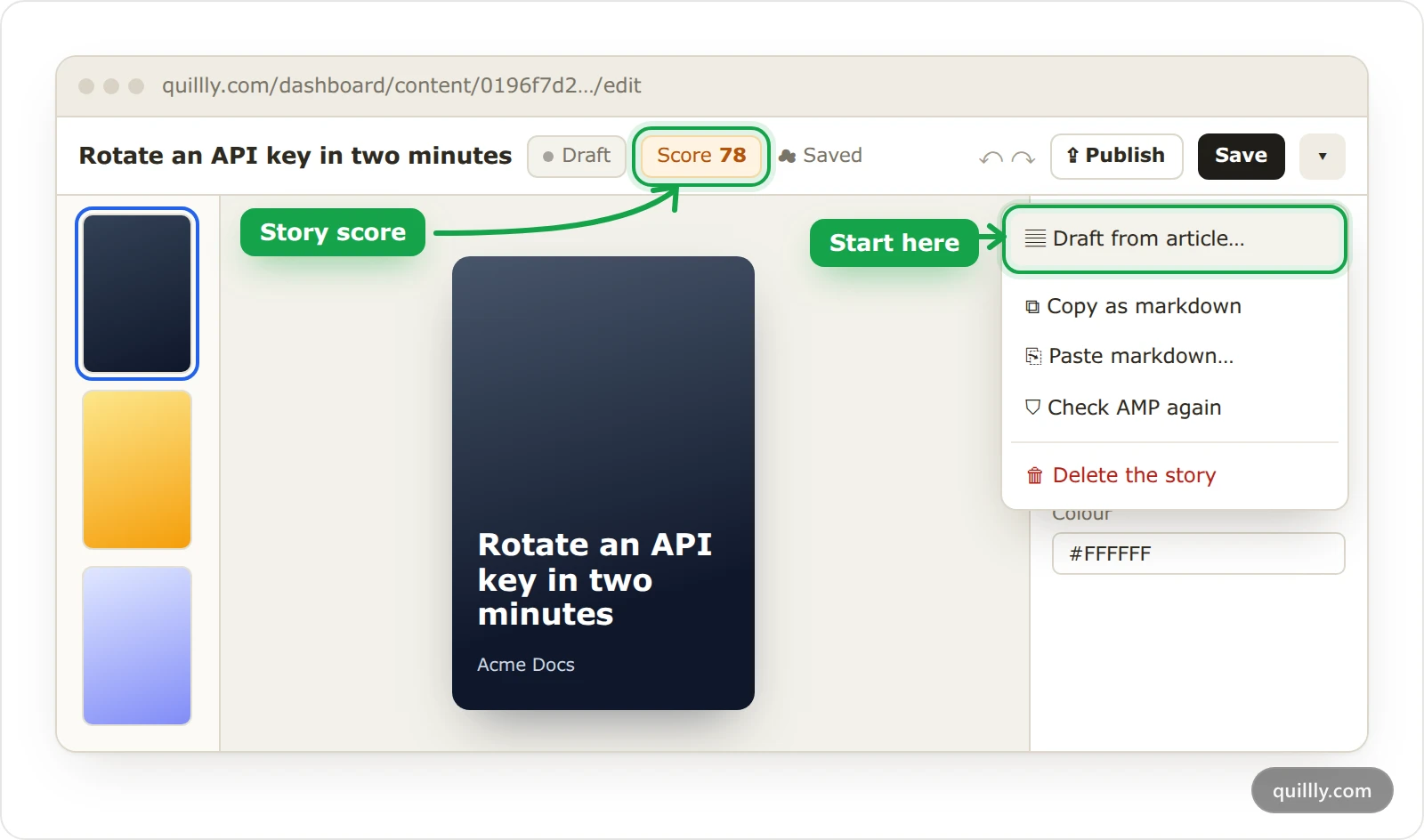
Edit the slides and save#
The strip on the left lists the slides: add one, duplicate one, or drag to reorder. The slide in the middle is where you edit text, shapes, pictures and the background, and the panel on the right sets the font, size, colour, animation and background motion of what you selected. Undo and redo work with ⌘Z and ⇧⌘Z. Click Save when you are done.
Publish the story#
Click Publish. Quillly checks the story against the AMP validator first, and it refuses while the page itself is unpublished: a story cannot outlive the page it links to.
The menu next to Save also has Copy as markdown, Paste markdown…, Check AMP again, Open the live story and Delete the story. When the AMP validator finds errors, they are listed under the editor's top bar and publishing is blocked until you fix them.
Make web stories with your AI#
Ask your AI: "Make a web story for the post about rotating API keys, then publish it." It uses manage_web_story, which can draft slides from the page, save them, check the AMP and publish, in the same steps as the dashboard.
Your AI works on the same slides you see in the story editor, written as Markdown or JSON. Stories can use any family from Google Fonts, in the story editor or through your AI, which finds them with list_fonts. Two settings are only available through your AI:
A custom poster, the 3:4 card Google shows, instead of the crop of slide 1.
The publisher name and logo the story carries, which otherwise come from your Brand page.
It follows the same rules for pictures as the drafting: the page's own pictures first, then your uploads, then colour and gradient backgrounds. Stock photos are only for evergreen topics, and never for a news story about a real event.
What the story score checks#
Web stories have their own score from 0 to 100, separate from the page's SEO score. It is built from 13 checks, and 70 or more is a pass:
Check | What it wants |
|---|---|
Cover | A 3:4 poster of at least 640 by 853 pixels, and a headline on slide 1 of 40 characters or fewer. |
Publisher | A square logo of at least 96 pixels, made from the logo on the Brand page. |
Length | Between 4 and 30 slides. |
Text per slide | No more than 200 characters of text on a slide. |
Readable type | Body text of 16 pixels or more, headings of 24 or more, two font families at most, nothing overflowing. |
Legibility | Text that stands out from what is behind it. Over a photo, that means an overlay or a pill behind the text. |
Alt text | A description on every picture and video. |
Motion restraint | At most three animated layers per slide, each entrance between 0.2 and 2 seconds. |
Pacing | Auto-advance, when used, slow enough to read the slide. |
Call to action | A link on the last slide. |
Links | Working https links with labels that name the destination, and the last slide pointing at the page. |
Complete arc | At least three slides after the cover that say something real, so the story is not a teaser. |
Valid AMP | The story passes the official AMP validator. |
Google's web story best practices explain the reasons behind most of these.
How a story counts in the page's SEO score#
Web stories count toward the SEO score of blog posts and news stories. With no story, that check fails. A draft story earns half, a published story below 70 earns three quarters, and a published story that scores 70 or more passes. Docs pages and changelog entries can have stories too, but their SEO score does not check for one. A missing story costs a few points and never blocks publishing.
Where a published story appears#
Published web stories live at the address of their section, followed by /web-story/ and the page's slug, such as acme.com/blog/web-story/rotate-api-keys. Each one is an AMP story, a page of its own that Google can show in Search and Discover.
The page it was made from shows a Story link: next to the reading time on a blog post, next to the times on a news story, under the date of a changelog entry, and beside Copy page on a docs page. The story is also listed in your sitemap and your llms.txt file.
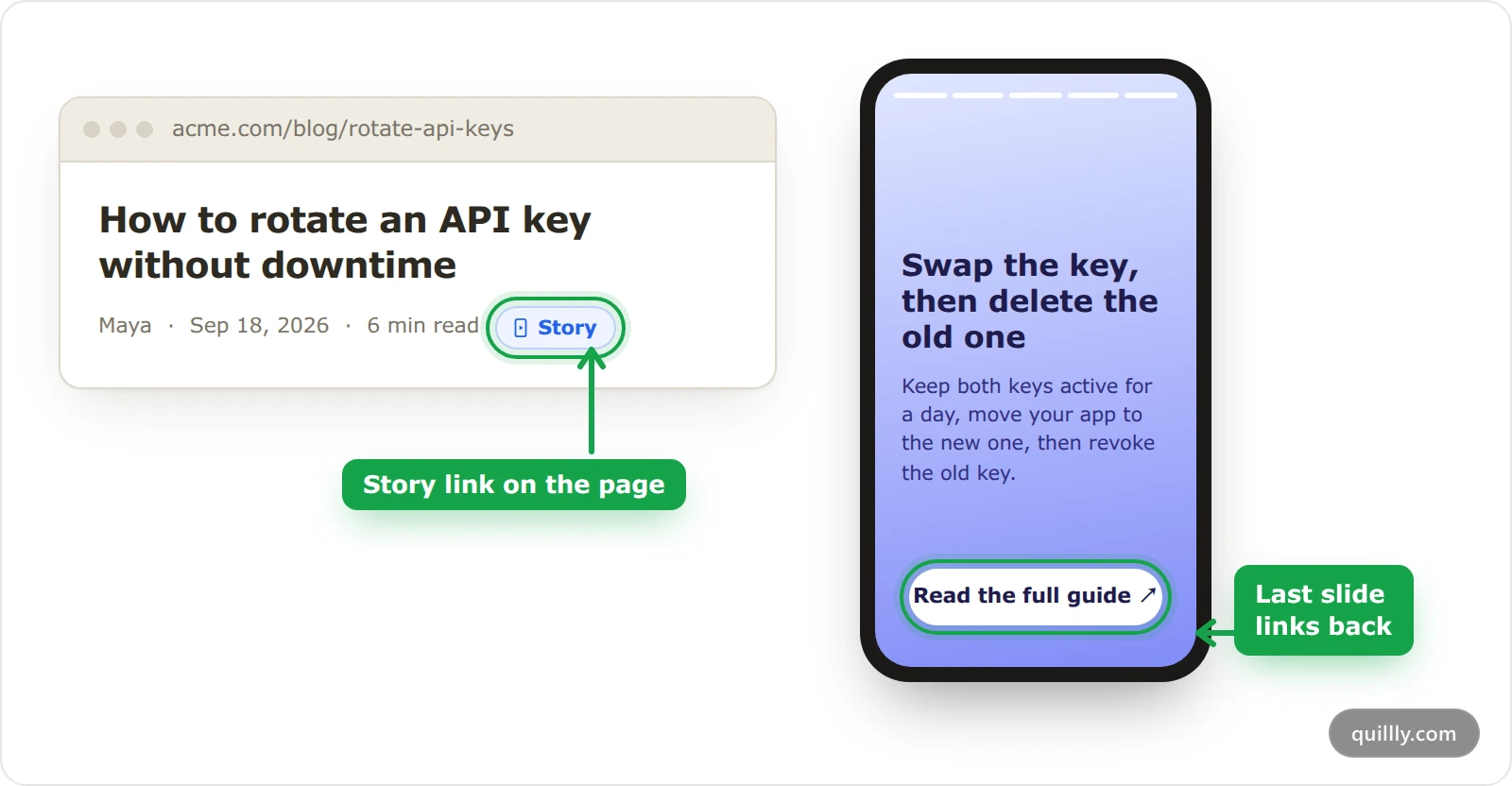
Unpublish in the story editor takes the story offline and removes the Story link. The slides are kept.
Unpublishing the page takes its story offline too.
Delete the story removes it for good. The page is not touched.
If you change the page's slug, the story's old address redirects to the new one.
Common questions#
Why is Publish greyed out in the story editor?#
Either the story has not been saved yet, or the AMP validator found errors. Save the story, then fix the errors listed under the top bar.
Why was publishing refused with "Publish the article first"?#
The page the story belongs to is still a draft. Publish the page, then publish the story.
Does a changelog entry need a story?#
No. Changelog entries and docs pages are not scored on stories, and a short release note rarely fills the four slides a story needs.
Related#
The editor: the editor the Story button lives in.
Publishing: how the page itself goes live.
MCP tools:
manage_web_story,list_fontsand the rest of your AI's tools.