

You live in VS Code. You write code there, review PRs there, run your terminal there. Then a blog post needs to go out, and suddenly you're tab-hopping into WordPress, fighting the block editor, re-pasting markdown that lost its headings, re-uploading an image, and retyping a meta description from memory.
That handoff is the slowest part of blogging. It's also the most skippable.
In 2026 you can publish blogs from VS Code without opening a CMS at all. GitHub Copilot's agent mode can call external tools through the Model Context Protocol (MCP) — the same wiring that lets it talk to GitHub, Postgres, and Playwright. Point it at a blog-publishing MCP server and the agent drafts the post, scores it for SEO, and ships it to yourdomain.com/blog. You stay in one window.
This guide is the exact setup: the .vscode/mcp.json config (which is not the same as Cursor's), how to flip on agent mode, the four-move loop the agent runs, and the gotchas that bite first-timers. As of June 2026, this is the fastest path from prompt to published.
Publish blogs from VS Code: the short answer#
To publish blogs from VS Code, add a blog-publishing MCP server to your .vscode/mcp.json file, switch GitHub Copilot Chat into agent mode, then ask the agent to draft, SEO-score, and publish the post to your own domain. The post lands at yourdomain.com/blog/your-slug — a subdirectory, not a subdomain — with the sitemap and RSS updated automatically.
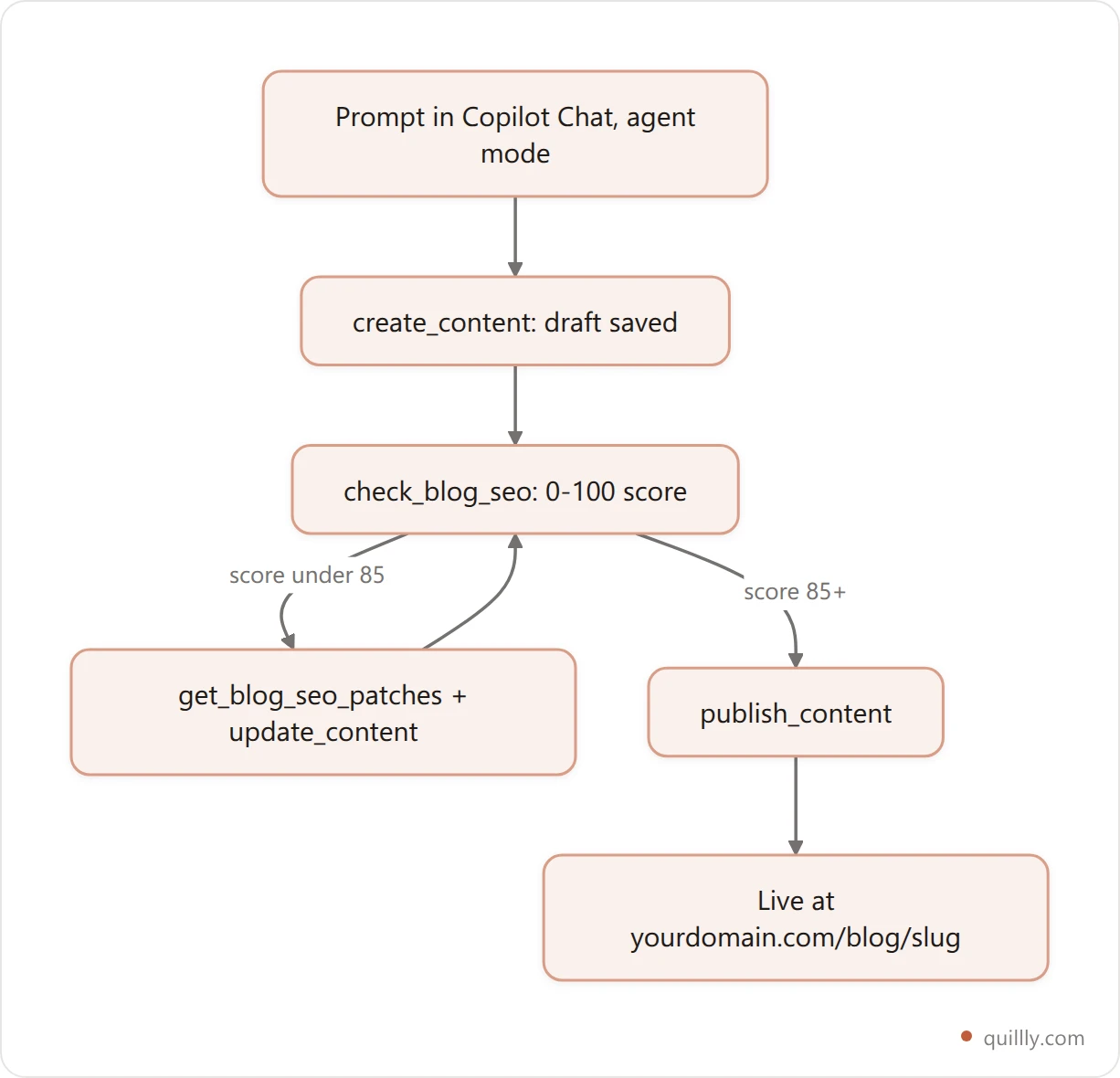
That's GitHub Copilot blog publishing in one window. The rest of this post is the detail: the config block, the agent settings people miss, the prompts that work, and how to stop the agent from shipping a 60-score draft you'll regret next quarter.
Why VS Code is a blog publishing surface in 2026#
VS Code stopped being "just an editor" the day GitHub Copilot agent mode and MCP support reached every user. That happened on April 4, 2025, when GitHub rolled agent mode and MCP out to all VS Code users (GitHub Blog). The GitHub team described MCP as a way to "equip agent mode with the context and capabilities it needs to help you, like a USB port for intelligence."
The reach is the story. VS Code was used by 75.9% of developers in the 2025 Stack Overflow survey, holding the #1 IDE spot for the fourth year running (Visual Studio Magazine). Microsoft reported 50 million monthly developers across Visual Studio and VS Code as of May 2025. No other publishing surface has that footprint.
MCP itself went from niche to default fast. It hit 97 million monthly SDK downloads by March 2026, up from roughly 2 million at launch in November 2024 — a 4,750% jump in 16 months (Digital Applied). With 5,800+ public servers now in the wild, a blog-publishing server is just one more plug.
Here's the strategic part. Kevin Indig, who's spent the last year studying how LLMs pick citations, puts it plainly: "Trust is the most important ingredient for success in organic and AI Search" (Coalition Technologies). Trust compounds when you publish consistently from your own domain. And 73% of B2B buyers say thought leadership is more trustworthy than marketing material (Edelman-LinkedIn 2024 B2B Thought Leadership Report). The fastest way to publish consistently is to delete the handoff. VS Code plus MCP deletes it.
The 4-move publishing loop#
Every post you ship from VS Code runs the same four moves. Name them, and Copilot's agent can run them in order without stopping to ask.
Move | What the agent does | Tool it calls |
|---|---|---|
1. Draft | Writes the post in markdown from your prompt and style rules |
|
2. Score | Runs 14+ SEO checks and returns a 0-100 grade |
|
3. Patch | Applies surgical find-and-replace fixes for each issue |
|
4. Publish | Pushes live to your domain, regenerates the sitemap, notifies 8 search engines |
|
Call this the 4-move publishing loop. The whole point is that no human moves data between steps. The agent reads the score, sees what's broken, applies the patches, re-scores, and only ships when the post clears your quality bar. Dial in your prompt and your config once, and the next 50 posts run the same way.
Step 1: Add the VS Code MCP server to .vscode/mcp.json#
VS Code reads MCP servers from an mcp.json file. You have two places to put it (VS Code MCP docs):
.vscode/mcp.jsonin your project root — scopes the server to that workspace. Commit it, and your whole team gets the same setup.The user-level config — run MCP: Open User Configuration from the Command Palette to make the server available in every workspace.
Here's the one gotcha that trips up everyone coming from Cursor or Claude Desktop: in VS Code the root key is servers, not mcpServers. Get that wrong and the server silently never loads.
A working config for a hosted blog-publishing server like Quillly looks like this:
{
  "inputs": [
    {
      "type": "promptString",
      "id": "quillly-key",
      "description": "Quillly API key",
      "password": true
    }
  ],
  "servers": {
    "quillly": {
      "type": "http",
      "url": "https://quillly.com/api/mcp",
      "headers": {
        "Authorization": "Bearer ${input:quillly-key}"
      }
    }
  }
}
Three things in that block matter:
**"type": "http"**is for remote servers. Quillly runs as a hosted HTTP server, so it usestype,url, andheaders. Servers that run locally on your machine (like the GitHub one) usecommandandargsinstead. VS Code speaks both transports.Secrets go through
**inputs**, not env vars. The first time the server starts, VS Code prompts you for the key. With"password": true, the input is masked and stored in your OS secret store — it never sits in plaintext in the repo. This is the real difference from Cursor, which uses${env:...}interpolation instead.Grab your key once. Copy your API key from the Quillly dashboard (Dashboard → Connections, which also shows ready-made snippets for each editor), paste it when VS Code asks, and you're done. Rotate it later without touching the config file. The server endpoint is
https://quillly.com/api/mcp— not a docs page — and the connect-your-AI guide walks through the other clients.
Once saved, a Start action appears above the server block. Click it. VS Code shows a trust dialog the first time you launch any server — confirm it. If you'd rather skip the JSON, run MCP: Add Server from the Command Palette, pick HTTP, and paste the URL.
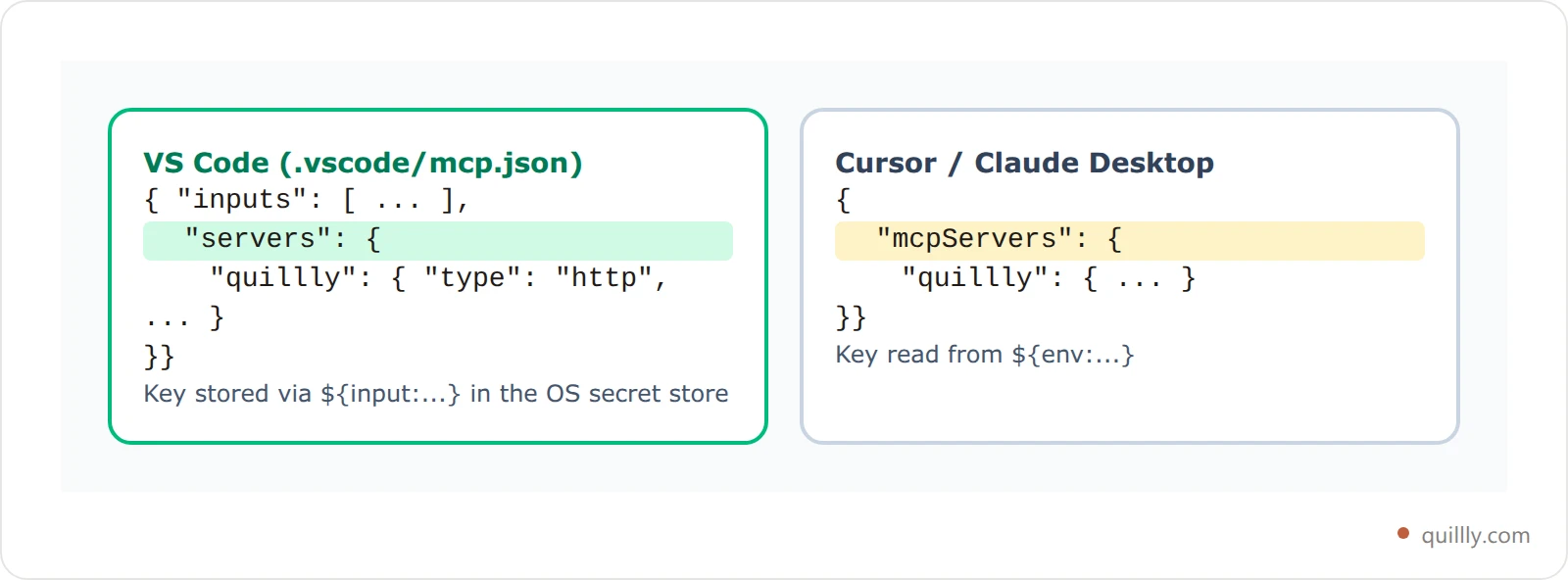
The format is nearly identical to other editors because they all speak the same MCP spec. If you've already wired this up in Cursor's mcp.json or Claude Desktop, the only real edits are the root key and how you store the key.
Step 2: Switch Copilot into VS Code agent mode#
MCP tools only fire in agent mode. This is the single most common reason the setup "doesn't work" — the server is connected, but Copilot is in the wrong mode and never calls a tool.
Open Copilot Chat, click the mode dropdown at the bottom of the chat input, and select Agent. Ask mode answers questions. Edit mode edits open files. Only Agent mode plans a task, calls tools, reads the results, and keeps going until it's done — which is exactly the shape of draft, score, patch, publish.
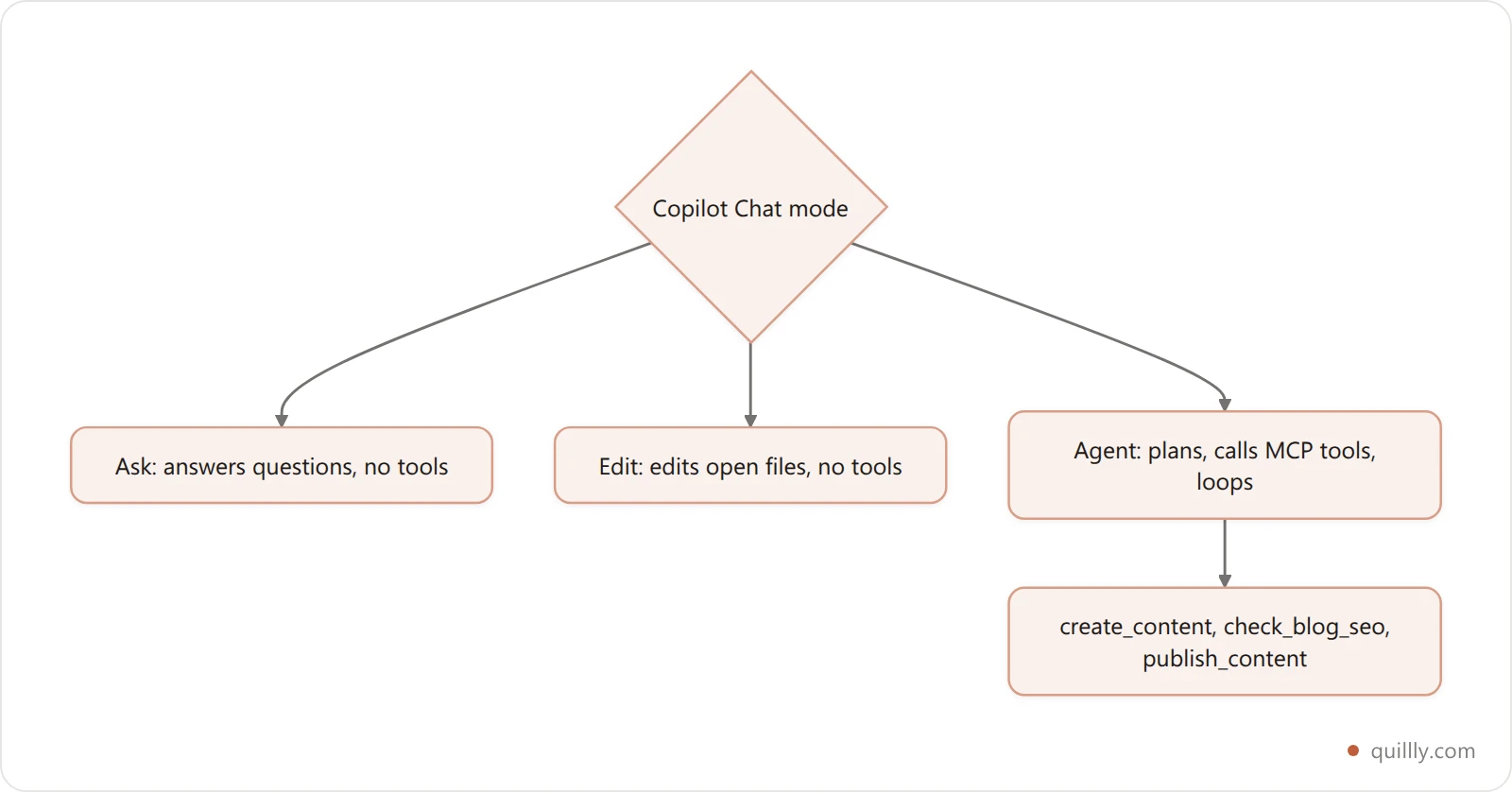
Once you're in agent mode, click the Configure Tools button in the chat input. You'll see every tool the quillly server exposes — create_content, check_blog_seo, publish_content, suggest_internal_links, and the rest — and you can toggle individual tools on or off.
One ceiling to know about: VS Code limits how many tools you can enable in agent mode at once (around 128). Install a dozen chatty servers and you'll blow past it, at which point the agent quietly loses access to some tools. Keep your active set lean. For publishing, you need five or six tools, not fifty.
Step 3: Draft, score, and patch from the chat panel#
The real work happens in three moves inside one conversation. You never leave the chat panel.
Draft. Write a real prompt, not "write a blog about X." A working prompt has four parts: topic, keyword, audience, and evidence.
Topic: How to roll out a feature flag without breaking prod
Primary keyword: feature flag rollout
Audience: senior backend engineers at Series A startups
Word count: 3,000-3,400

Sources: LaunchDarkly's 2026 trunk-based dev report,
plus two real PRs from our repo (linked below).

Voice: builder-to-builder, contractions, short paragraphs,
code block for every "how to actually do it" claim.

Call create_content (status: draft) on website_id <your_id>.
The first draft won't be perfect. It doesn't have to be — the next two moves fix it.
Score. Ask the agent to run check_blog_seo. It runs 14+ criteria against the saved draft and returns a 0-100 score with a per-criterion breakdown — meta tags, heading structure, keyword placement, internal links, readability grade, content length, and more. We break down exactly what those checks look for in the 14-point blog SEO checker guide.
Why score before you publish? Two numbers. 44.2% of all ChatGPT citations come from the first 30% of a page (ALMCorp citation study) — if your intro doesn't lead with a direct answer, the rest barely counts for AI search. And content updated within the last 30 days earns 3.2x more citations than content older than 90 days (SE Ranking). Scoring catches structural gaps before they go public.
Patch. This is where naive AI workflows fall over: the agent gets a low score, regenerates the whole post, and breaks something else. Patches solve that. get_blog_seo_patches returns surgical find-and-replace operations, each with a projected score impact:
[
  {
    "find": "## Why this matters",
    "replace": "## Why feature flag rollouts matter in 2026",
    "impact": "+4 (H2 keyword coverage)"
  },
  {
    "find": "Learn how to roll out features safely.",
    "replace": "Learn to roll out features without breaking prod.",
    "impact": "+3 (meta description CTA)"
  }
]
The agent stacks every patch into one update_content call, re-scores, and reports the new number. Your control prompt is one line:
Run check_blog_seo. If score < 85, run get_blog_seo_patches
and apply every fix with update_content in a single call.
Re-score. Loop until 85+ or two passes. Then show me the report.
You set the threshold. The agent decides when to stop.
Step 4: Publish to your own domain (not a subdomain)#
Here's the contrarian bit most "AI blog" tools get wrong: they publish to something.theirsite.com, a subdomain you don't own. Subdomains don't share link equity with your root domain the way subdirectories do, and Google has spent a decade quietly favoring subdirectory blogs for authority signals. We dug into the data in subdirectory vs subdomain SEO.
People search for this as "publish blog to own domain", and what they want is exactly that: the post on a URL they control. Quillly publishes at yourdomain.com/blog/your-slug — same domain, same authority, same Search Console property. When the agent calls publish_content:
The post goes live at your subdirectory URL.
Your
/sitemap.xmlregenerates automatically.Your RSS feed updates.
Google receives the updated sitemap and RSS feed through Search Console (when it's connected), and Bing, Yahoo, Yandex, Naver, Seznam, Yep and Amazon are notified through IndexNow. Quillly never uses Google's Indexing API, which Google restricts to job-posting and livestream pages.
The post shows up in
list_contentwith an indexing status.
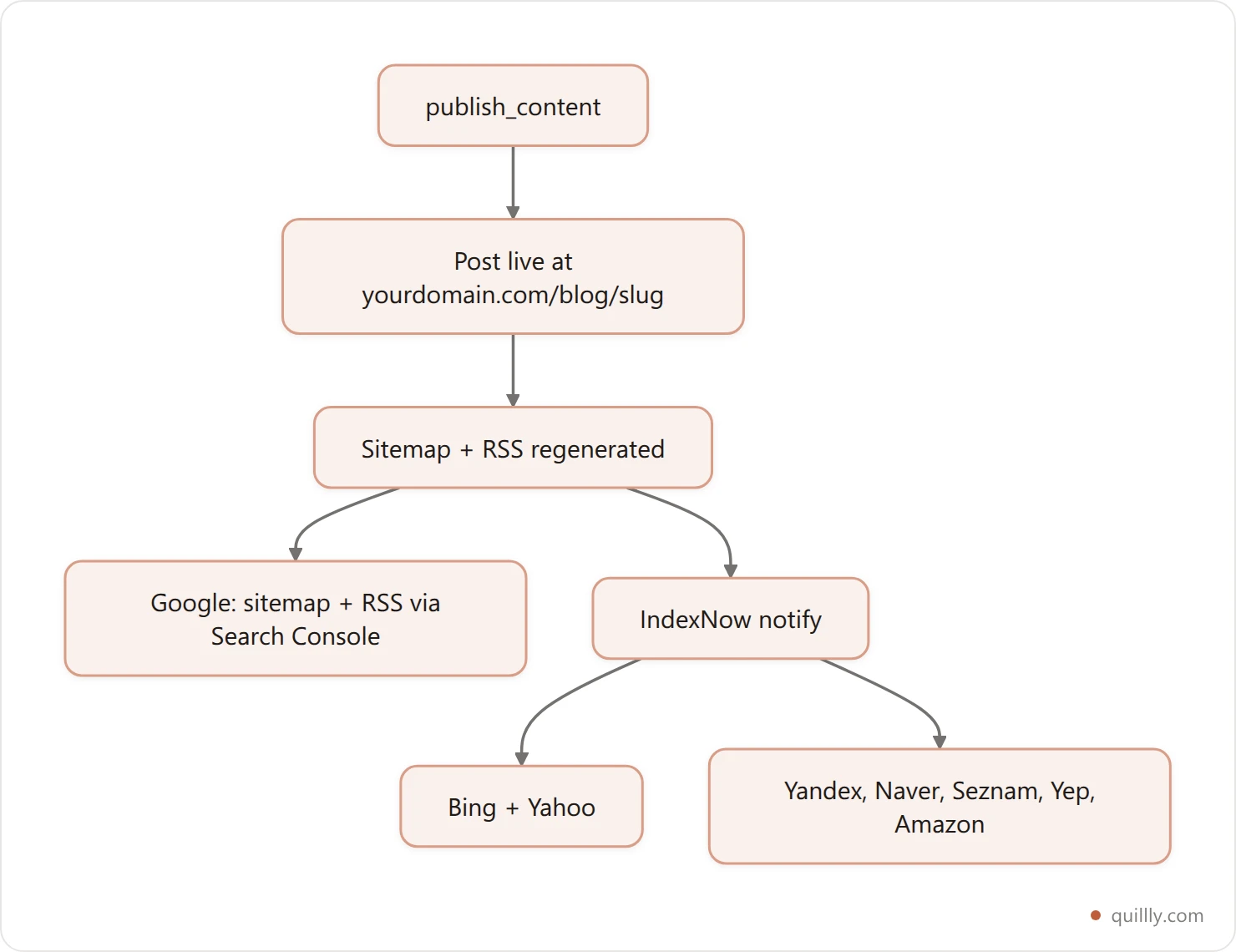
Publishing isn't the end of the loop — it's the start of the feedback loop. A later list_content call shows when Google moves the post from submitted to indexed, plus search position, clicks, and impressions once GSC data flows. That data feeds back into your next prompt. We cover that half of the loop in the Search Console MCP workflow.
VS Code vs Cursor vs Claude Desktop: what actually differs#
All three speak the same MCP spec, so 90% of the setup is identical. Three details differ, and they're exactly the three that break a copy-pasted config.
Detail | VS Code (Copilot) | Cursor | Claude Desktop |
|---|---|---|---|
Config file |
|
|
|
Root JSON key |
|
|
|
Secret handling |
|
|
|
Agent trigger | Agent mode dropdown | Agent panel (default) | Chat (default) |
Active tool ceiling | ~128 in agent mode | ~40 active | no hard cap |
The takeaway: pasting a Cursor config straight into VS Code is the number-one reason "it doesn't work." Rename mcpServers to servers, swap ${env:...} for an inputs block, and you're live.
Old workflow vs VS Code + Copilot: the before/after#
The reason this matters isn't theoretical. It's a flat time delete on the part of blogging nobody enjoys.
Step | Old way (ChatGPT → WordPress) | VS Code + Copilot |
|---|---|---|
Draft | Write in ChatGPT, copy markdown | Prompt agent in Copilot Chat |
Format for CMS | Paste into WordPress, fix blocks | Already markdown — no transform |
Featured image | Upload to media library, copy URL | Agent calls |
Meta tags | Type into Yoast by hand | Agent generates, checks length |
Internal links | Search old posts, copy URLs | Agent calls |
SEO check | Switch to Surfer, score, fix | Agent calls |
Publish | Click publish, hope it doesn't 504 | Agent calls |
Submit to search engines | Paste URL into GSC manually | Sitemap + RSS to Google, IndexNow to the rest |
Time per post | 90-180 minutes | 5-15 minutes |

Picture a solo founder shipping two posts a week. The old column is roughly four to six hours of context-switching every week. The right column is under an hour, in one window. Over a quarter that's the difference between 26 posts and a backlog of good intentions.
That's the contrarian thread running through this whole approach: stop moving your blog into a separate stack — pull publishing into your editor. The CMS as a distinct destination was a 2010s assumption. In a 2026 agent stack, the editor is the publishing surface.
Five mistakes first-timers make#
Most people hit the same five potholes on their first publish. Skip them.
1. Copying a Cursor or Claude config verbatim. Those use mcpServers. VS Code uses servers. Rename the key first, debug second.
2. Leaving Copilot in Ask mode. Tools never fire outside agent mode. If the agent describes what it would do instead of doing it, check the mode dropdown.
3. Publishing at score 70. Set a hard floor of 85 and let the agent loop until it clears. The patch step is cheap; ranking a thin post is not. 72.4% of cited blog posts include an identifiable answer capsule, per the ALMCorp study — structure is what gets you quoted.
4. Skipping the FAQ section. PAA-style FAQs are the single most-cited block by ChatGPT and Google AI Overviews. See the 2026 AEO playbook for the patterns LLMs reward. Ask for the FAQ explicitly in your prompt.
5. Shipping to a subdomain because it's one click faster. It's a permanent SEO tax. Wire up yourdomain.com/blog once and every future post consolidates authority to a single domain.
Aleyda Solis frames the bigger picture well: AI search is both a performance channel and a visibility channel. The reason MCP wins here is composability — one agent can run quillly for publishing, github for sourcing changelogs, and a search server for fresh stats, all in the same conversation. We map that full stack in the MCP servers for SEO guide.
A Copilot prompt that ships a post tonight#
Theory is fine. Here's a prompt you can paste straight into Copilot Chat (agent mode) and ship a post tonight. Edit the bracketed parts and let it run.
You are my blog publishing agent. Use the quillly MCP server.

Topic: [your topic]
Primary keyword: [keyword]
Audience: [who reads this]
Word count: 3,000-3,600
Voice: builder-to-builder, contractions, no marketing fluff,
no "in today's fast-paced world."

Workflow:
1. Search the web for 5+ recent stats with source URLs.
2. Draft in markdown: H1 under 60 chars, a 40-60 word
   direct-answer paragraph after the first H2, 8-10 H2
   sections, an FAQ with 6 questions, a short conclusion.
3. Call create_content (status: draft) on website_id [your_id].
4. Call check_blog_seo. If score < 85, call
   get_blog_seo_patches and apply all fixes via one
   update_content call. Re-score. Loop max 2 times.
5. Call suggest_internal_links and apply the relevant ones.
6. Call publish_content when score is 85+ and the meta
   description is 160 characters or less.
7. Report the live URL and the final score.
That's the whole thing. The agent runs to completion with no copy-paste anywhere in the loop. Save the prompt in a prompts/blog.md file in your repo and version-control it — your prompts are the most valuable artifact in this workflow, so treat them like code.
If you'd rather queue posts than ship them live, swap step 6 for scheduled publishing on the Pro plan and the agent sets a future publish time instead. For higher volume, the same pattern batches: we cover it in the programmatic SEO with MCP guide.
Frequently asked questions#
Does GitHub Copilot support MCP servers in VS Code?#
Yes. GitHub rolled agent mode and MCP support out to all VS Code users on April 4, 2025. MCP servers are configured in an mcp.json file (workspace-level at .vscode/mcp.json, or user-level via the MCP: Open User Configuration command). The tools only become callable when Copilot Chat is in agent mode — Ask mode and Edit mode won't trigger them. You can toggle individual tools with the Configure Tools button.
Do I need a paid Copilot plan to publish blogs from VS Code?#
You need GitHub Copilot enabled in VS Code with agent mode available, which is included in Copilot's free and paid tiers as of 2026. The publishing itself is handled by the MCP server you connect, not by Copilot. A hosted server like Quillly opens with a 14-day trial that needs no card, so you can run the full draft-to-publish loop without paying for either tool while you test the workflow.
Why isn't Copilot calling my MCP tools?#
The two usual causes are mode and config. First, confirm Copilot Chat is in Agent mode — tools never fire in Ask or Edit mode. Second, check that your mcp.json uses servers as the root key, not mcpServers (that's a Cursor convention). Then open Configure Tools to confirm the server's tools are toggled on and you haven't hit the ~128-tool ceiling.
Where do I put my API key so it's not in the repo?#
Use VS Code's inputs mechanism. Define an input with "type": "promptString" and "password": true, then reference it in your server config as ${input:your-id}. VS Code prompts you for the value the first time the server starts and stores it in your operating system's secret store. The literal key never lands in mcp.json, so it's safe to commit the config file to a shared repo.
Can VS Code publish to WordPress instead of my own domain?#
Yes, some MCP servers expose WordPress as a tool surface. The trade-off is the block editor's quirks: markdown-to-Gutenberg conversion is lossy, image uploads can be flaky, and SEO scoring is missing unless you bolt on Yoast or Rank Math separately. If you want a markdown-native pipeline that publishes to your own domain without WordPress overhead, an MCP-first platform removes those moving parts.
Will Google penalize blog posts published by an AI agent?#
Not if the content is genuinely useful. In a 42,000-post Semrush analysis, human-written content ranked #1 about 80% of the time versus 9% for purely AI-generated pages (Search Engine Land). We unpack the wider data in does Google penalize AI content. The fix isn't to avoid AI — it's to keep a human in the loop. Use the agent to draft and patch, then review the final draft yourself before approving the publish step. Hybrid workflows consistently beat pure-AI ones.
How do I publish from VS Code without GitHub Copilot?#
Any MCP-capable VS Code extension works. Open-source agents like Continue and Cline both read MCP server configs and can call the same create_content, check_blog_seo, and publish_content tools. The config format is the same servers block; only the chat interface changes. Copilot is the default because it ships with agent mode built in, but it's not a hard requirement.
Three takeaways before you ship#
The whole guide comes down to one move: delete the publishing handoff. Three specifics to remember:
Fix the config once. Use
servers(notmcpServers), store the key with aninputsblock, and restart VS Code. Five minutes of setup pays back on every post after.Run the 4-move loop every time. Draft, Score, Patch, Publish. A score floor of 85 cuts your "I should have edited that" rate to near zero, and structure is what earns those 44.2% first-third citations.
Keep your domain on the post. Subdomains leak link equity. Subdirectories compound it. Pick
yourdomain.com/blogand let 50 posts build authority for one domain.
Want your AI to actually publish the post it just wrote? Connect Quillly to VS Code in 30 seconds.